
Connect GitHub and GitLab accounts
Connect a GitHub or GitLab account to your workspace with a GitHub App, OAuth or an access token, then reuse it for Git sync on any project.
Connect a GitHub or GitLab account once at the workspace level, and every project in the workspace can use it to set up Git sync. This guide shows the three ways to connect an account, how to connect GitHub Enterprise or GitLab self-managed with an access token, and how to check or remove a connected account.
A Git account is a saved, encrypted credential for one GitHub or GitLab identity. Doxbrix uses it to read your repository and, when sync is two-way, to commit changes back.
Before you begin
- Your workspace must be on the Pro or Business plan. On other plans, the page shows Git Sync requires the Pro or Business plan. and the GitHub and GitLab options are unavailable. See Plans and limits reference.
- You need access to workspace settings. See Roles and permissions.
- For the token method, create a token with your Git provider first:
- GitHub: a fine-grained personal access token with Contents read and write access to the repositories you want to sync.
- GitLab: a personal or project access token with the
apiandwrite_repositoryscopes. - To let Doxbrix create a new repository for you, the token also needs permission to create repositories.
Choose a connection method
| Method | Card | Best for | How it authenticates |
|---|---|---|---|
| GitHub App | Connect GitHub | GitHub organizations | You install the Doxbrix GitHub App on an account or organization. |
| GitHub OAuth | Connect GitHub | Personal GitHub accounts | You sign in with GitHub and approve the repo and read:org scopes. |
| GitLab OAuth | Connect GitLab | GitLab.com accounts | You sign in with GitLab and approve the api scope. |
| Access token | Connect with token | GitHub Enterprise, GitLab self-managed, or any account when OAuth is not available | You paste a token, and Doxbrix verifies it with the provider. |
The Connect GitHub card uses the GitHub App when it is available, and GitHub OAuth otherwise. The card description tells you which one it uses.
Connect an account
In the app, open Settings, go to workspace settings (/settings/workspace), and select Git accounts in the left navigation.
The page lists your Connected accounts and, under Add another provider, four cards: Connect GitHub, Connect GitLab, Connect with token and Future integrations. Accounts you add here are marked Reusable across projects.
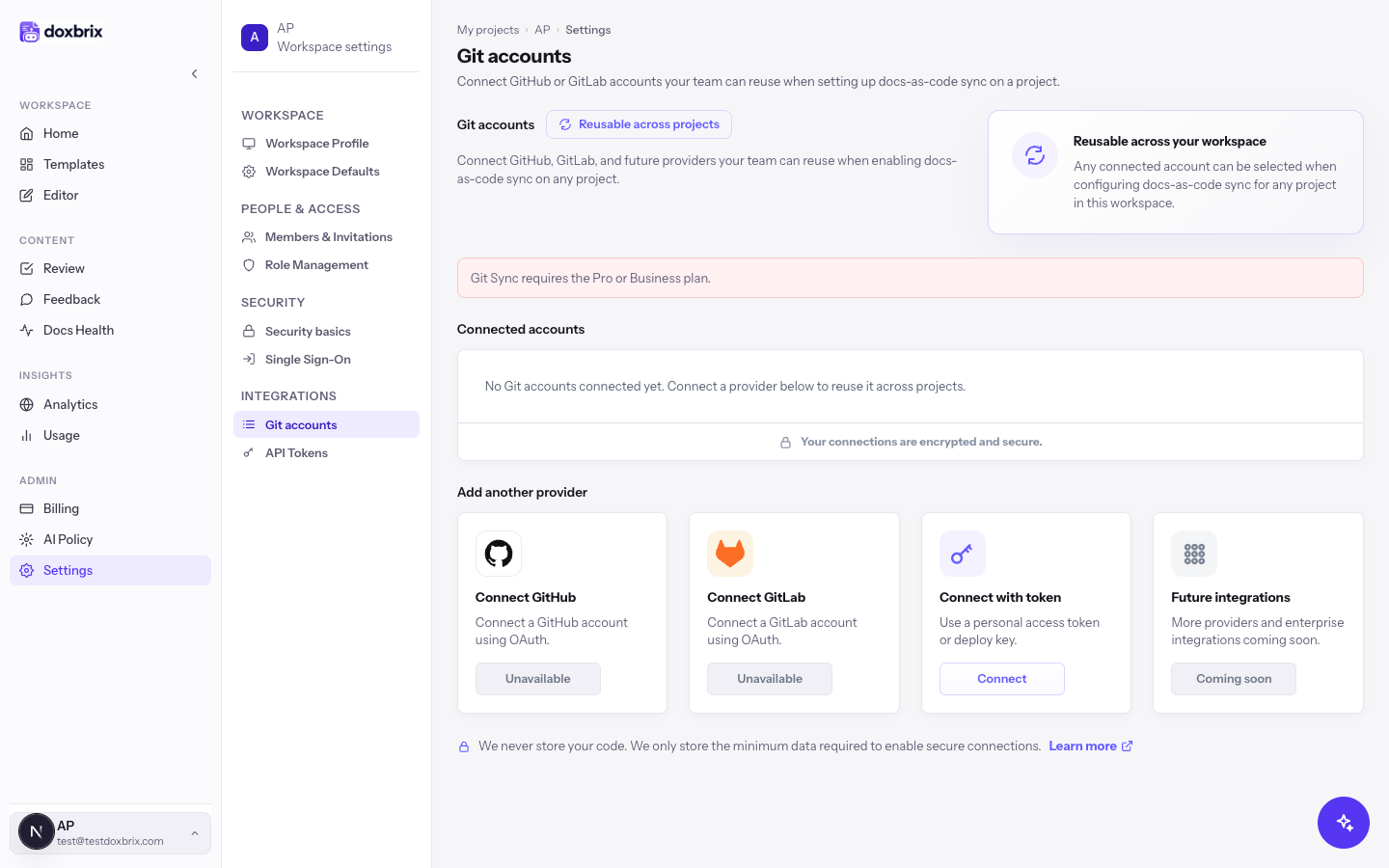
Choose the card for your method:
- For a GitHub App or GitHub OAuth, select Connect on Connect GitHub. Approve the installation or sign-in on GitHub. GitHub returns you to Git accounts.
- For GitLab OAuth, select Connect on Connect GitLab. Approve access on GitLab. GitLab returns you to Git accounts.
- For a token, select Connect on Connect with token. An inline form opens below the cards. Continue with the next step.

In Provider, select where your repositories are hosted: GitHub, GitLab, GitHub Enterprise or GitLab self-managed.
When you choose GitHub Enterprise or GitLab self-managed, a Host URL field appears.
Paste your token into Access token. The placeholder shows the expected format: github_pat_... for GitHub or glpat-... for GitLab.
For GitHub Enterprise or GitLab self-managed, enter the base URL of your server in Host URL, for example https://gitlab.example.com.
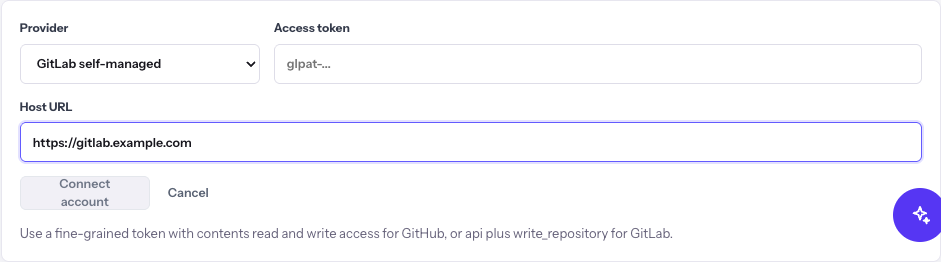
Select Connect account. Doxbrix checks the token against the provider, reads the account's user name and avatar, and stores the token encrypted.
The form closes and the account appears under Connected accounts. If the same account was already connected, Doxbrix replaces its stored token.
Verify the connection
Under Connected accounts, each account shows its user name, provider, connection method (GitHub App, OAuth or Access token), host for self-managed servers, and a status. A working account shows Connected.
To confirm that Doxbrix can see your repositories, select Manage on the account. The panel lists up to six repositories with their visibility (Private or Public) and default branch. Select Close to hide the panel.
You can now pick this account when you sync a project with a Git repository, or pass its id to dxb git connect --account <id> in the CLI.
Disconnect an account
- Under Connected accounts, select Disconnect on the account.
- In the confirmation dialog, select Disconnect.
Disconnecting removes the account from workspace Git accounts. It does not change the sync settings of projects that already use the account.
Troubleshooting
For more sync errors, see Troubleshoot the CLI, Git sync and MCP.