
Sync a project with a Git repository
Connect a Doxbrix project to a GitHub or GitLab repository, choose how edits are delivered and who wins conflicts, and manage sync runs.
Keep a project's pages in a GitHub or GitLab repository and in two-way sync with the Doxbrix editor. When someone pushes to the tracked branch, Doxbrix imports the change. When someone edits in Doxbrix, the change commits back to the repository. This guide shows you how to connect a repository, choose the sync policy, and monitor and control sync afterward.
Use Git sync when your team reviews docs in pull requests, keeps docs next to code, or wants a Git history of every change. To author locally without a connected repository, use the dxb CLI instead.
Before you begin
- The workspace must be on the Pro or Business plan. See Plans and limits reference.
- You must be a workspace owner or admin. Other roles see the message Git Sync is available on the Pro and Business plans, and only owners/admins can manage it.
- You need credentials for the repository. Either connect a Git account to the workspace, or have an access token ready:
- GitHub: a fine-grained token with Contents read and write access.
- GitLab: a token with the
apiandwrite_repositoryscopes. - To create a new repository from Doxbrix, the token also needs permission to create repositories.
- The project must not already have a Git connection. A project can have only one.
How two-way sync works
- Inbound (Git to Doxbrix): a push to the tracked branch triggers a sync through the repository webhook, or when you select Sync now. Doxbrix imports new and changed pages and the
docs.jsonmanifest. - Outbound (Doxbrix to Git): editor saves, publishes, structure changes and AI Writer edits are batched. After 15 seconds with no further edits, Doxbrix delivers them to the repository in one commit, either directly or as a pull request.
- First connection: connecting runs an import. If the repository already contains docs, Doxbrix imports them and never overwrites them. If the repository is empty (for example, only a README), Doxbrix fills it from the project's current pages.
- Conflicts: when the same content changed on both sides, the On conflict policy decides which version wins. See Resolve Git sync conflicts.
Doxbrix recognizes Doxbrix (docs.json), GitBook, imported Mintlify-style docs, and plain Markdown folders.
Connect a repository
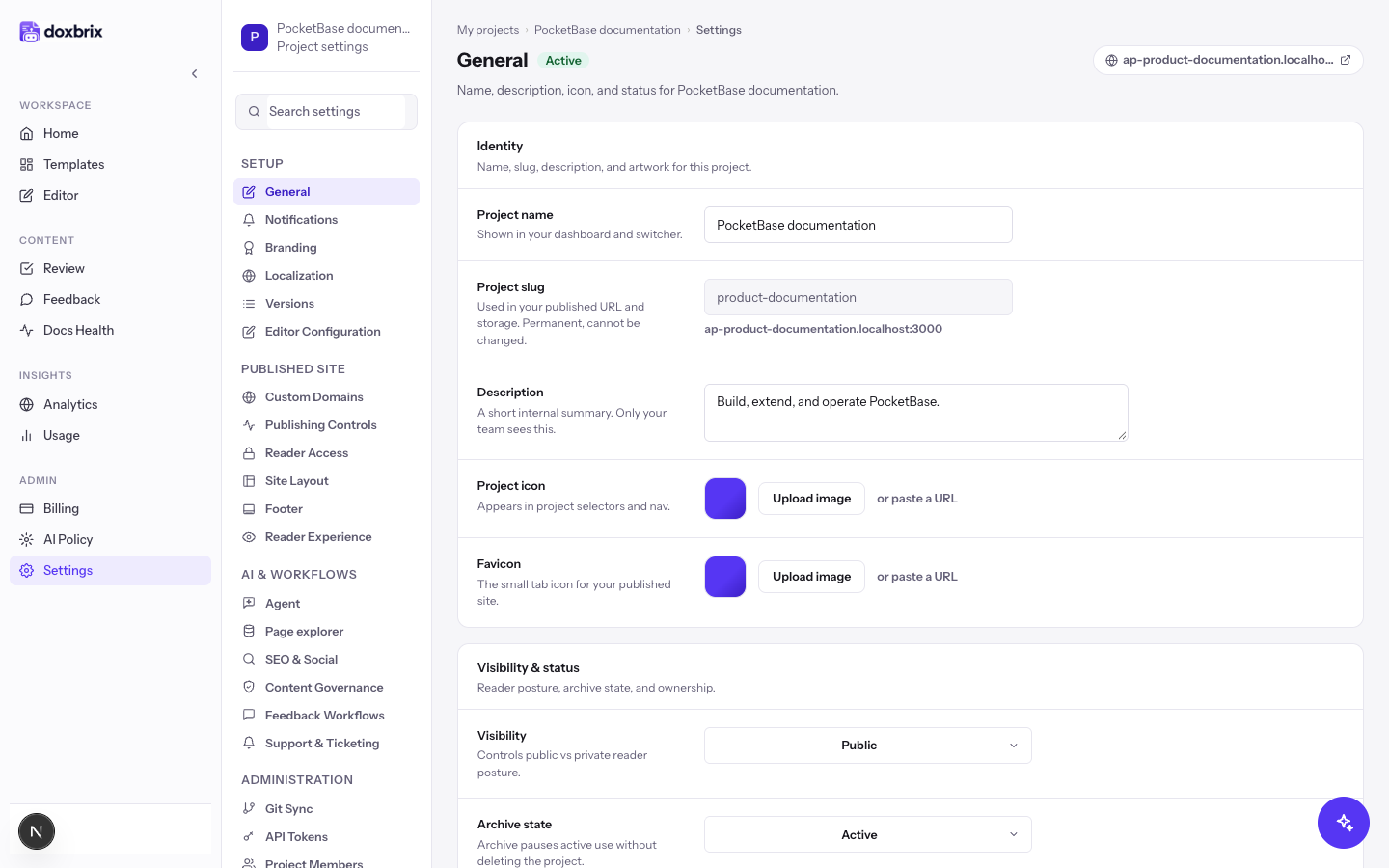
On the dashboard, find the project card, for example PocketBase documentation, and select its gear icon. Project settings open on the General section.
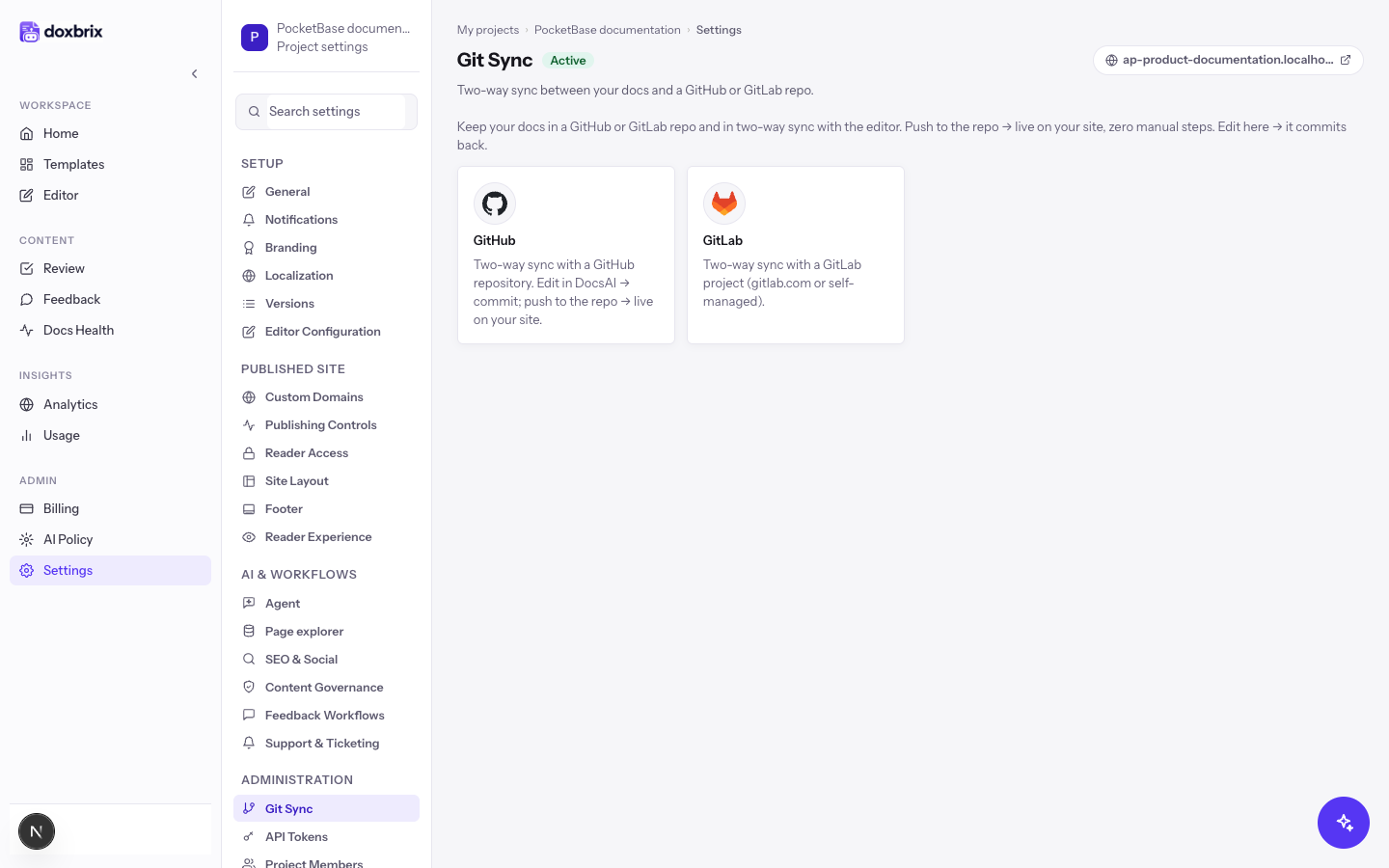
Select Git Sync under Administration. The section offers a card for each supported provider. Select GitHub or GitLab.
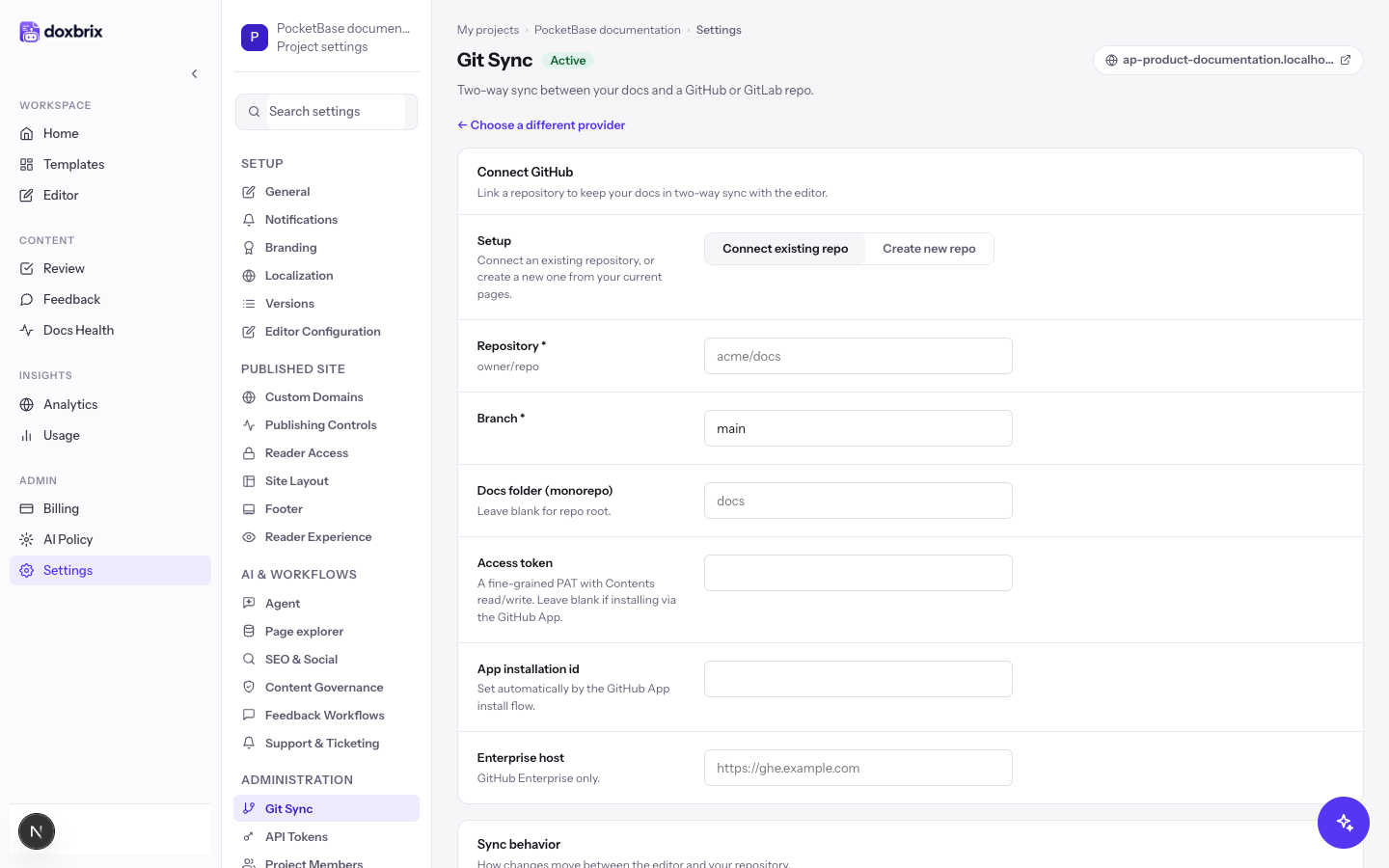
In Setup, choose one:
- Connect existing repo to import docs from a repository you already have, or to fill an empty one.
- Create new repo to have Doxbrix create a repository and commit your current pages and a
docs.jsonto it.
To go back to the provider cards, select ← Choose a different provider.
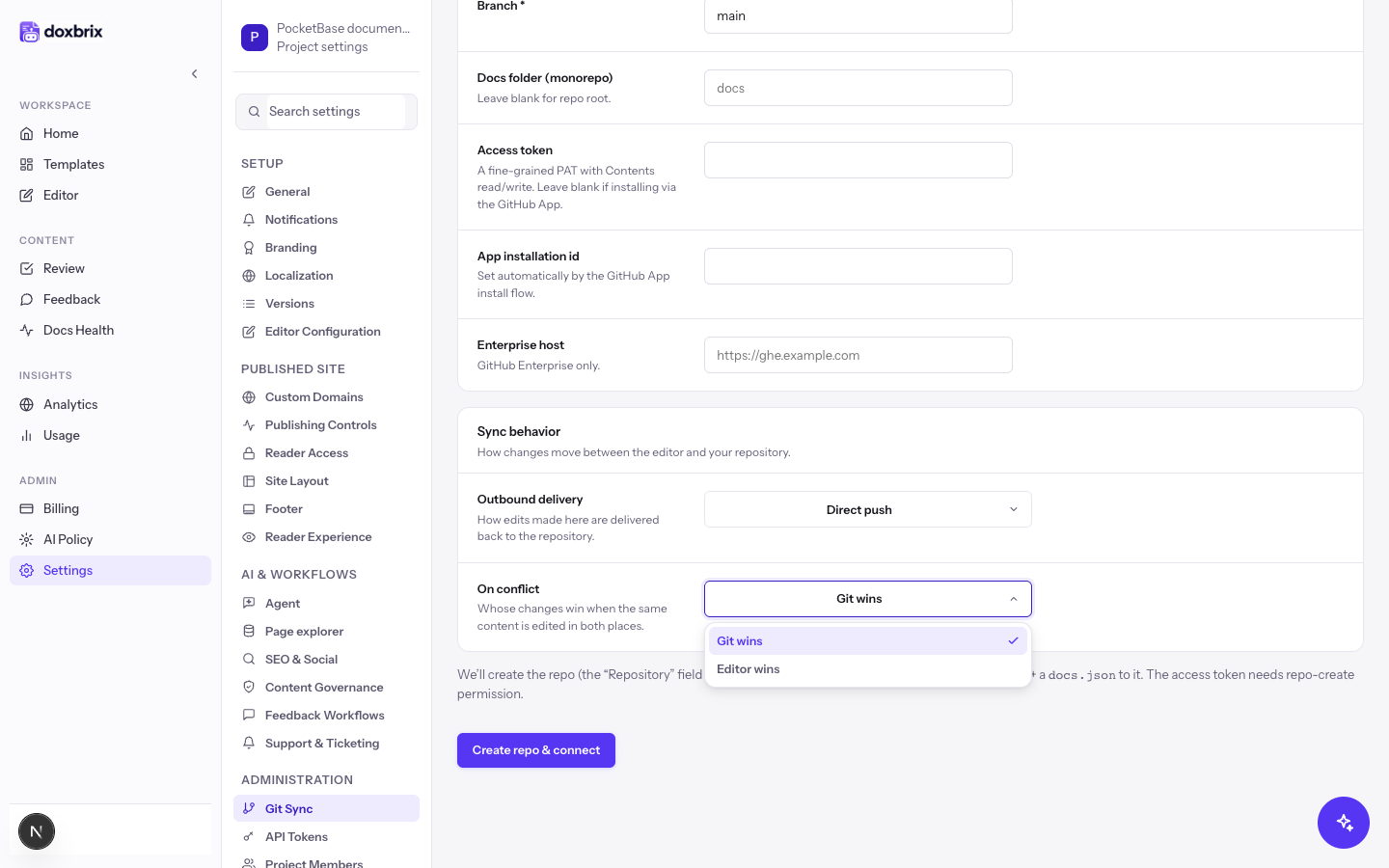
Fill in the fields. Fields marked * are required.
| Field | What to enter | Example |
|---|---|---|
| Repository | The repository as owner/name. With Create new repo, this is the name of the new repository. | acme/docs |
| Branch | The branch to track. The default is main. | main |
| Docs folder (monorepo) | The folder that holds the docs, when they are not at the repository root. Leave it empty for the root. | docs |
| Access token | A provider token, if you are not using a connected account. | — |
| App installation id | The GitHub App installation id, if you connect through the GitHub App. | — |
| Enterprise host | The base URL of GitHub Enterprise or GitLab self-managed. | https://gitlab.example.com |
With Create new repo, the form notes that Doxbrix creates the repository and commits your current pages and a docs.json, and that the access token needs repository-create permission.
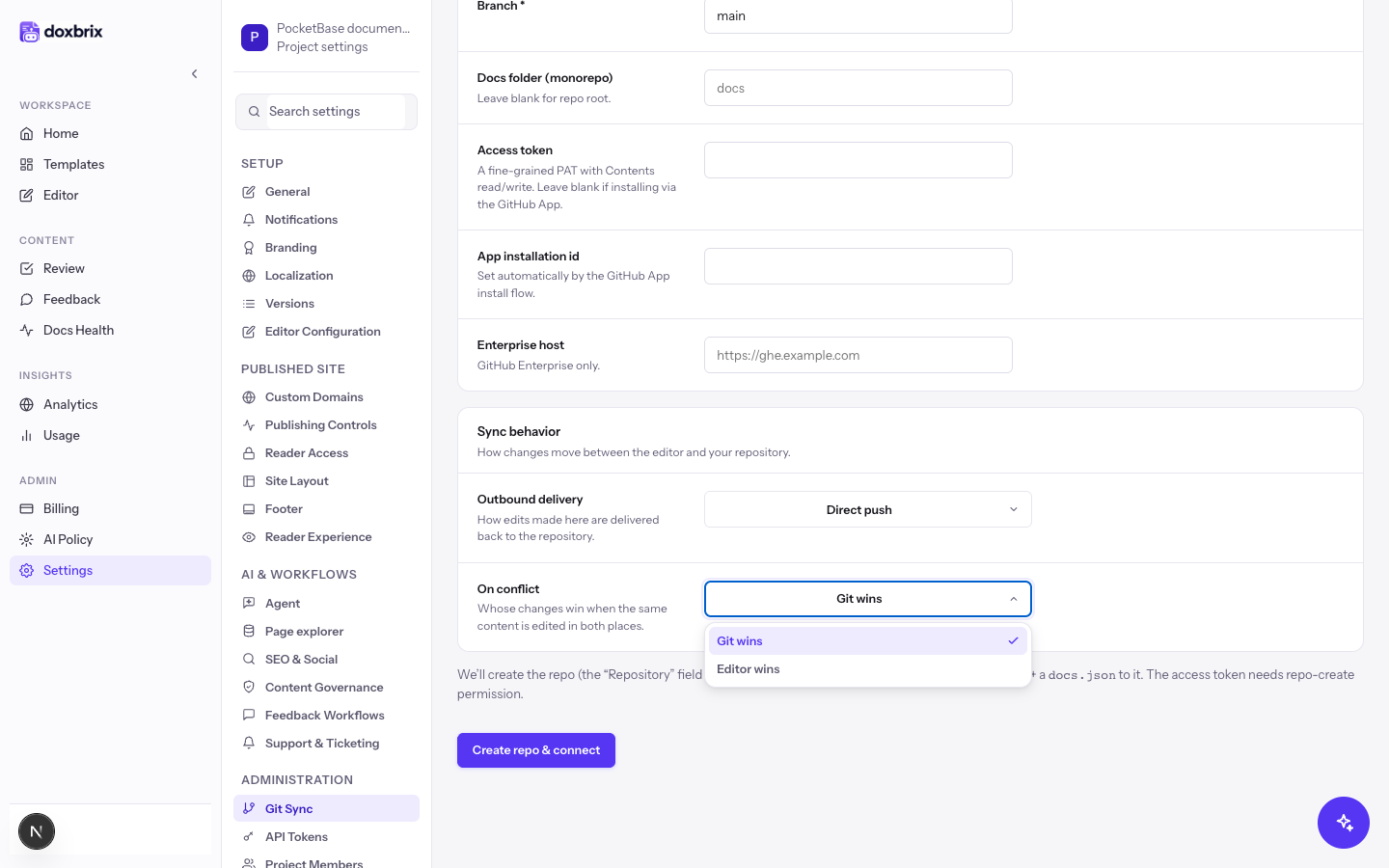
Under Sync behavior, set two policies:
- Outbound delivery decides how edits made in Doxbrix reach the repository. Direct push commits straight to the tracked branch. Open a pull request opens a pull request so your team can review it first.
- On conflict decides whose changes win when the same content is edited in both places. Git wins keeps the repository version. Editor wins keeps the Doxbrix version.
The defaults are Direct push and Git wins.
For Connect existing repo, select Preview. Doxbrix tests the credentials and shows what it would import, for example acme/docs (GitBook), 2 space(s) · 34 page(s) · 12 image(s).
If the token can only read the repository, the preview shows Read-only token: outbound sync will be disabled.
Import & connect stays disabled until the preview succeeds. Create new repo has no preview step.
Select Import & connect, or Create repo & connect for a new repository.
Doxbrix saves the connection and runs the first import. A notice confirms the result, for example Connected. GitBook repo: imported 34 page(s) across 2 space(s). The section switches to the connected view.
In the connected view, copy the Webhook URL with Copy and add it as a push webhook in your repository settings on GitHub or GitLab. The URL has the form https://<your-app-host>/api/git/webhook/github or .../api/git/webhook/gitlab.
dxb git sync. Doxbrix also reconciles connections on its own schedule.Verify the connection
The connected view shows:
- the repository name as a link, with a status of Connected, Paused or Error, the provider, the branch, and when it last synced, for example Synced 2m ago;
- Sync policy, with the Conflict policy and Outbound sync settings you chose;
- Recent sync runs, a table with Status (Success, Partial or Failed), Action, Triggered by, Pages, Commit and Time. Select View all runs → to see more than five.
To test the round trip, edit a page in Doxbrix and wait about 15 seconds. A new run appears, and the commit or pull request appears in your repository. Outbound commits use the message docs: sync N page(s) from DocsAI, and pull requests come from branches named docsai/sync-*.
Manage sync
| Action | Control | Effect |
|---|---|---|
| Sync immediately | Sync now | Pulls the latest commit from the tracked branch and pushes pending editor changes. |
| Stop syncing temporarily | Pause sync | Stops all sync runs until you select Resume sync. |
| Remove the connection | Disconnect | Removes the Git connection. The notice Disconnected. Your pages remain in DocsAI. confirms that your pages stay in the project. |
| Switch repositories | Change repository → Disconnect & choose another repository | Disconnects, then returns you to the provider choice. |
| Resolve a conflict | Keep editor or Keep Git | Writes the chosen version to the page and pushes it on the next sync. |
When conflicts exist, a panel shows N unresolved conflict(s) with the Editor version and Git version of each page side by side.
You can run the same operations from the CLI:
dxb git status --project pocketbase-docs
dxb git sync --project pocketbase-docs
dxb git pause --project pocketbase-docs
dxb git conflicts list --project pocketbase-docs
See dxb git for every option.
Troubleshooting
For more fixes, see Troubleshoot the CLI, Git sync and MCP.