
Schedule AI agent tasks
Create recurring AI agent tasks that audit freshness, links, SEO, terminology and quality in a project, and review what they suggest.
Agent tasks let Doxbrix audit a project on a schedule. You pick a task type, such as a broken-link audit or an SEO audit, set a cron schedule, and choose how much the agent may change on its own. This guide shows you how to create a task on the Agent control center, run it on demand, and keep it under control.
An agent task is a saved automation job for one project. Each time it runs, the AI agent reads the project's documentation, performs the audit or generation the task type describes, and produces suggestions for reviewers. The workspace AI policy sets the upper limit on what any task can do.
Before you begin
- Role: You must be a workspace Owner or Admin, or an Owner or Admin of the project. Other roles can view the control center but cannot create, enable, run or delete tasks. See Roles and permissions.
- AI policy: The agent is turned off by default. A workspace Owner or Admin must enable it in the AI policy before anyone can create a task. Until then, Create task fails with the message
The AI agent is disabled by the workspace AI policy.See Govern AI with the AI policy. - Project: You need at least one project with content. The examples use the PocketBase documentation sample project.
Task types
Each task type controls what the agent looks for. The Task Templates and Scheduled Runs card offers a template for most types; a template fills in the name, type, output mode, schedule and instructions for you.
| Task type | Template | What it does | Template schedule |
|---|---|---|---|
| Freshness | Freshness Audit | Finds stale content and queues rewrite suggestions for reviewers. | 0 9 * * 1 (Mondays 09:00) |
| Gap detect | Content Gap Detection | Compares navigation and existing docs with likely user workflows and flags missing coverage. | 0 10 * * 2 (Tuesdays 10:00) |
| Terminology | Terminology Consistency | Checks wording against the project glossary and terminology rules. | 0 11 * * 3 (Wednesdays 11:00) |
| Link check | Broken-Link Audit | Scans internal links, navigation references and canonical targets for broken or redirected links. | 0 8 * * 4 (Thursdays 08:00) |
| SEO audit | SEO Audit | Reviews titles, descriptions, social-sharing defaults and indexing risks on published pages. | 0 12 * * 5 (Fridays 12:00) |
| QA audit | QA Audit, Content Quality Scan | Looks for formatting regressions, empty sections, broken references and editorial issues, or scores readability, structure, SEO and completeness. | 0 7 * * 1 or 0 9 * * 1 |
| Review | None | Reviews content with your own instructions. | You set it |
| Generate | None | Generates content from your instructions. | You set it |
Output modes
The Output mode decides what the agent may do with its results.
- Suggest — the agent only proposes changes. Suggestions wait in Human Review Loop for a reviewer. This is the default and the safest choice.
- Auto-apply draft — the agent can apply changes to draft content, up to the Max auto-applies per run limit set in Content Scope and Automation Safety.
- Autonomous — the agent can act without a reviewer, within the limits of the AI policy and the automation safety settings.
Create a scheduled task
In the Doxbrix app, go to /agent. The control center opens with the Workspace AI Policy card, the Recent Runs and Human Review Loop panels, and summary counters for the selected project.
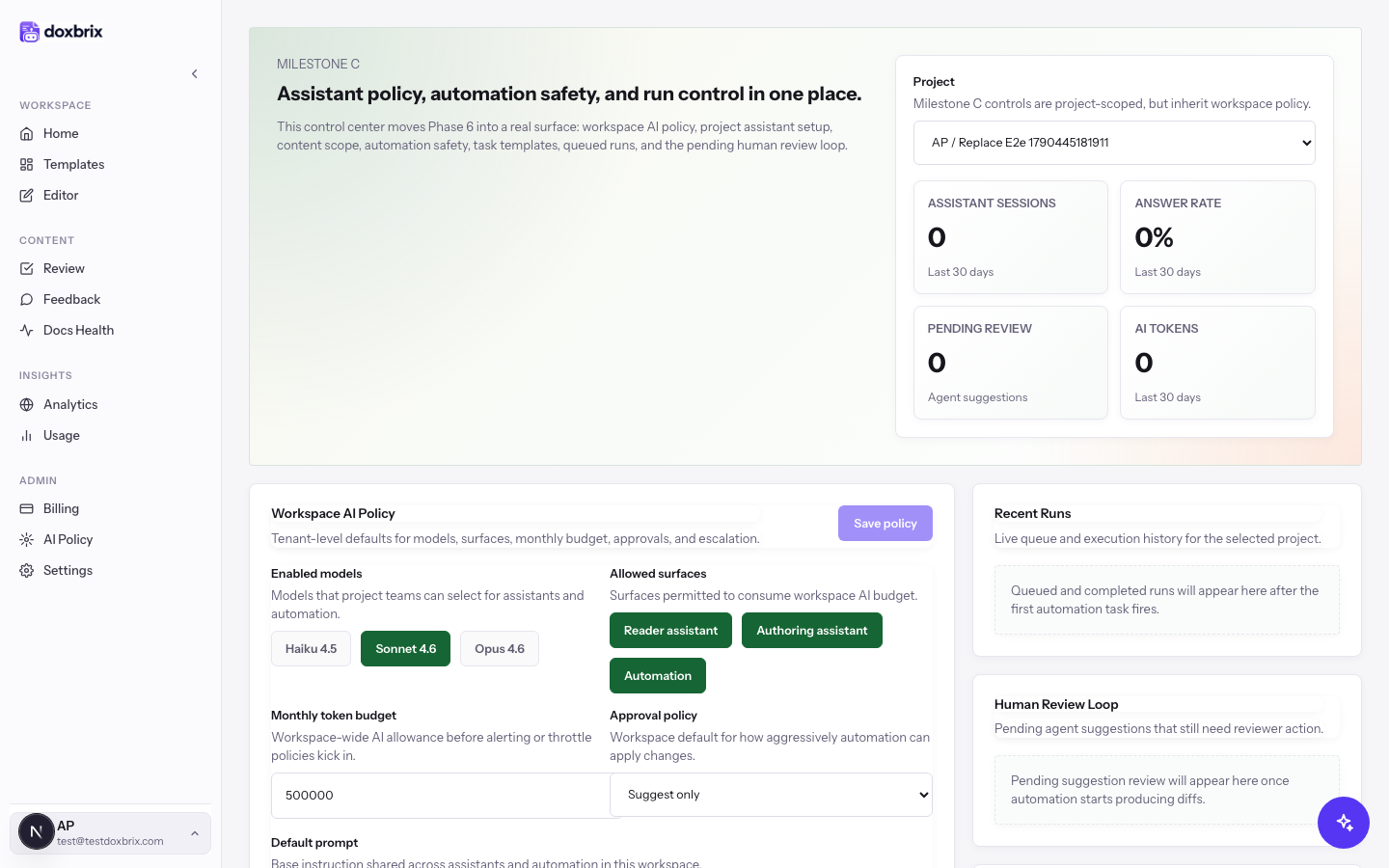
In the Project list at the top right, select the project the task should audit, for example AP / PocketBase documentation. Every card below the header now shows settings and runs for that project.
Scroll to Task Templates and Scheduled Runs and select a template, for example Broken-Link Audit. The form below fills in Task name, Task type, Output mode, Cron schedule and Instructions from the template.
To build a task from scratch instead, type a name in Task name and continue with the next step.
In Task type, confirm or choose one of Freshness, Gap detect, Terminology, Link check, SEO audit, QA audit, Review or Generate. In Output mode, choose Suggest, Auto-apply draft or Autonomous. Keep Suggest until you trust the task's results.
In Cron schedule, enter a Unix cron expression with five fields: minute, hour, day of month, month and day of week. For example, 0 8 * * 4 runs every Thursday at 08:00, and 0 9 1 * * runs on the first day of each month at 09:00. Leave the field blank to create a manual-only task that runs only when you select Run now.
The workspace Default timezone in workspace settings applies to scheduled jobs.
In Instructions, add any guidance beyond the template, up to 4,000 characters. For example: Ignore links to localhost and example.com. Flag redirects that point to a different domain.
Use the chips below the form to set how the task behaves:
- Enabled — the task runs on its schedule. Turn it off to save the task paused.
- Email notifications and In-app notifications — notify you about the task's runs.
- Include drafts — include draft pages, not only published pages.
Under Task locales, select the languages the task covers. All enabled project locales are selected by default.
Select Create task. The button is available once Task name has a value.
A confirmation Agent task created. appears, and the task is listed with an Enabled or Disabled badge, its cron expression (or Manual only), and its instructions.
Turn on automation for the project
Each project also has its own switch for scheduled tasks. Workspace Owners and Admins, and project Owners and Admins, can change it.
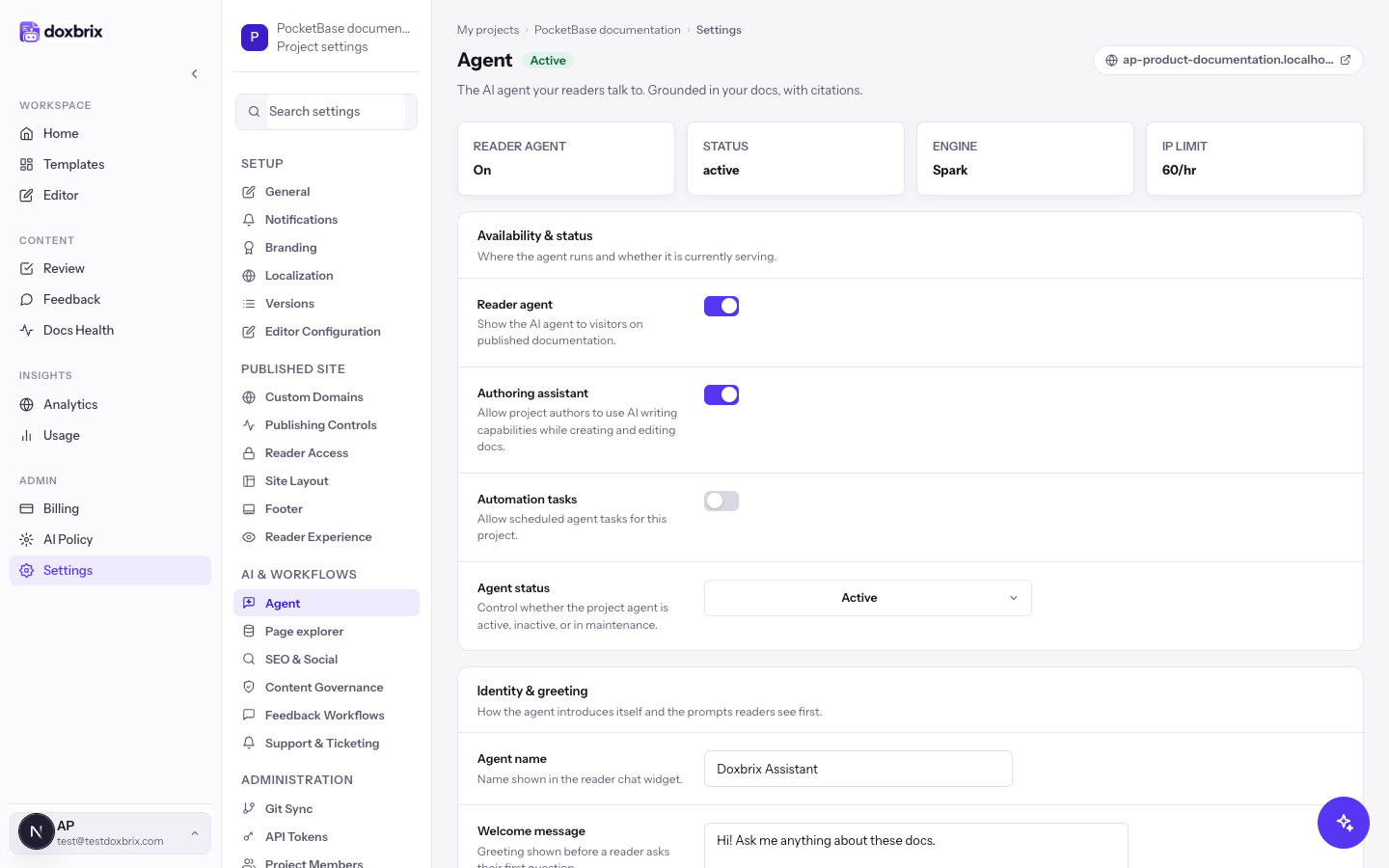
On the dashboard, select the gear on the project card to open project settings, then select Agent under AI & workflows.
Under Availability & status, turn on Automation tasks (“Allow scheduled agent tasks for this project.”). It is off by default for new projects. Then select Save changes.
Run, pause or delete a task
Each task in the list has three actions:
- Run now queues a run immediately, whatever the schedule. The run appears in Recent Runs with its status.
- Disable pauses a scheduled task without deleting it; Enable resumes it.
- Delete removes the task. Its schedule stops, and you cannot undo the deletion.
Verify
- In Recent Runs, confirm that the run you queued with Run now, or the first scheduled run, is listed. Before any task fires, the panel shows
Queued and completed runs will appear here after the first automation task fires. - In Human Review Loop, review the agent's pending suggestions. Before a task produces changes, the panel shows
Pending suggestion review will appear here once automation starts producing diffs. - Open
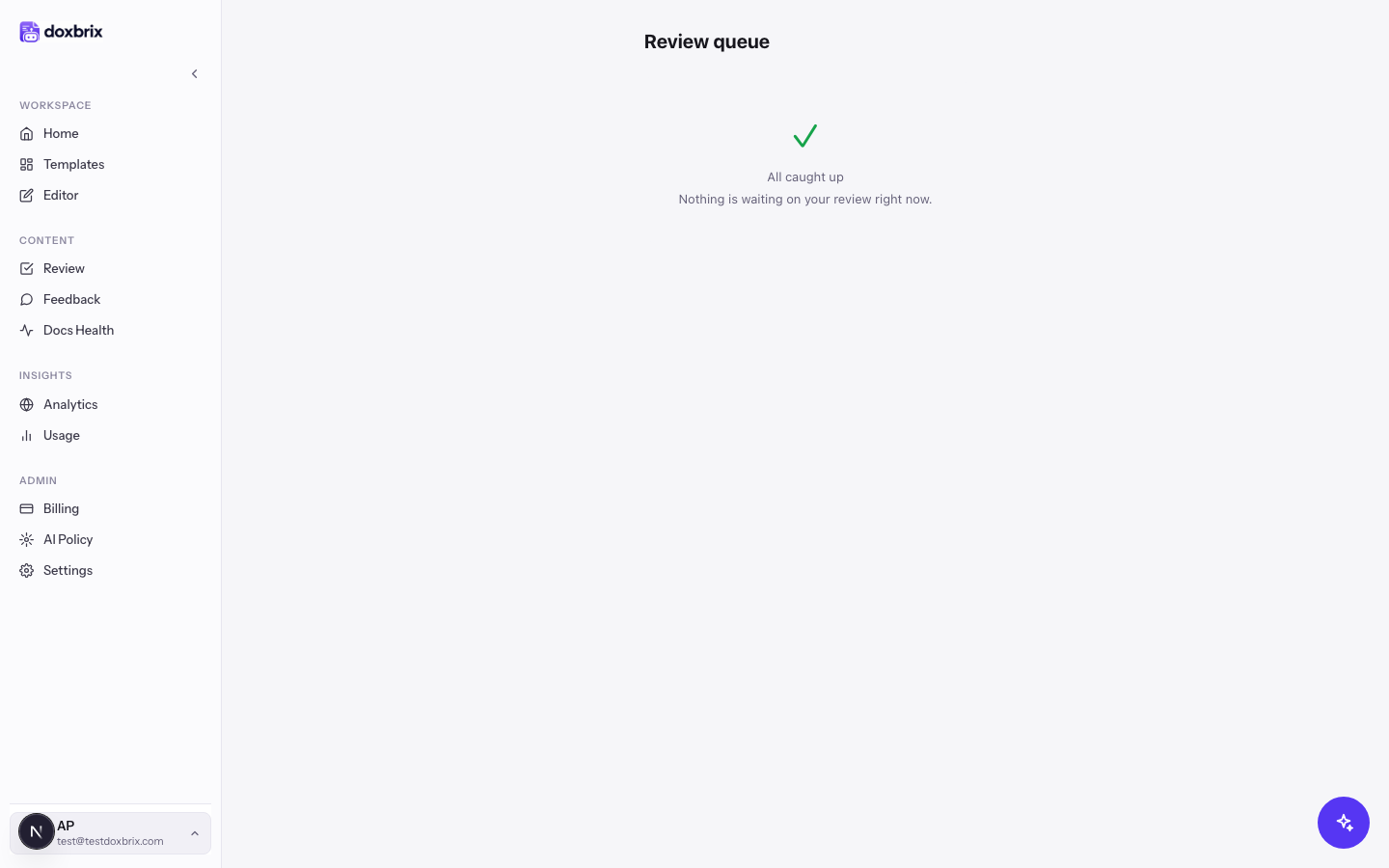
/workflowsto see the Review queue, which lists items waiting for your review. When nothing needs you, it shows All caught up.
Keep automation safe
The Content Scope and Automation Safety card on /agent sets guardrails for every task in the selected project:
| Setting | Effect |
|---|---|
| Manual kill switch | Stops all automation without deleting tasks or policy. |
| Reviewer-only approvals | Requires human review before automation can move beyond suggestions. On by default. |
| Diff preview required | Forces a diff preview before changes can be bulk-applied. On by default. |
| Max tokens per run | Upper bound for one task run. Default 20,000. |
| Max auto-applies per run | How many draft changes one run can apply before pausing. Default 0. |
| Retry failed runs | Retries runs that failed for transient reasons. On by default. |
| Failure notification email | Mailbox for failed runs, disabled tasks and kill-switch alerts. |
Agent runs consume AI tokens from the workspace's monthly budget. See Track AI usage.