
Preview pages and view version history
Preview a draft page as readers will see it, and open Version history to compare published versions, reviewers and exact changes.
Before you publish, check how a page will look on the reader site. After you publish, see what changed between versions and who approved each one. This guide shows you how to use Preview and History in the Doxbrix editor.
Use preview while you write or review, and version history when you need to answer "what changed, and who approved it?"
Before you begin
- You need any role in the project to open the editor and view history: viewer, editor, admin or owner.
- Open a project with at least one page. The examples use the PocketBase sample project.
- Version history shows versions only after a page has been published at least once.
Steps
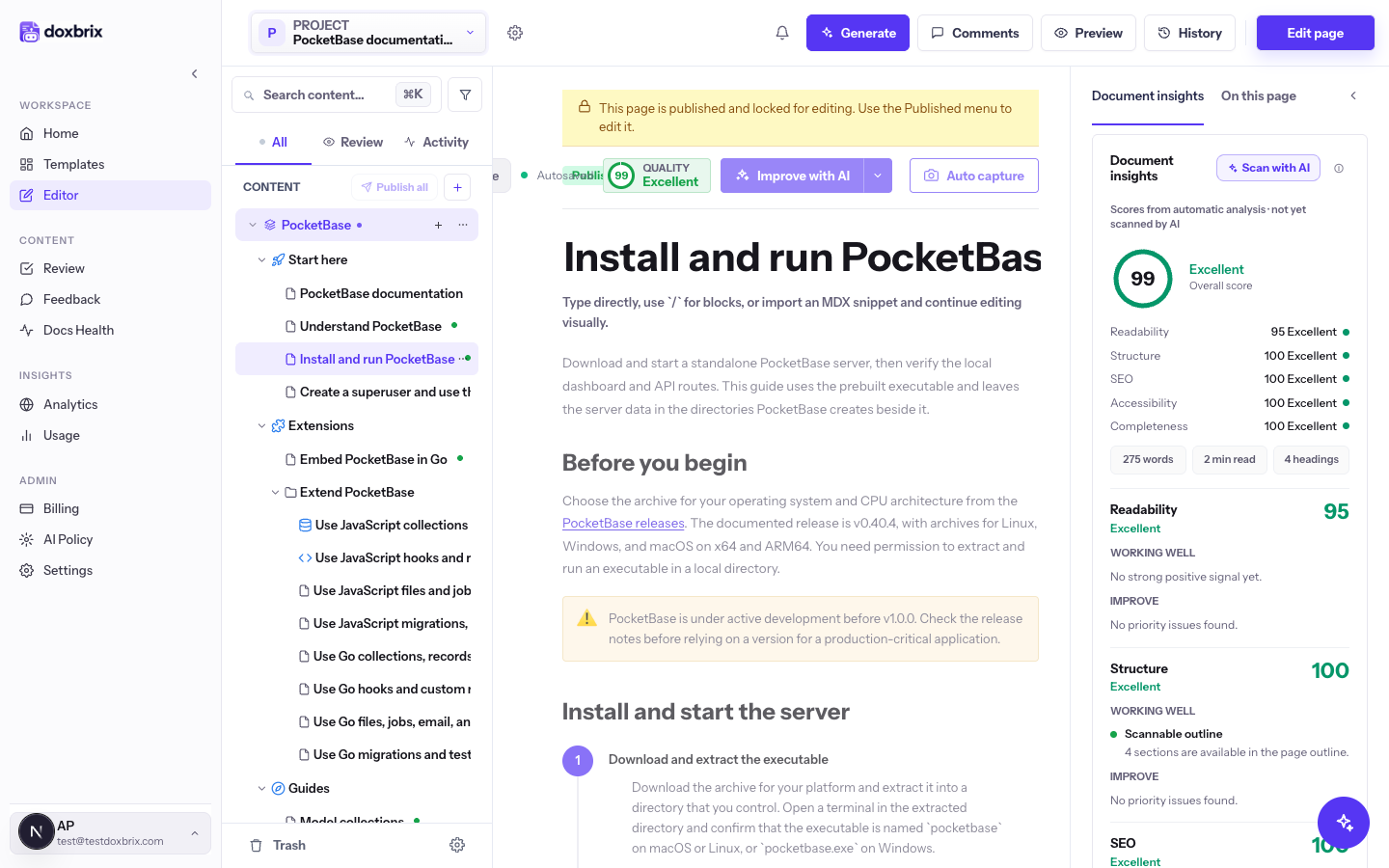
Select a page in the space tree. The top bar shows Preview and History next to Comments.
Select Preview. A new browser tab opens the page on the project's reader site with ?preview=1 added to the address, for example /site/<workspace>/<project>/index?preview=1. The preview uses the reader layout: the site header with Search... and Ask Assistant, the left navigation, Copy page, and the Next article card. Draft pages appear in the preview navigation, so you can check how new pages fit into the site. If you are editing a translated page, the preview opens in that page's language.
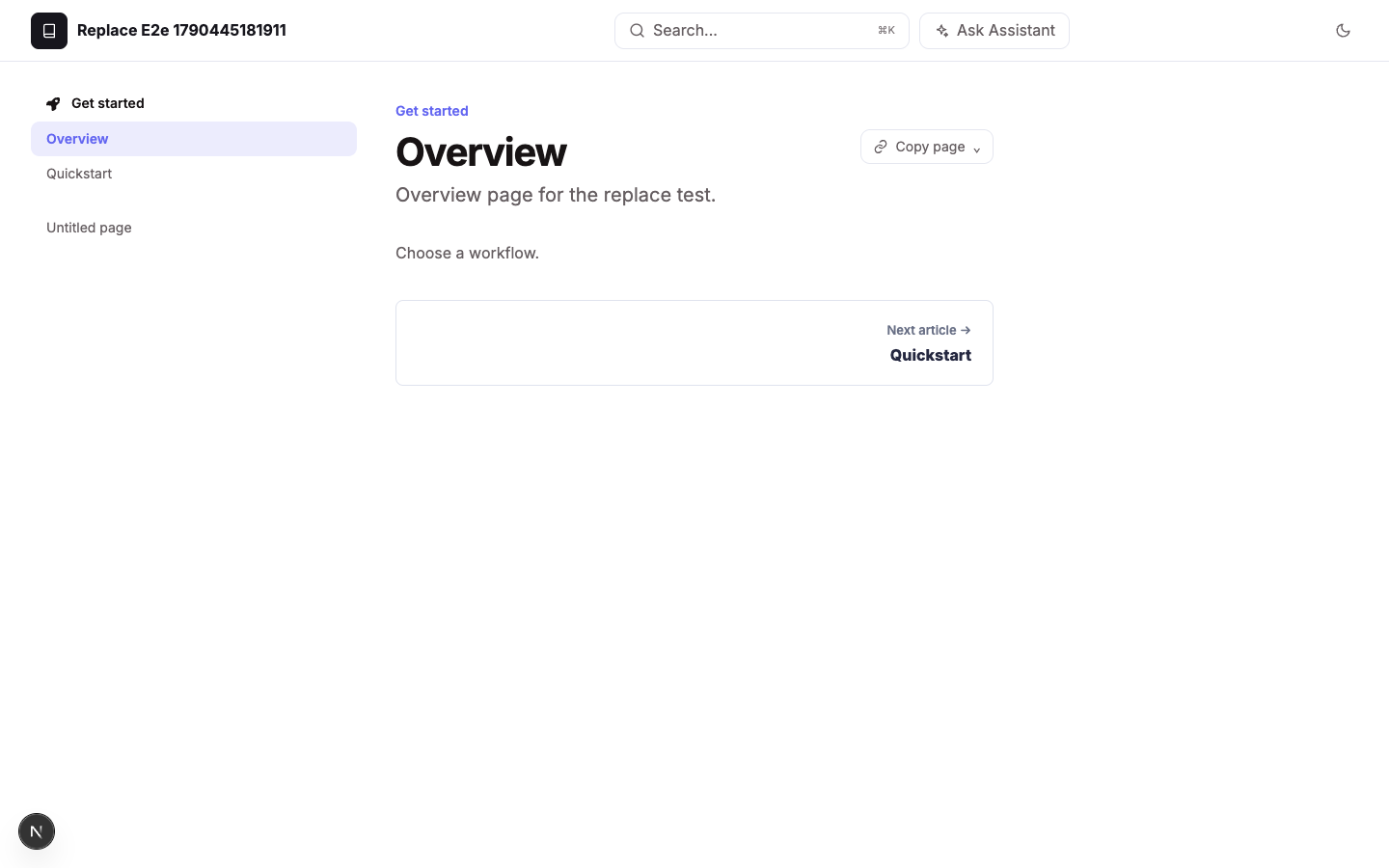
Close the tab or switch back to the editor when you are done. Preview does not publish anything.
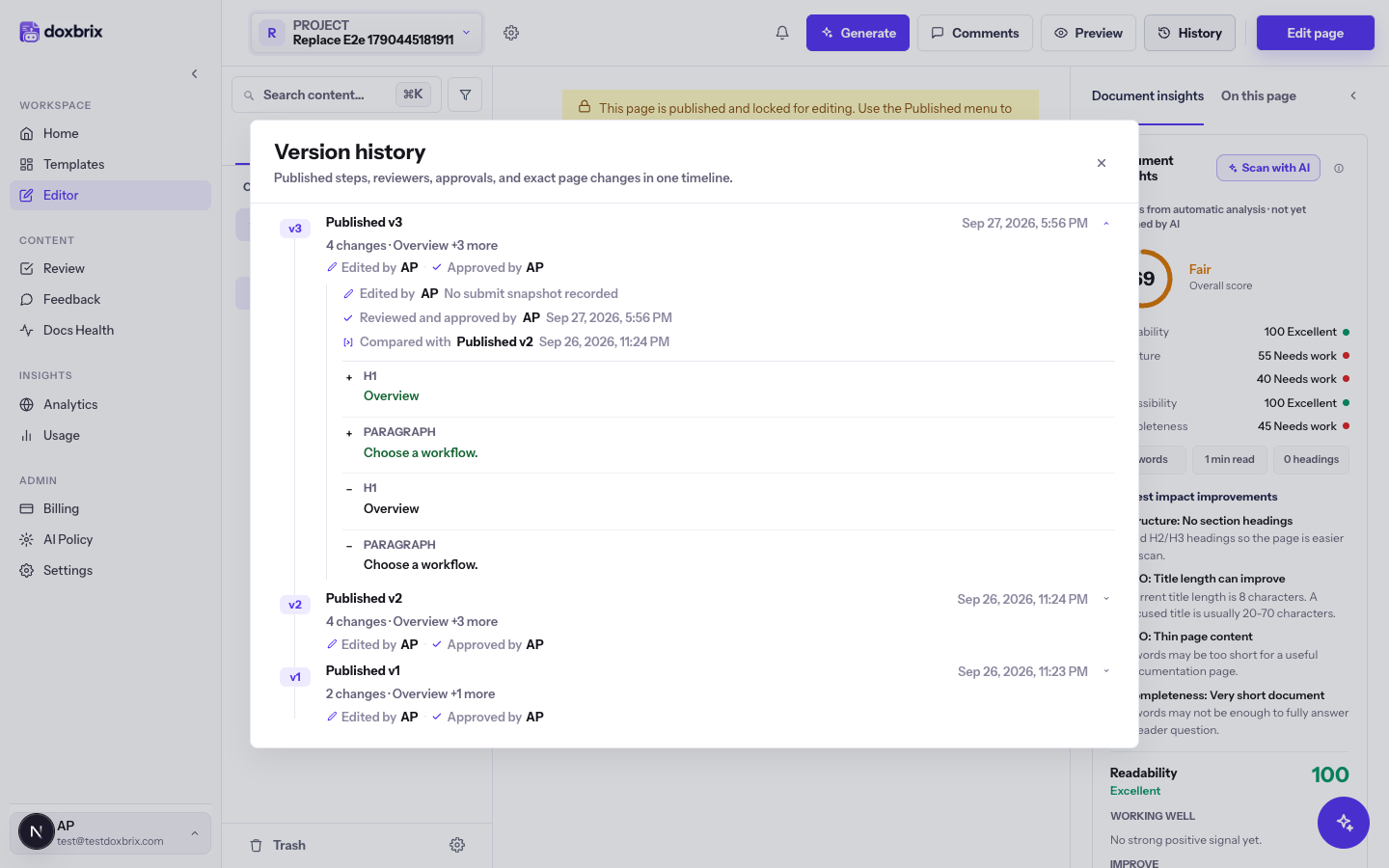
Back in the editor, select History. The Version history dialog opens with the subtitle Published steps, reviewers, approvals, and exact page changes in one timeline. Each entry is labeled Published v1, Published v2 and so on, newest first, with a version badge, the number of changes and the headings affected, the author under Edited by, the reviewer under Approved by, and a timestamp. The newest version is expanded.
If the page is a draft or in review and has been published before, the timeline starts with a Draft entry, Current working changes, that compares your unpublished changes with the latest published version.
Select an older entry, such as Published v2, to expand it. The panel shows who edited it, who reviewed and approved it and when, and Compared with the previous version. Below, each changed block is labeled by type, such as H1 or PARAGRAPH, with added lines marked + in green and removed lines marked -.
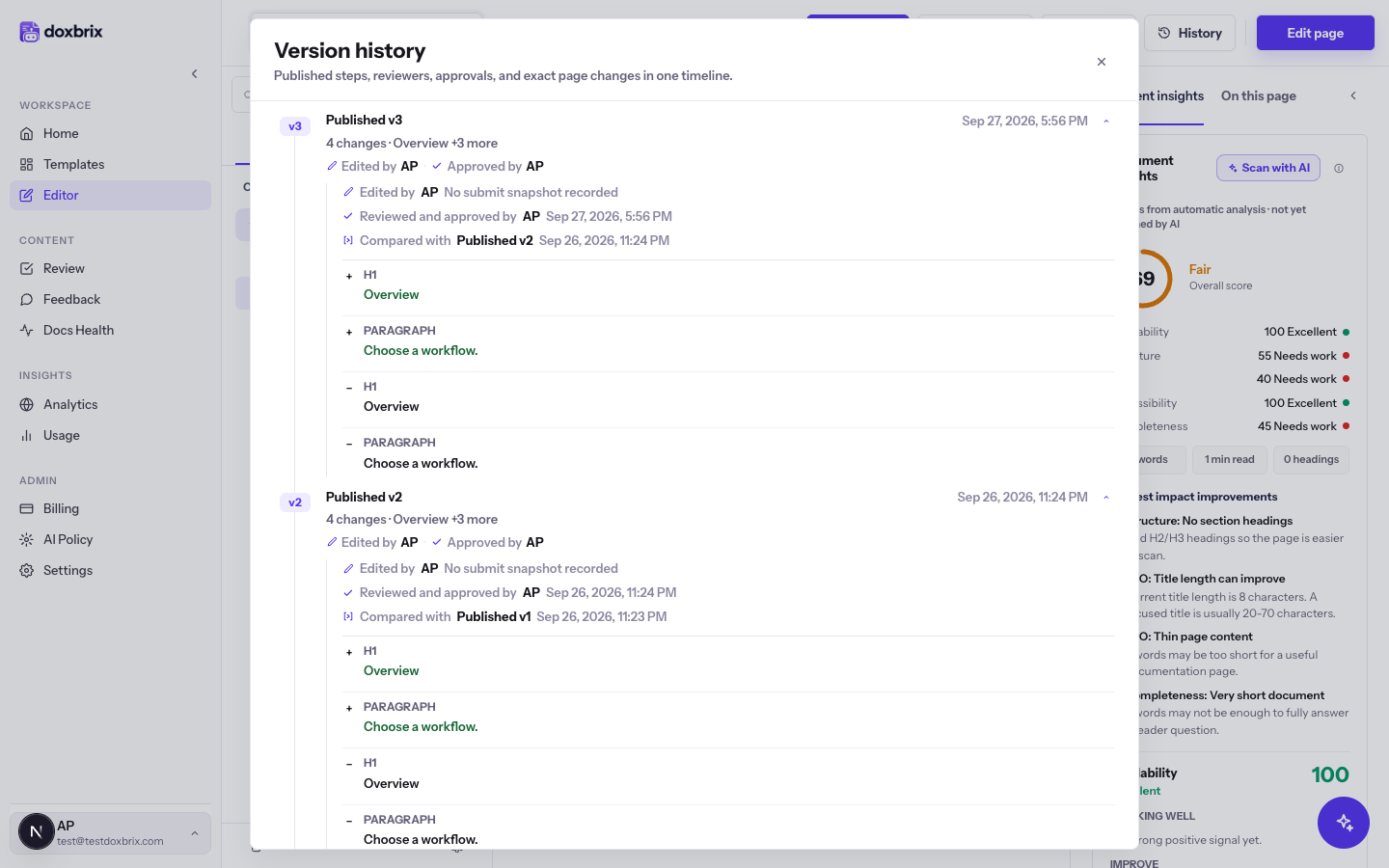
Select Close or click outside the dialog to return to the editor.
Verify
How long versions are kept
Version history shows only versions inside your plan's retention window. Older versions are not listed.
| Plan | Version history retention |
|---|---|
| Free | 7 days |
| Starter | 30 days |
| Pro | 90 days |
| Business | 365 days |
See Plans and limits for the other differences between plans.
Limitations
- History is read-only. You can compare versions, but the dialog has no restore action. To bring back earlier content, copy it from the diff into the draft.
- No versions before the first publish. A page that has never been approved shows No published versions found yet. with the hint Approve a page at least once to start building publishing history.
- Preview needs a saved page. The preview reads the saved page, so wait for the editor to finish saving before you select Preview.
- Local preview is separate. If you author in files with the dxb CLI,
dxb devruns its own local preview. See Tutorial: author docs locally with dxb.