
Find and fill docs gaps
Find the questions your docs do not answer, group them into topics, draft the missing content with AI, and open a pull request.
A docs gap is a topic that readers ask about but your documentation does not cover. This guide shows you where gap signals appear, how to group unanswered questions into topics with Analyze gaps with AI, and how to turn a topic into a drafted page or a Git pull request.
Doxbrix builds each gap from questions the Ask AI assistant could not answer or that readers rated unhelpful, together with related support tickets, negative feedback, and article requests.
Before you begin
- Sign in to Doxbrix and be a member of the project.
- The Docs gaps inbox, AI drafts, and pull requests require the Business plan. On other plans, the section reads Docs Gaps, gap-to-draft, and gap-to-PR workflows are available on Business. The Docs Health tiles in the first steps are available on every plan.
- Gaps come from reader activity, so the project needs a published site with the Ask AI assistant turned on. See Set up the Ask AI assistant.
- Drafting a page uses AI credits. See Track AI usage.
- To open a pull request, the project must be synced with a GitHub or GitLab repository through credentials that can push a branch. See Sync a project with a Git repository.
Steps
In the app sidebar, select Docs Health. Two tiles show gap signals: Assistant misses counts questions the assistant could not answer, and Missing articles counts content readers asked for.
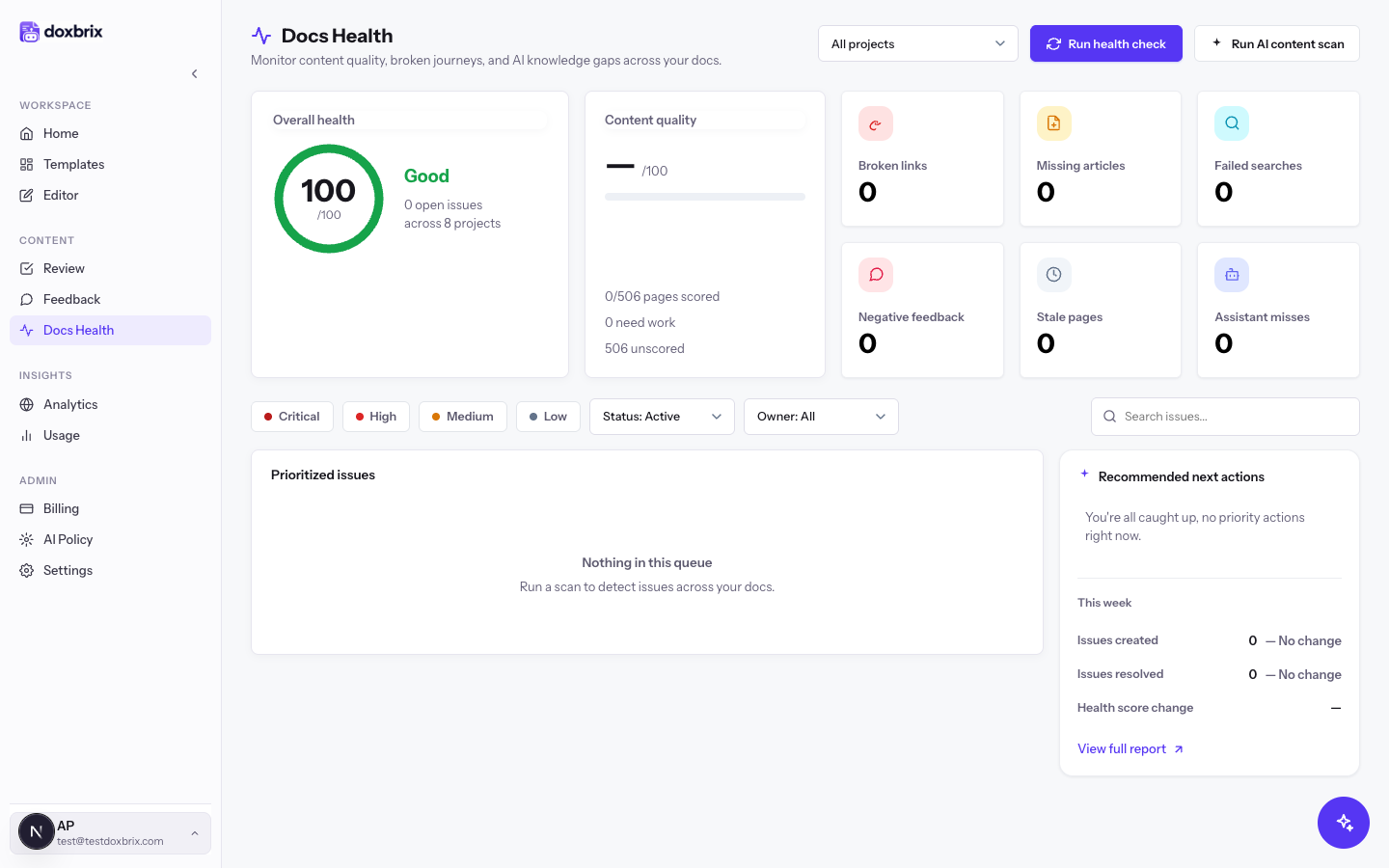
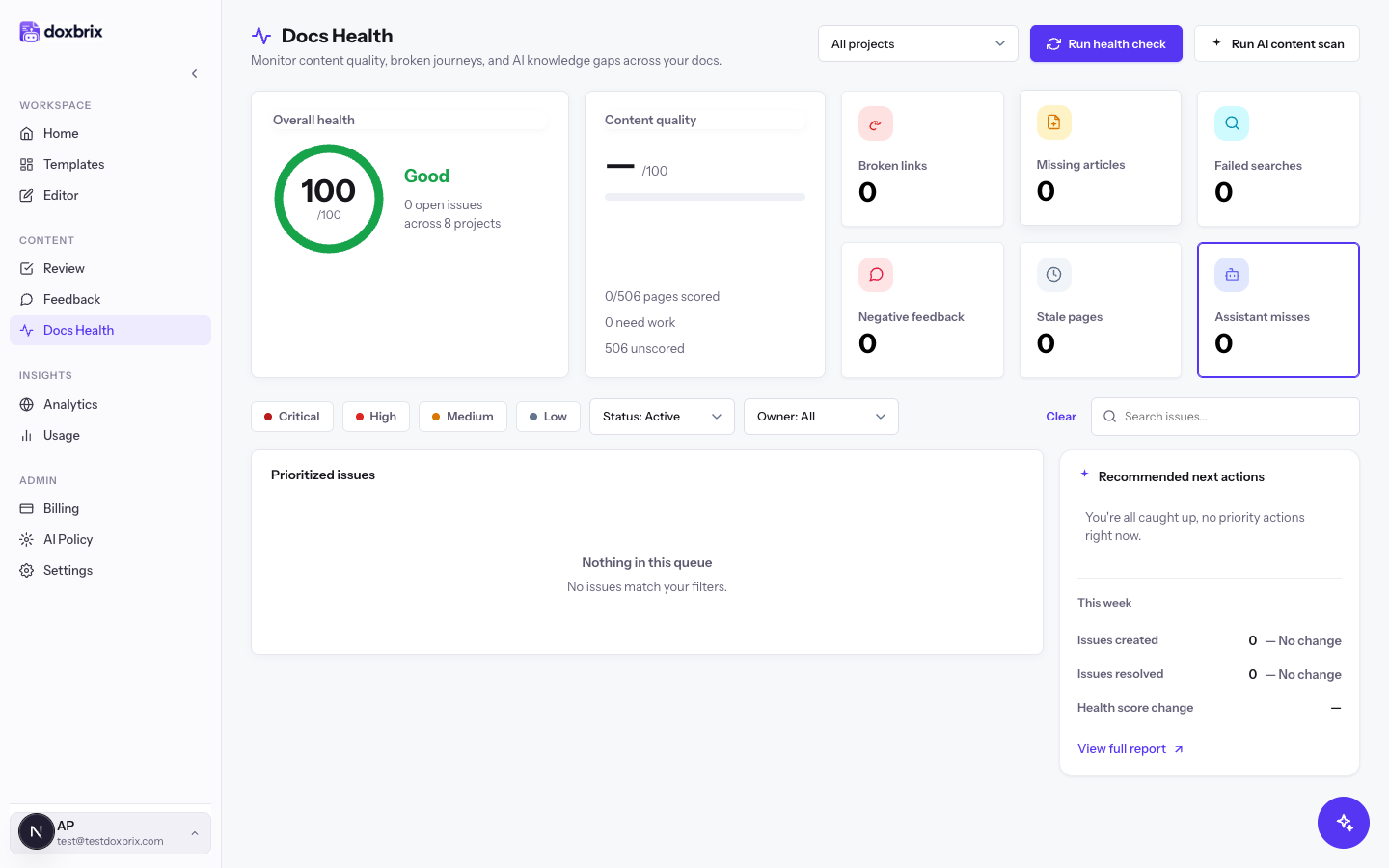
Select the Assistant misses tile. The Prioritized issues list shows only unanswered questions, ordered by how many readers asked them. The tile stays selected and a Clear link appears.
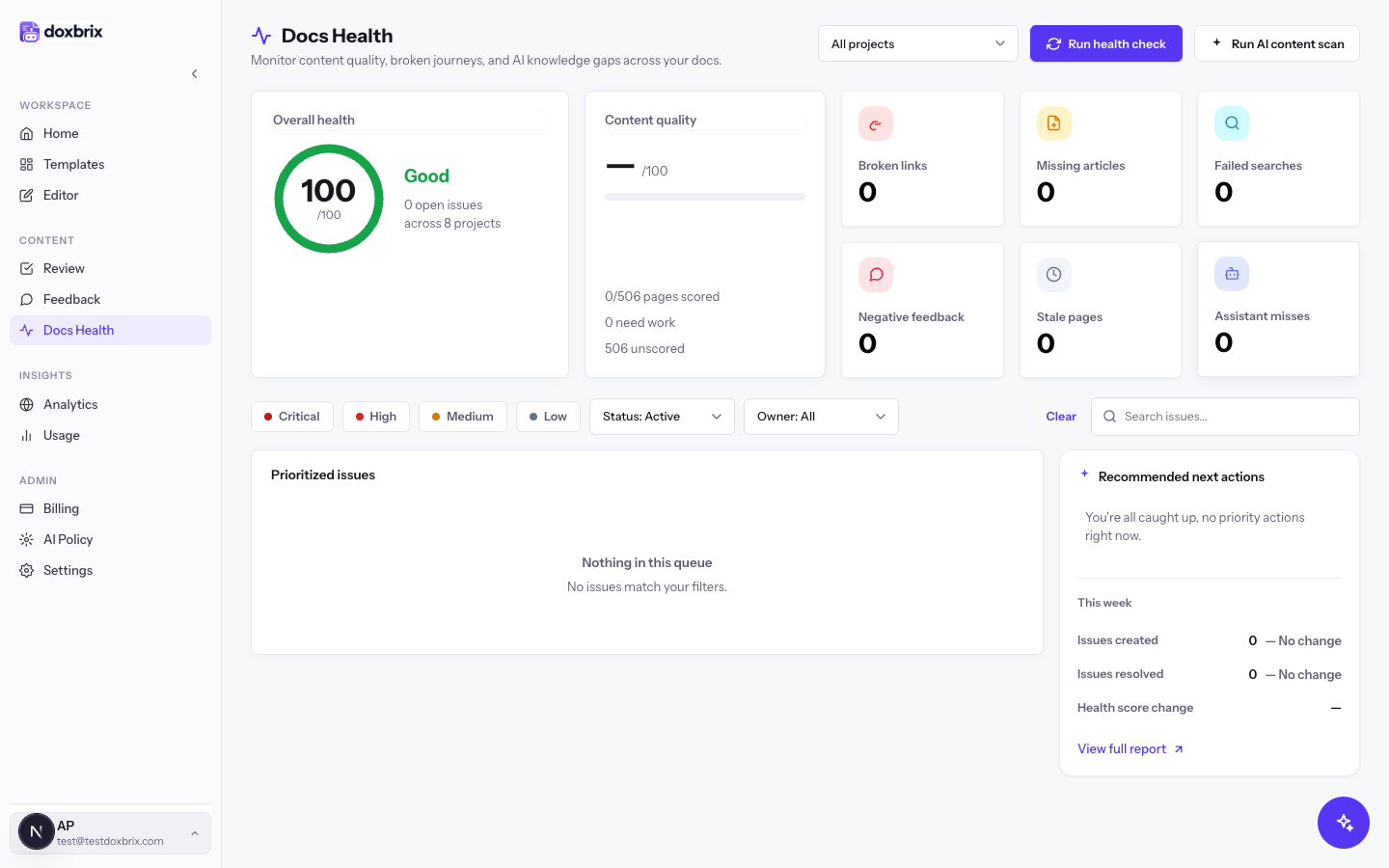
On a native project, select Create article on an issue to start an article request for the topic. On a connected project, the action is Review in Docs Gaps, which opens the gaps inbox described below.
Select the Missing articles tile as well. The list now shows both kinds of issues. Select Create page on a missing-article issue to start a page for the requested content.
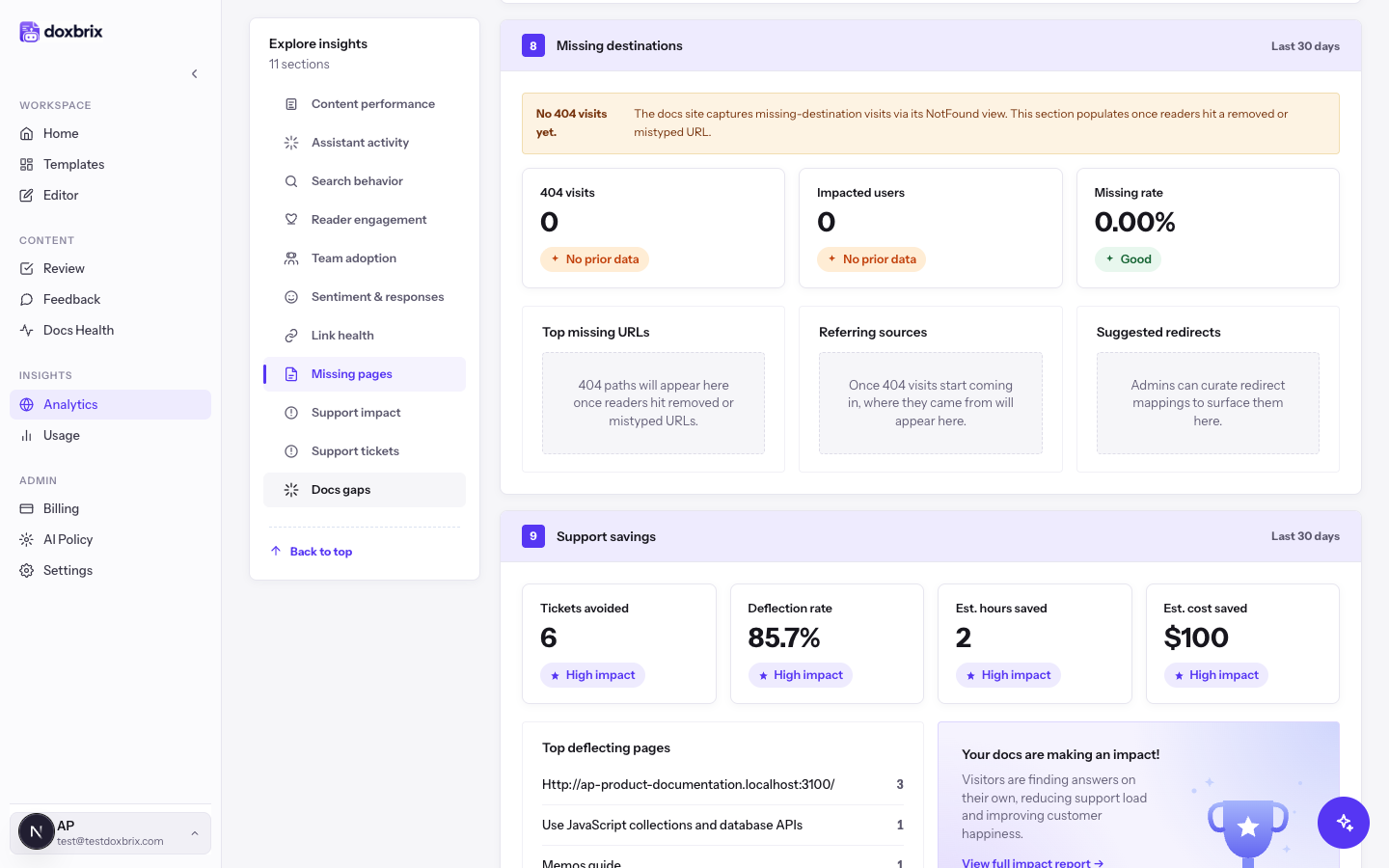
In the app sidebar, select Analytics. Under Explore insights, select Missing pages to jump to Missing destinations. This section shows visits to pages that do not exist: 404 visits, Impacted users, Missing rate, Top missing URLs, Referring sources, and Suggested redirects.
On the same Analytics page, choose a single project in the project filter at the top, then scroll to Docs gaps. Under What readers need that the docs don't cover, select Analyze gaps with AI.
The button reads Analyzing… while Doxbrix groups recent assistant misses, tickets, and feedback into named topics. Each topic row shows the topic name, its evidence, the trend as a percentage, and a status.
If no project is selected, the section reads Select a single project (top filter) to see its Docs Gaps inbox.
Open a topic row to see up to four sample questions and its evidence, for example 12 unanswered · 3 👎 · 1 escalated, and the page readers asked from.
Use the status menu on the row to track your work: New, Acknowledged, In progress, Resolved, or Dismissed. Dismissed gaps are hidden; select Show dismissed to see them again.
In the open topic, select Draft page with AI. The button reads Working… while Doxbrix writes a draft in your project's page format. The draft panel shows the proposed title and file path, and notes when the draft is an addition to an existing page.
Review the draft, then choose how to use it:
- Copy copies the draft text.
- Download saves the draft as a file.
- New file on GitHub or New file on GitLab opens the repository's new-file form, when the project is synced with Git.
Select Redraft page to generate a new version.
If the project's Git credentials can push, the draft panel shows Open pull request. Select it to commit the draft on a new branch and open a pull request against the tracked branch. Doxbrix never pushes directly to that branch.
The row then shows a PR open badge and a View PR link. Review and merge the pull request in GitHub or GitLab like any other change.
Verify
- The topic row shows PR open and View PR after you open a pull request.
- After you publish the new content, set the gap to Resolved. For a resolved gap, the open row shows a weekly chart of how often the topic was asked, so you can check whether questions stop being missed after the fix.
- For a connected project, Doxbrix resolves an open gap automatically when a new deployment indexes a page that covers the topic.
- In Docs Health, the Assistant misses count drops after the next scan.