
Publish and edit published pages
Publish one page, a section, a space or a whole project from the editor, reopen a locked published page for editing, and understand how unpublishing works.
Publishing moves a draft page onto your live reader site. This guide shows you how to publish a single page, publish many drafts at once, reopen a published page when it needs changes, and take a page off the site.
What you see depends on your project's approval policy. When the project requires no approval, the editor shows Publish and pages go live immediately. When the project requires approval, the same controls read Submit for review and a reviewer publishes the page. This guide covers the direct-publish path; for the approval path, see Submit, review and approve pages.
Before you begin
- You need the Editor, Admin or Owner role in the project. Other roles cannot publish or reopen published pages.
- Open the project in the editor at
/editor. The left pane lists your content with a status dot next to each page. - Check the project's Approval requirement under project settings. No required approval shows the Publish controls described here. Project review and Section review replace them with review controls. Page lifecycle and approval policies explains each policy.
- If the project sets Page owner mode to Required, assign a page owner first. Otherwise publishing fails with
Assign a page owner before submitting, this project requires every page to have an owner.
Publish your pages
Select a page in the left pane. A published page opens read-only with the banner This page is published and locked for editing. Use the Published menu to edit it. The top bar shows Edit page instead of Publish, and the CONTENT header shows Publish all with the number of drafts still waiting in the project.
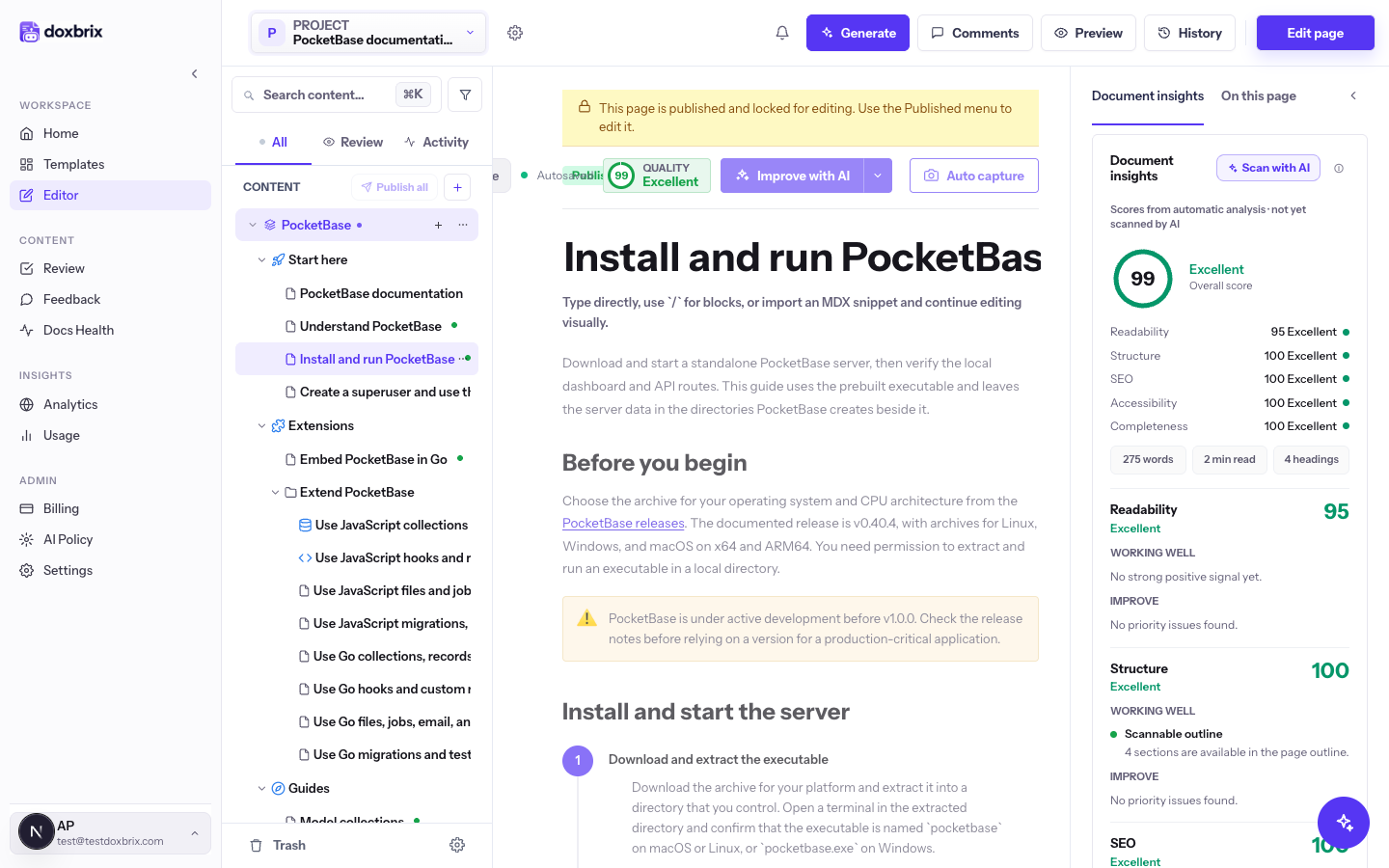
Select a draft page and click Publish in the top bar. The page is published immediately; the button shows Publishing… while it runs, then the page locks and the top bar shows Edit page.
When the draft sits in a section that holds more than one draft, Publish is a split button. Click the arrow (More publish options) to choose a scope:
- Publish this page only publishes only the open page.
- Publish whole section · _section name_ publishes every draft in that section. The option shows how many drafts it includes.
In the left pane, open the options menu next to a space name and click Publish space (_n_), where _n_ is the number of drafts in the space. The menu shows No drafts to publish when the space has none. Groups have a matching Publish section (_n_) item.
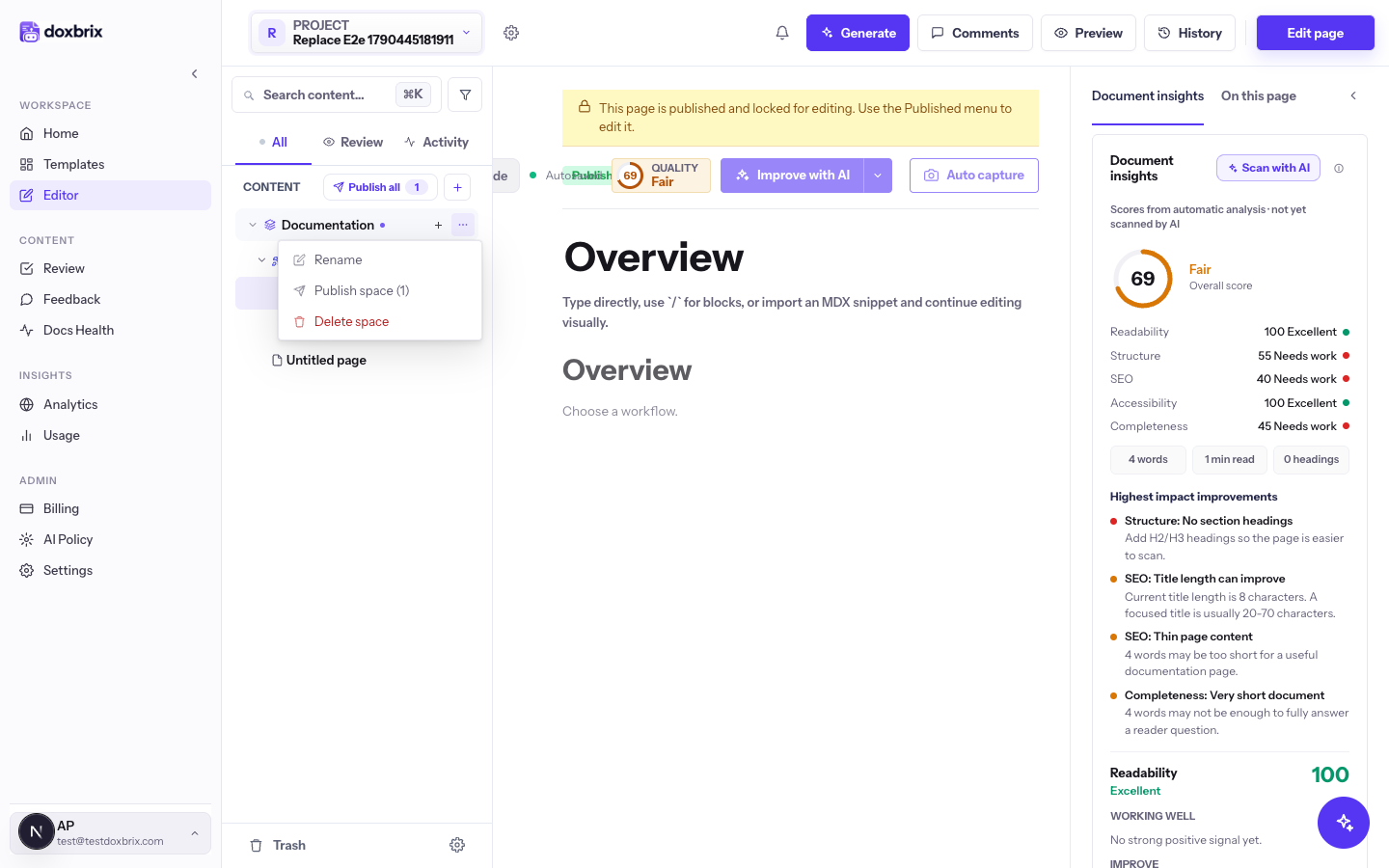
A dialog titled Publish space (or Publish section) lists the drafts under Pages to include, with a counter such as (3 of 3 drafts). Clear the checkbox next to any page you want to keep as a draft, then click Publish _n_ pages. Click Cancel to close the dialog without publishing.
To publish every draft in the project at once, click Publish all in the CONTENT header instead. It opens the same dialog for All content.
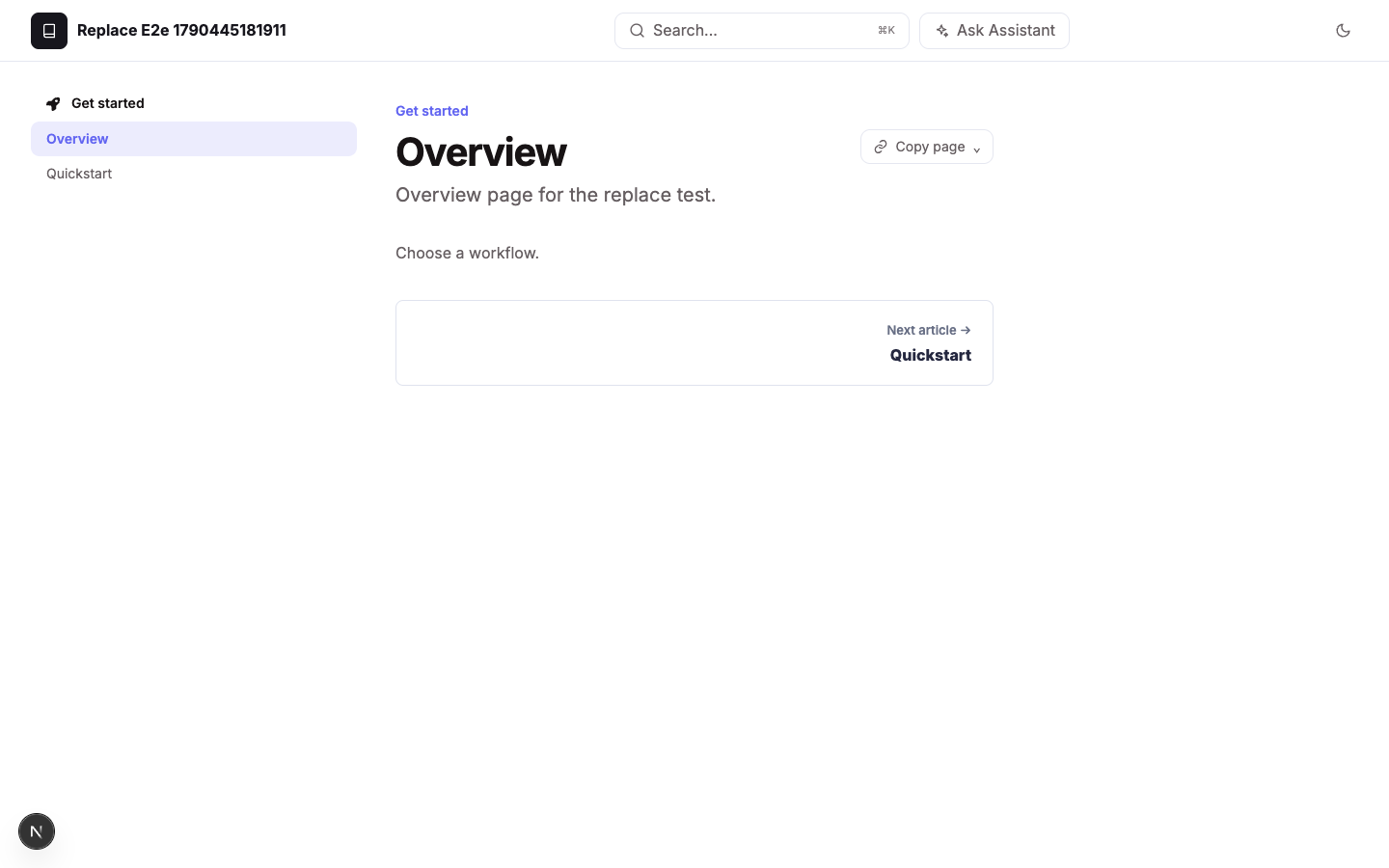
Open your site from the project card's Docs site button on the dashboard, or at its site address. The published page appears in the reader navigation. Drafts do not appear.
Verify
Published vN in the page history, which you can open from History. See Preview pages and view version history.Edit a published page
Published pages are locked so that readers never see half-finished edits. To change one:
- Open the published page in the editor.
- Click Edit page in the top bar. The button shows Preparing…, then the page returns to Draft status and unlocks.
- Make your changes. The editor saves them as you work.
- Click Publish to put the updated page live again.
Reverted to draft. Plan edits to high-traffic pages so you can republish promptly.If you have a role below Editor, the top bar shows a disabled Published label instead of Edit page.
Unpublish a page
Unpublishing removes a published page from the reader site but keeps it in the project with the status Unpublished. Only project Owners and Admins can unpublish; other roles receive Only admins and owners can unpublish pages. The editor has no unpublish control, so owners and admins unpublish through the Doxbrix API endpoint POST /api/pages/{pageId}/unpublish while signed in. Only published pages can be unpublished; any other status returns Only published pages can be unpublished.
When a page is unpublished, Doxbrix saves a version labeled Unpublished and notifies the project team. To bring the page back, open it in the editor and click Publish (or Resubmit for Review when approval is required).
How readers experience an unpublished page depends on the project's Unpublished page handling setting. See Configure publishing controls and SEO indexing.
Publish from the API, CLI or an AI agent
Automation uses the same rules as the editor. POST /api/v1/pages/{pageId}/publish with a dxb_ access token that has the docs:write scope publishes a draft when the project requires no approval, or submits it for review when approval is required. It never bypasses the approval policy.
curl -X POST "https://app.doxbrix.com/api/v1/pages/$PAGE_ID/publish" \
  -H "Authorization: Bearer $DXB_TOKEN"
A successful response reports the resulting status:
{
  "status": "in_review",
  "published": false,
  "message": "Submitted for review, this project requires approval before publishing."
}
When the page goes live, status is published, published is true, and message is Page published. See the REST API reference and Connect AI agents with the MCP server.