
Find your way around the dashboard
Use the Doxbrix home dashboard, sidebar, project cards, search, and account menu to reach any area of your workspace.
The dashboard is the home screen of your Doxbrix workspace. This guide shows you how to read its workspace statistics, open a project's editor or live site, find a project with search, and reach your personal and workspace settings.
Before you begin
- Sign in to Doxbrix. If you need help, see Sign in and reset your password.
- You see the projects in your current workspace. If your workspace has no projects yet, the dashboard shows Create your first project instead of the project grid.
- The screens below use a workspace with the sample project PocketBase documentation. Your numbers and project names will differ.
Tour the dashboard
Sign in, or select Home in the sidebar. The dashboard at /dashboard greets you with Welcome back and your first name.
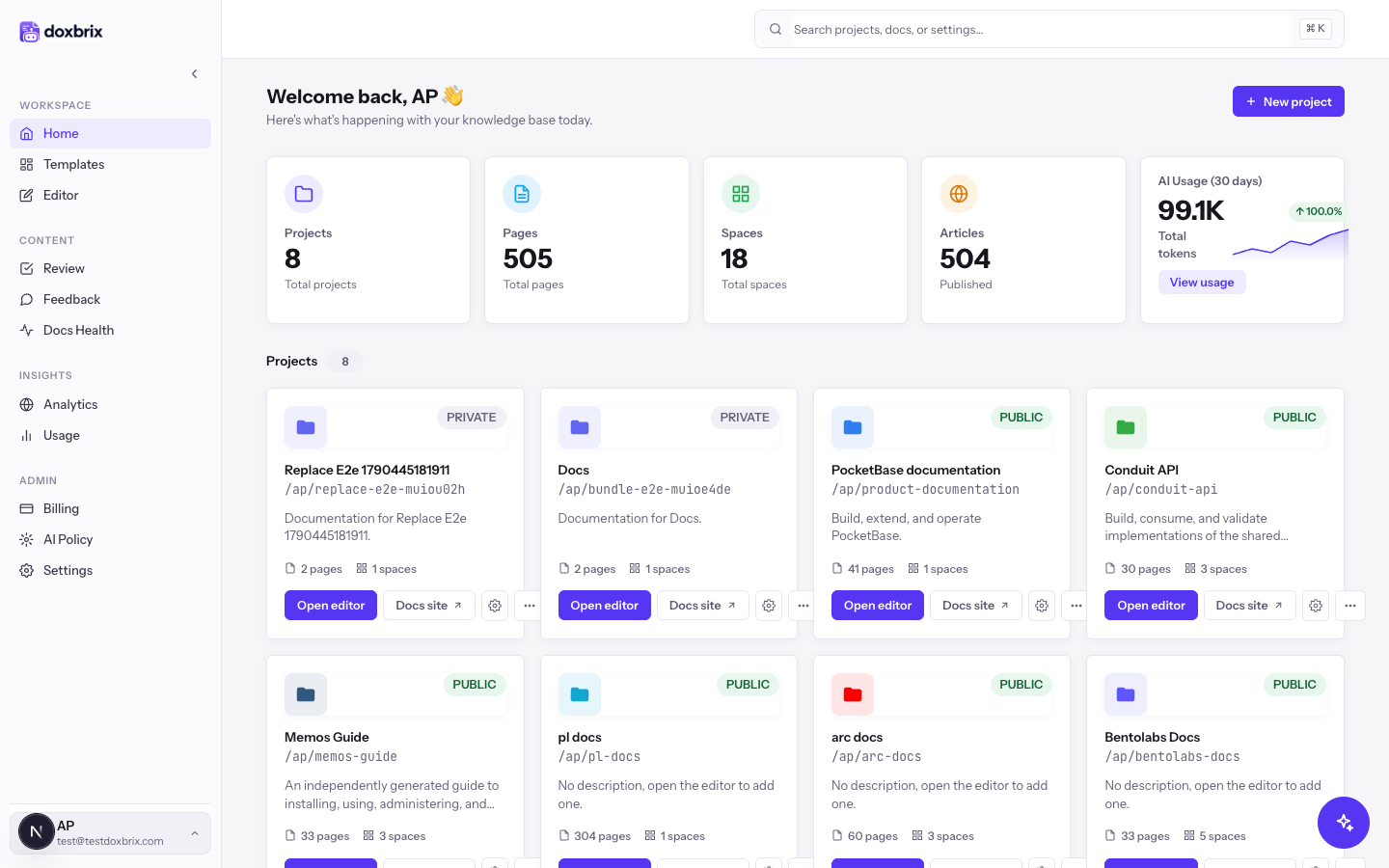
The screen has these areas:
- Sidebar. Links grouped under Workspace (Home, Templates, Editor), Content (Review, Feedback, Docs Health), Insights (Analytics, Usage), and Admin (Billing, AI Policy, Settings). The Account menu sits at the bottom.
- Header. The search box Search projects, docs, or settings… and the New project button.
- Stat cards. Workspace totals, described in the next step.
- Projects. One card per project, followed by a New project tile.
- Drafts & needs attention and Publishing status. Panels that show work waiting for you.
- Open AI Admin. A floating button that opens the AI Admin assistant. See Work with the AI Writer and AI Admin assistant.
Review the stat cards across the top:
| Card | What it counts |
|---|---|
| Projects | All projects in the workspace. |
| Pages | Pages across all projects. |
| Spaces | Spaces across all projects. |
| Articles | Published pages across all projects. |
| AI Usage (30 days) | AI tokens your workspace used in the last 30 days, compared with the 30 days before. |
Select View usage on the AI usage card to open the Usage page. See Track AI usage.
Find the project card in Projects. Each card shows the project name, a public or private badge, its path (for example /your-workspace/pocketbase), a description, and its page and space counts. Then use one of the card's controls:
- Open editor opens the project in the browser editor. See Tour the editor.
- Docs site opens the project's live reader site in a new browser tab.
- Settings (gear icon) opens the project's settings. See Project settings reference.
A project that hosts an existing docs-as-code site shows Manage instead of Open editor. Manage opens the project settings, because that type of project has no editor. See Host an existing docs site.
Select More (the three dots) on a project card. The menu shows Edit project and Delete project.
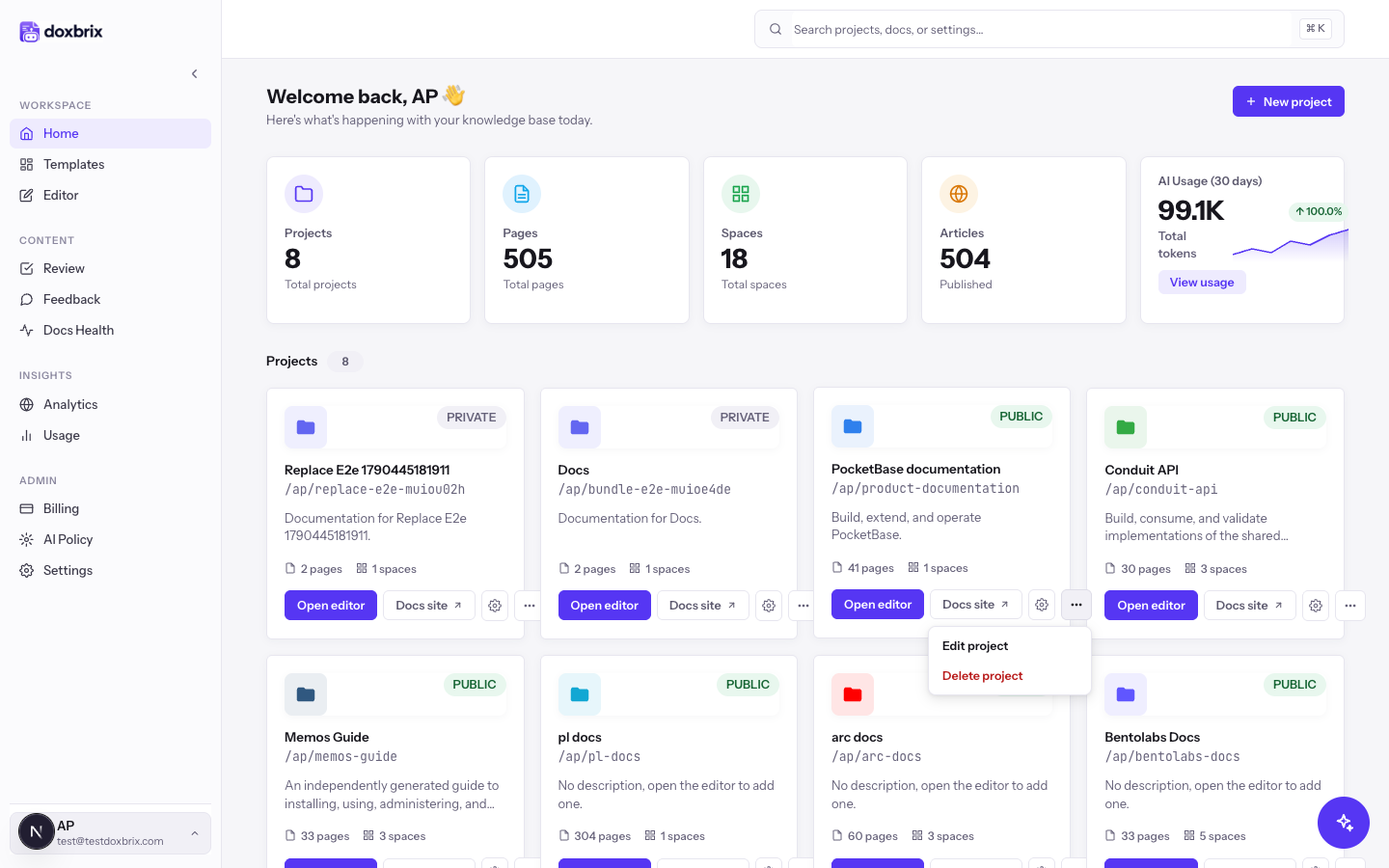
Select Edit project to change the project's name and other basic details.
Press <kbd>⌘</kbd> <kbd>K</kbd>, or select the search box, and type part of a project name, for example PocketBase. The Projects grid filters in place as you type. Search matches the project name, slug, and description.
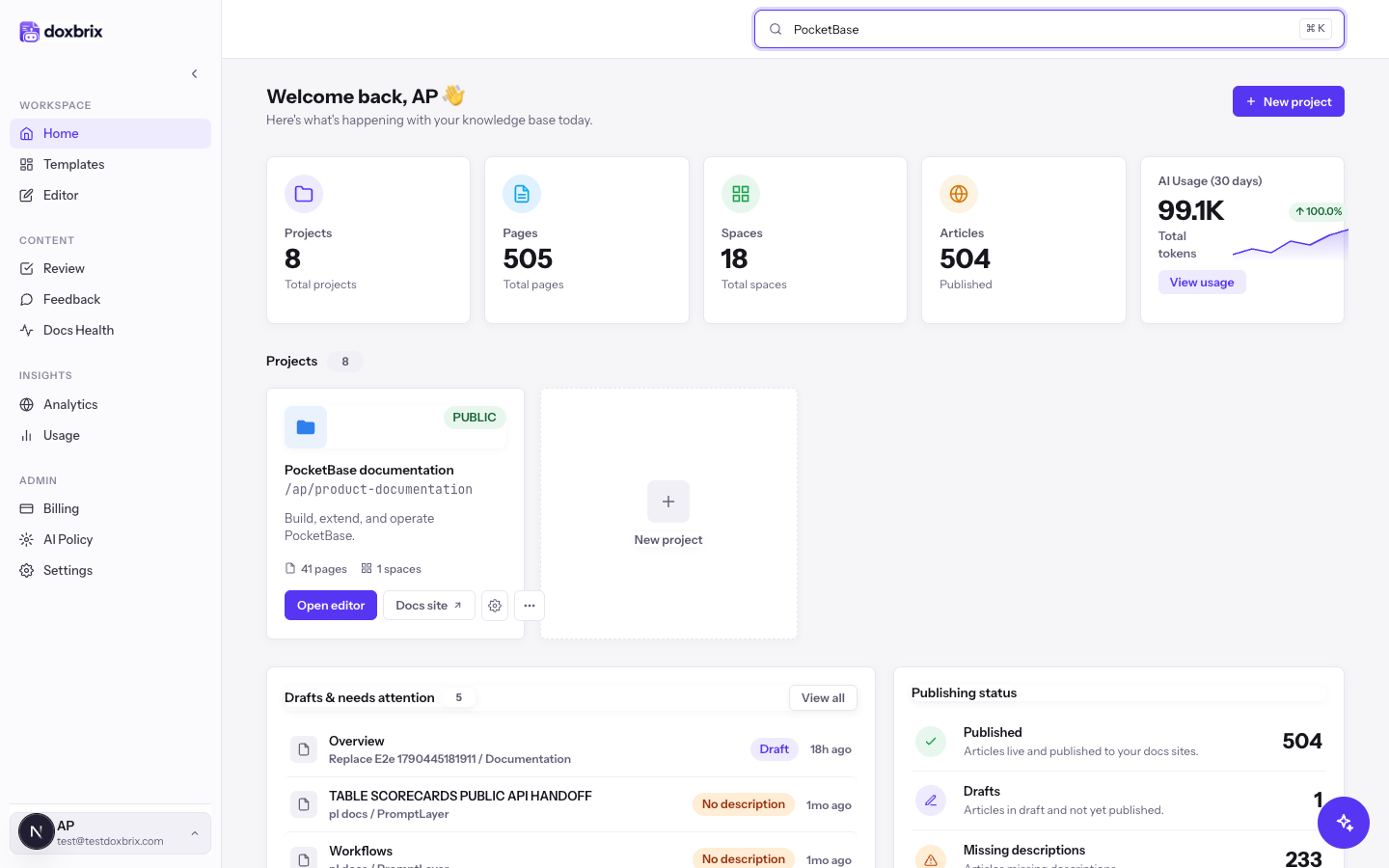
If nothing matches, the grid shows No results for your search term. Select Clear search to show every project again.
Scroll below the project grid to the two status panels:
- Drafts & needs attention lists up to five recently updated pages that are still drafts or have no description. Select a page to open its project in the editor.
- Publishing status shows the workspace counts for Published, Drafts, Missing descriptions, and Custom domains active.
To fix missing descriptions and other quality issues across your docs, use Docs Health.
Select the Account menu at the bottom of the sidebar. The menu shows your initials and email, with Profile & Account, Workspace settings, and Sign out.
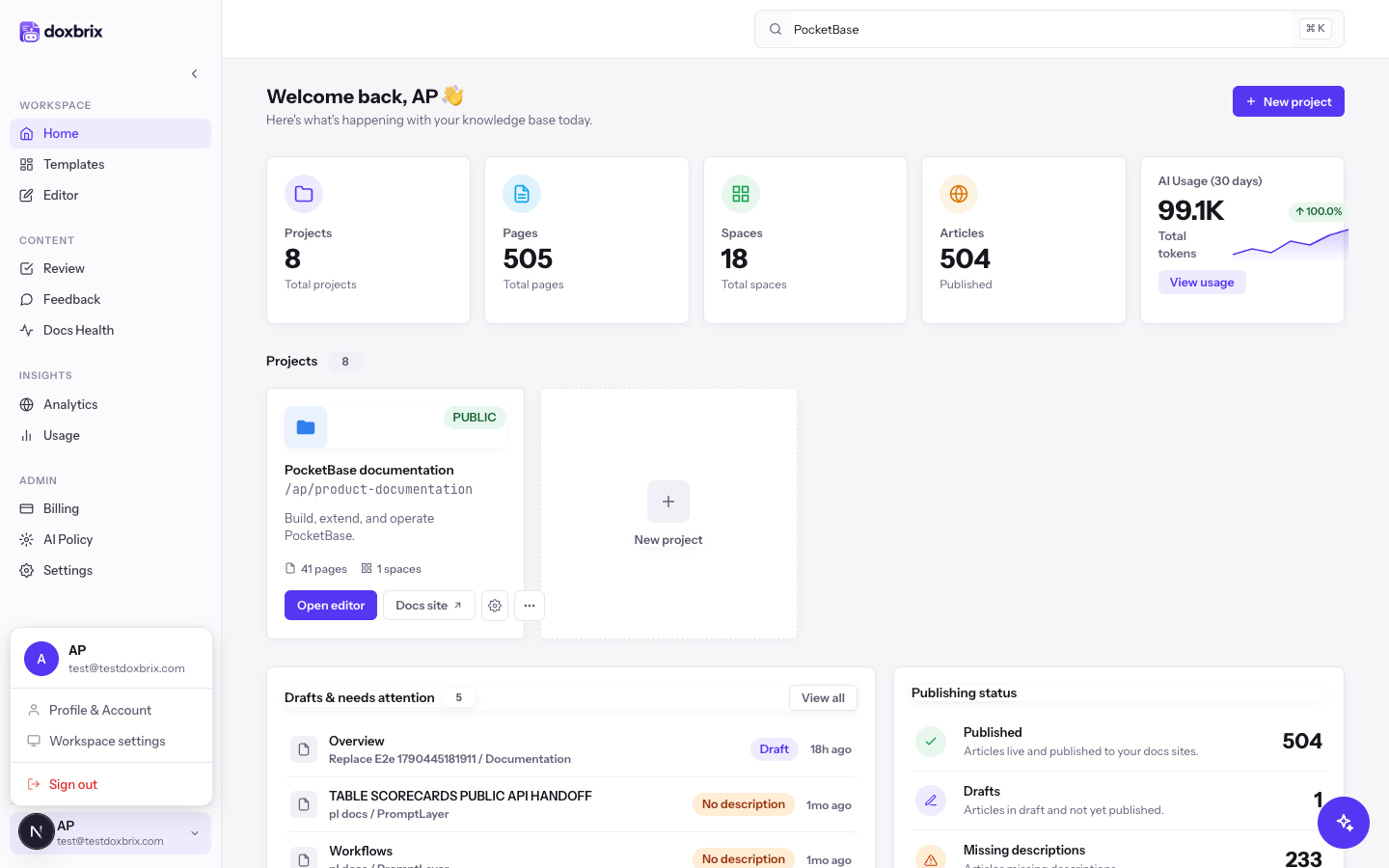
- Profile & Account opens your personal profile and security settings. See Manage your profile and account security.
- Workspace settings opens settings for the whole workspace. See Configure workspace settings.
- Sign out ends your session on this device.
Verify
You know your way around when you can do all of the following from the dashboard:
- open a project in the editor with Open editor;
- open its live site with Docs site;
- filter the project grid with <kbd>⌘</kbd> <kbd>K</kbd>;
- reach Profile & Account from the Account menu.
If your workspace has no projects
A new workspace shows Create your first project in place of the grid, with these options:
- Create project starts the project wizard. See Create a project.
- Agentify existing docs starts hosting a docs site you already have. See Host an existing docs site.
- Or start from a template lists project templates that you can pick from. See Start from a template.