
Write with inline AI
Rewrite selected text, change its tone, generate tables and diagrams, write alt text and accept autocomplete suggestions while you edit a page.
Inline AI helps you while you write, without leaving the page. This guide shows how to rewrite a selection, change its tone, give AI a custom instruction, insert AI-generated content with slash commands, generate image alt text and accept autocomplete suggestions.
Use inline AI for focused edits to part of a page. To rewrite a whole page against its quality score, see Score and improve a page with AI. To draft or restructure content through a conversation, see Work with the AI Writer and AI Admin assistant.
Before you begin
- Open a draft page in the editor with a role that can edit it. See Roles and permissions. A published page is locked until you select Edit page; see Publish and edit published pages.
- Your workspace AI policy must allow the feature. If an owner or admin turned off Improve with AI, selection actions return Improve with AI is disabled by your AI policy. See Govern AI with the AI policy.
- Inline AI uses AI tokens from your workspace balance. See Track AI usage and Plans and limits reference.
Inline AI at a glance
| Feature | How to start it | What happens |
|---|---|---|
| Make Shorter, Improve, Tone | Select text, then ✦ AI | Shows a suggestion to accept or discard |
| Make Table | Select text, then ✦ AI | Turns the selection into a table suggestion |
| Ask AI… | Select text, then ✦ AI | Follows your own instruction |
| AI: Continue writing, AI: Generate table, AI: Generate diagram | Type / in an empty block | Inserts new blocks at that point |
| Alt text | Generate alt text with AI on an image | Fills the image's alt text |
| Autocomplete | Type in the WYSIWYG editor | Shows grey text you accept with Tab |
Rewrite a selection
From the dashboard, open a page listed under Drafts & needs attention, or open any draft from the Content tree in the editor. The page opens in the editor, where inline AI works on its text.
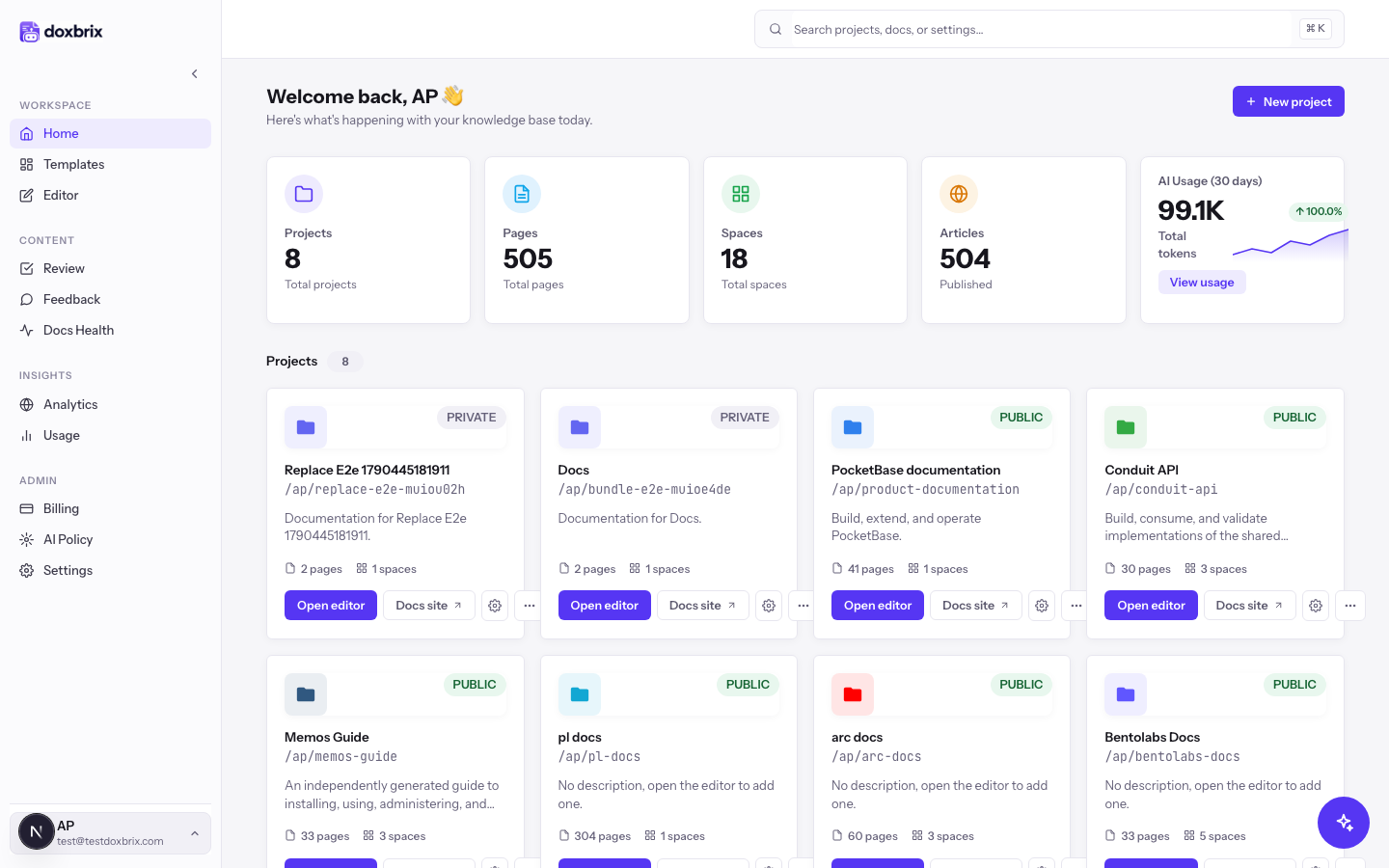
Select a sentence or paragraph. A toolbar appears with formatting controls, such as bold, italic and link. Select ✦ AI on the toolbar.
The toolbar switches to the AI actions: Make Shorter, Improve, Tone, Make Table and Ask AI…. Make Table appears only when the selection can become a table.
Select Make Shorter to condense the text, or Improve to make it clearer. To change the voice, select Tone and then Professional, Confident or Friendly. Select the back arrow to return to the AI menu, or ✕ to close it.
An ✦ AI Suggestion panel opens and shows Generating… while AI works.
Instead of a preset action, select Ask AI…. In the What should AI do with this text? field, type an instruction, such as Explain this in simpler words, and select Go or press Enter. Press Escape to cancel.
The ✦ AI Suggestion panel shows the Original text beside the Suggested text. Select Accept to replace your selection with the suggestion, or Discard to keep the original.
When your selection spans whole blocks, AI can return richer content, such as steps, tabs, code groups or callouts, instead of plain paragraphs.
Insert content with AI slash commands
Place the cursor in an empty block and type /. On an empty page, select Add your first block first. The block palette opens with an AI section above the WRITING blocks.
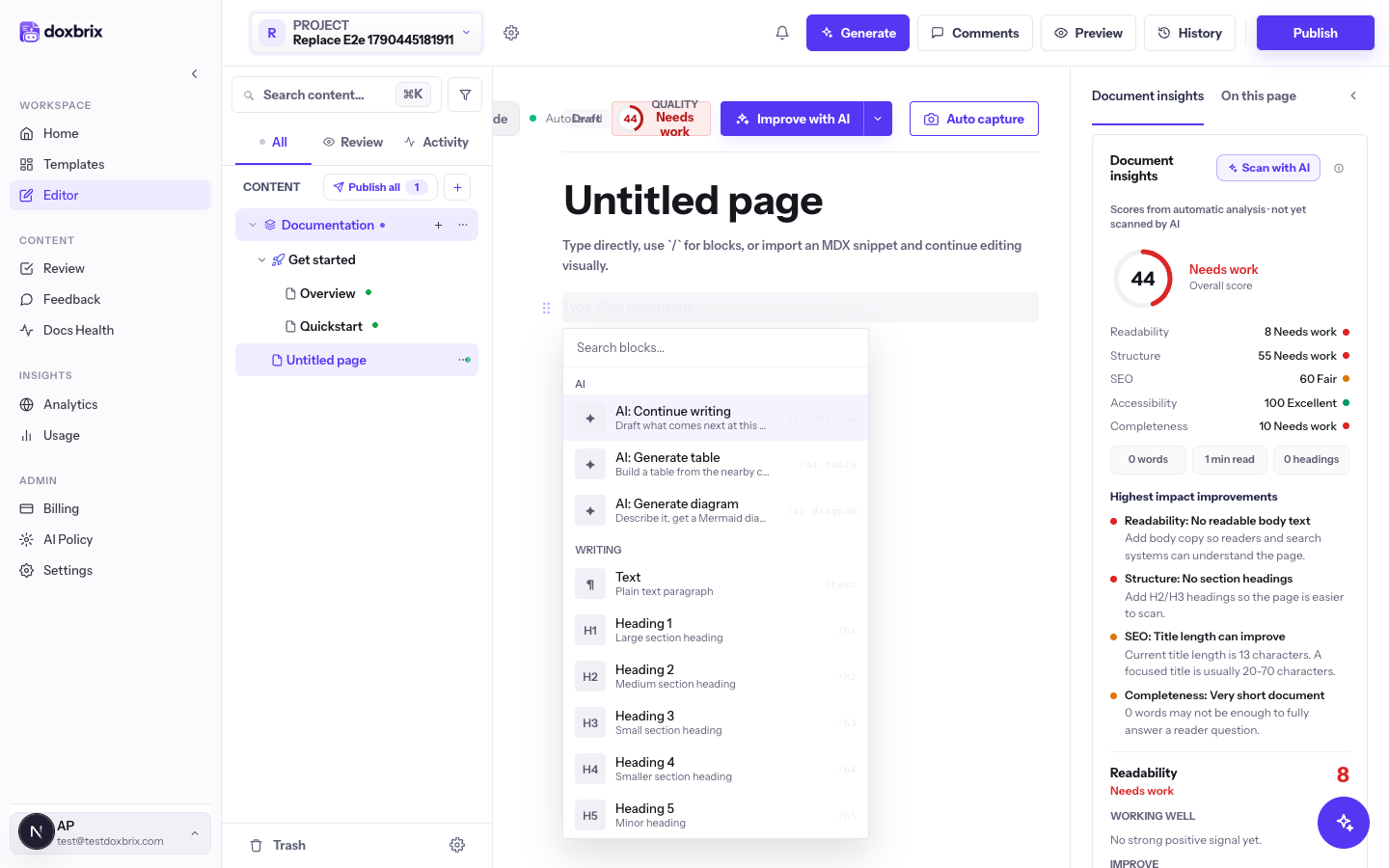
Select one command, or type its shortcut:
- AI: Continue writing (
/ai continue) drafts what comes next at this point, based on the text before and after it. - AI: Generate table (
/ai table) builds a table from the nearby content. - AI: Generate diagram (
/ai diagram) asks you to Describe the diagram, for examplelogin flow between the CLI, the API, and the browser, then select Generate. The result is a Mermaid diagram block.
The new blocks appear where you typed /, and the cursor moves to the first one. Edit them like any other content. If the result is not useful, undo the change.
Generate alt text for an image
Alt text describes an image for readers who cannot see it and helps your page's accessibility score.
- Select an image block on the page. The image settings show an Alt text… field.
- Select Generate alt text with AI next to the field.
- Review the result in Alt text… and edit it if needed. Generated alt text is at most 125 characters and describes what the image shows and any text that matters.
Images larger than about 4 MB return Image is too large for alt text generation (max ~4 MB). Use a smaller image or write the alt text yourself.
Accept autocomplete suggestions
Autocomplete, also called ghost text, suggests how to finish the current sentence. It works in the WYSIWYG editor. A project owner or admin sets the default under Editor mode in project settings; see Project settings reference.
- Type at the end of a paragraph or heading. After you pause for about a second, grey text appears after the cursor when AI has a suggestion. Suggestions appear only after at least 20 characters of text.
- Press Tab to accept the suggestion.
- Press Escape to dismiss it. Typing or moving the cursor also discards it.
Verify
- After Accept, the selection shows the suggested text and the original is gone.
- After a slash command, the new blocks appear at the cursor position.
- After alt text generation, the Alt text… field contains a description.
- Open Preview to check the result as readers see it.
Troubleshooting
For more AI error messages, see Troubleshoot AI features.