
Comment and collaborate on pages
Add page and block comments, mention teammates, react, reply, resolve threads, and read a page's activity in the Doxbrix editor.
Use comments to discuss a page with your team without changing its content. In this guide you open the Comments panel, filter threads, mention a teammate, and read the page's Activity so reviewers and authors can agree on changes before a page is published.
Comments are for project members only. Readers of your published site never see them.
Before you begin
- You need a project role that can open the editor: viewer, editor, admin or owner. Anyone who can open a page can read its comments. See Roles and permissions.
- Open a project with at least one page. The examples use the PocketBase sample project.
- To mention someone, that person must be a member of the project.
Steps
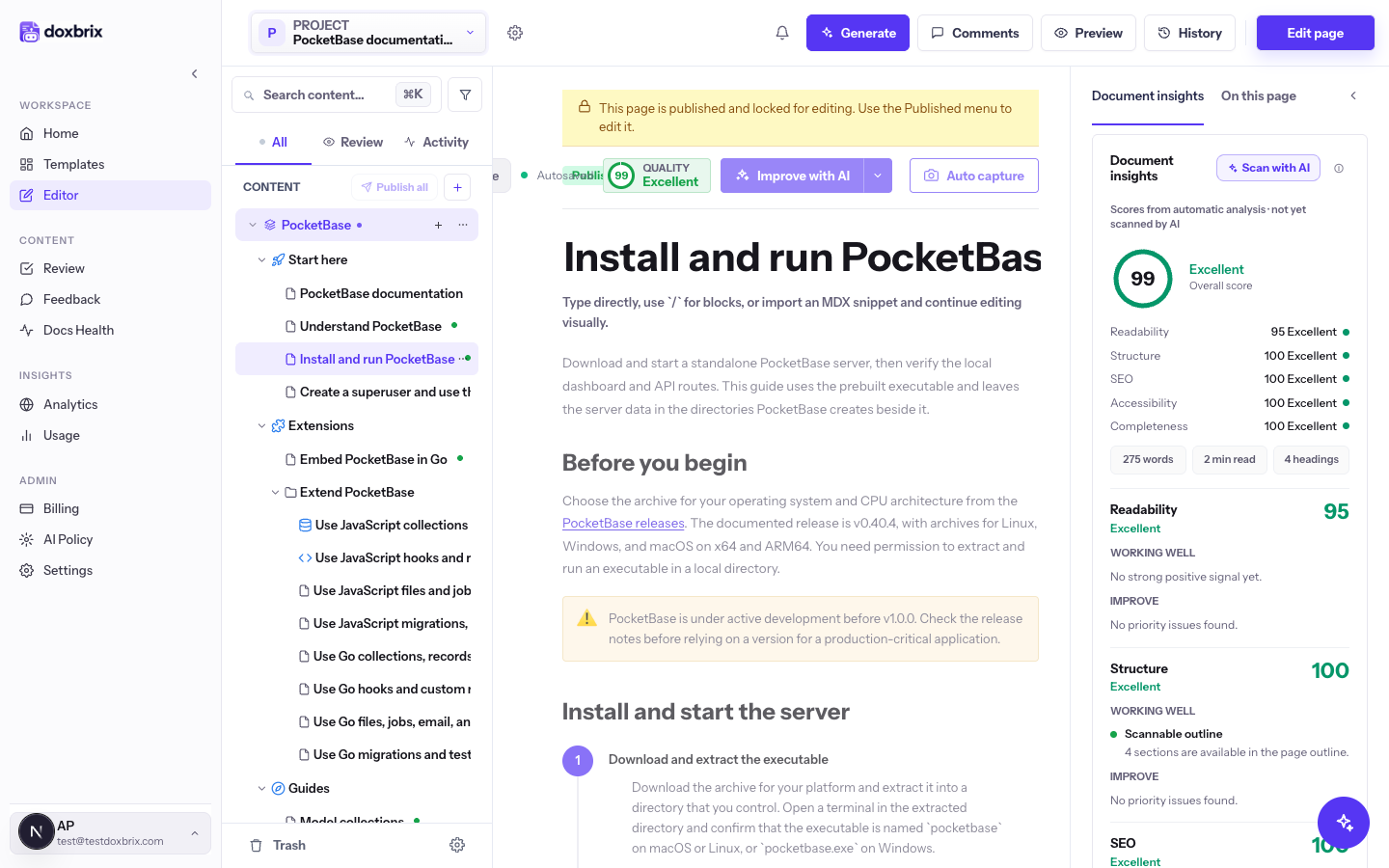
Go to the editor and select a page in the space tree on the left. The top bar shows the page actions, including Comments, Preview and History. When a page has open comments, the Comments button shows their count.
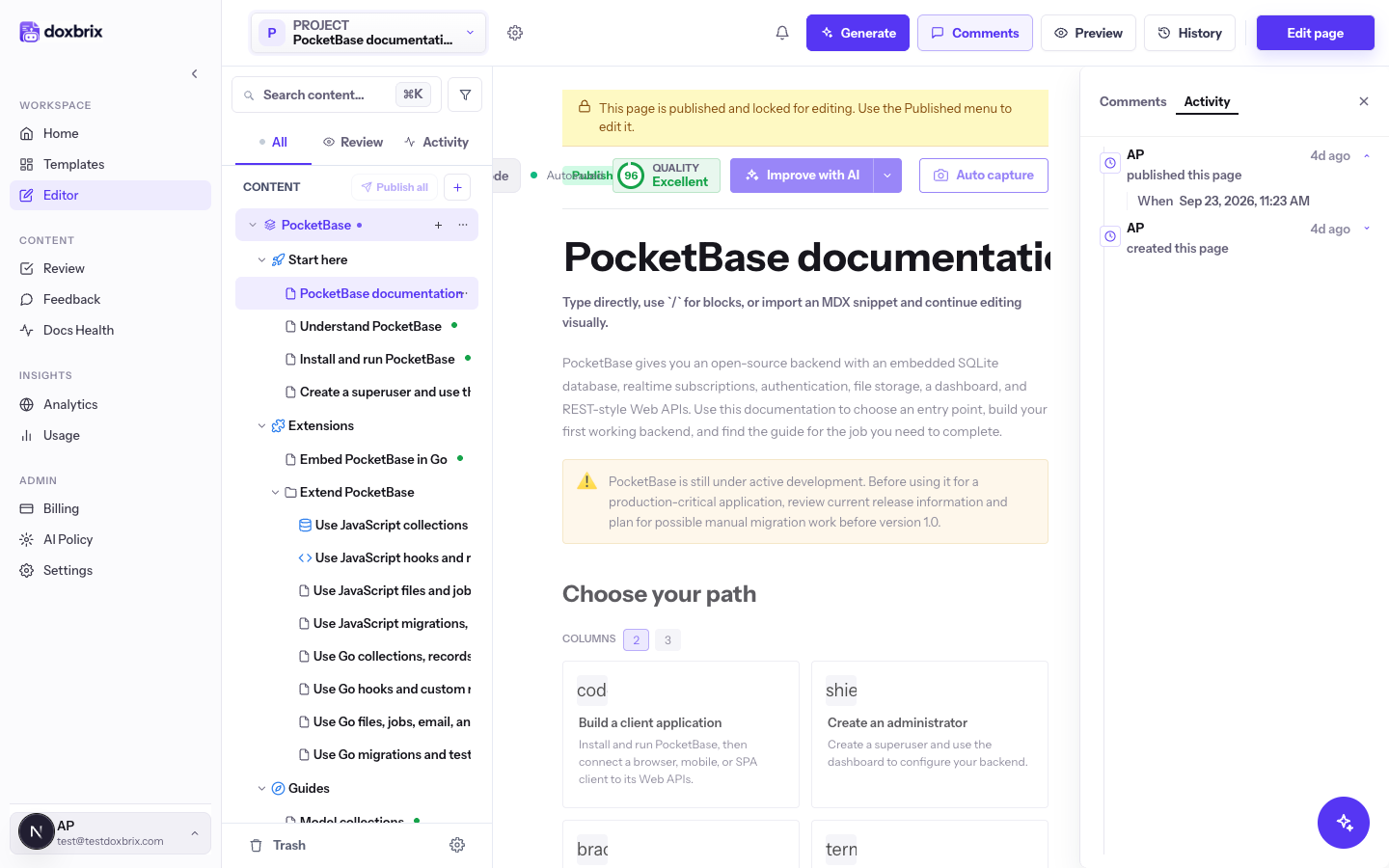
Select Comments. A panel opens on the right with two tabs, Comments and Activity. The Comments tab has a comment box that reads Add a page comment… (@ to mention), a Comment button, and three filters: All, Open and Resolved, each with a count.
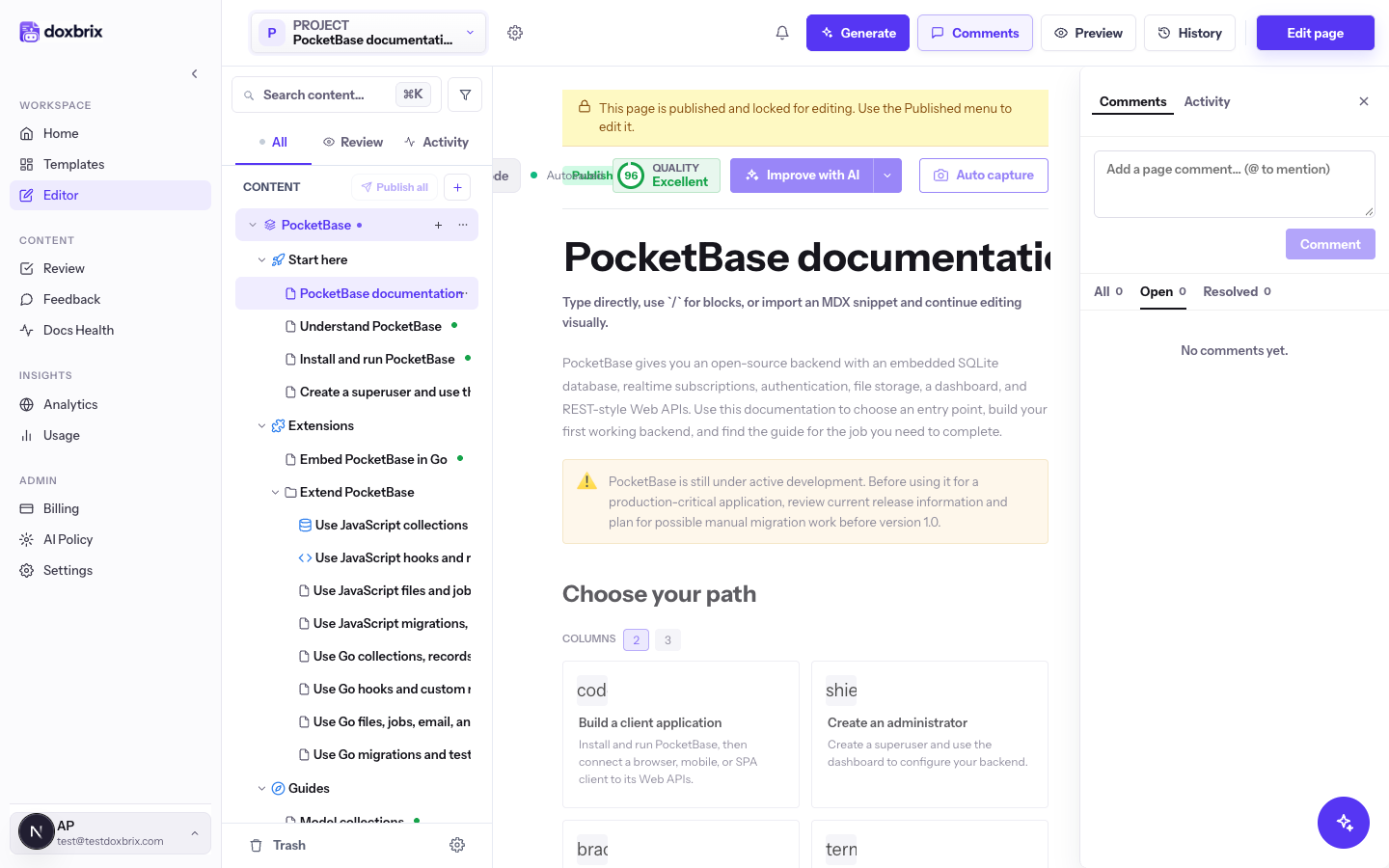
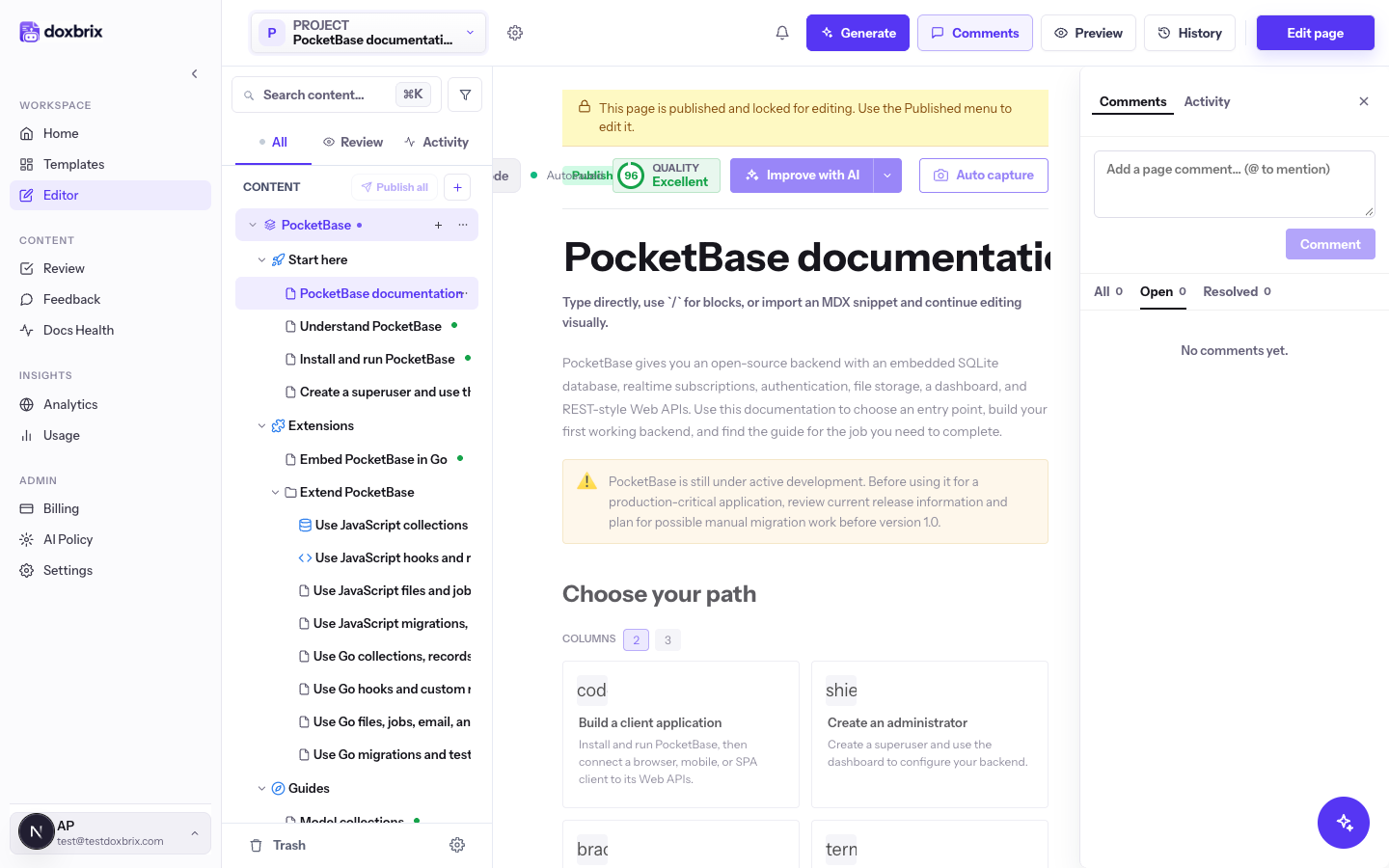
Select Open to see threads that still need action, Resolved to see closed ones, or All to see both. Open is selected when the panel opens. Page comments and block comments appear together in the same list.
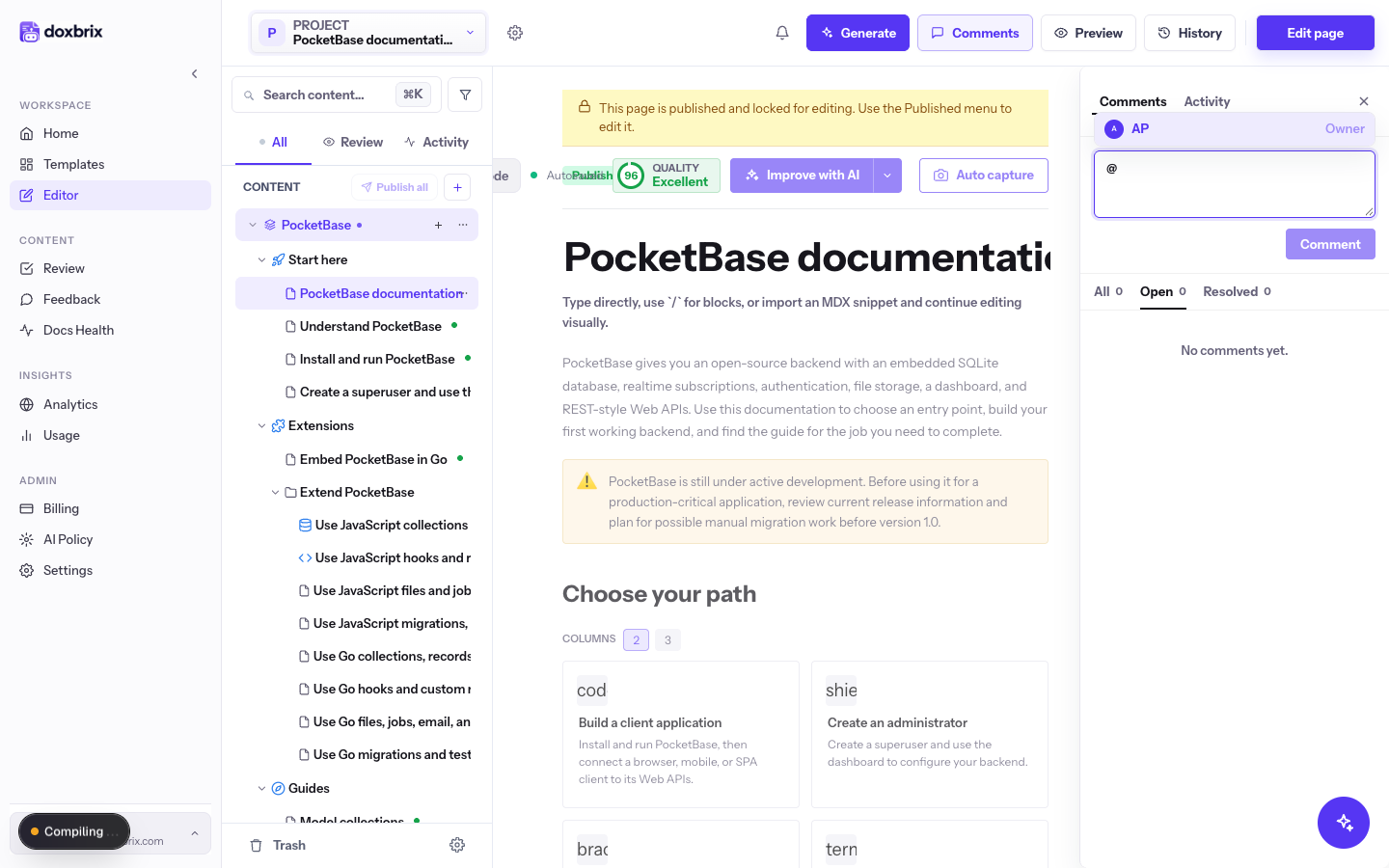
Select the comment box and type your comment, for example Can we add an example for the admin API here?. To notify someone, type @. A picker lists project members with their role. Choose a name with the arrow keys and press Enter or Tab, or select it.
Select Comment, or press Ctrl+Enter (Cmd+Enter on macOS). The thread appears in the list under Open, and the counts on the filters update.
To attach a comment to part of the page instead of the whole page, select text inside a single block. In the formatting toolbar that appears, select the comment button. An Add comment box opens with your selected text quoted and the placeholder Comment on this block…. Type the comment and post it.
The comment button is disabled when your selection spans more than one block; its tooltip reads Comments can only be added within a single block.
On a thread, select Reply, type your answer in the box that reads Reply… (Ctrl+Enter to submit), and press Ctrl+Enter. Add a reaction to any comment with one of 👍, ✅, 🤔, ❓, ❤️ or 🎉.
When the discussion is finished, the comment's author selects Resolve. The thread moves to the Resolved filter and shows a Resolved bar. The author can select Reopen to bring it back.
Select the Activity tab. It lists what happened to the page, newest first: who created this page, submitted for review, published this page, rejected this page or unpublished this page, plus each comment (with the first 60 characters) and each resolved comment. Select a comment event to jump back to that comment.
See who else is on the page
While you work, the top bar shows avatars for other people who have the same page open, marked as viewing or editing. The editor refreshes your presence every 15 seconds, and a person disappears from the list about 45 seconds after they close the page or lose their connection.
Verify
Limitations
- Only the author of a comment can edit, delete, resolve or reopen it. Other members can reply and react.
- Reactions are limited to the six emoji listed above.
- A block comment must stay within one block. Split a comment into two if it concerns two blocks.
- Comments are not published and do not appear on the reader site or in Ask AI answers.