
Sign in and reset your password
Sign in to Doxbrix with your email and password or your organization's single sign-on, handle email verification prompts, and reset a forgotten password.
This guide shows you how to sign in to your Doxbrix workspace with an email and password or with single sign-on (SSO). It also covers what to do when Doxbrix asks you to verify your email, and how to reset a forgotten password.
When you sign in successfully, Doxbrix opens the page you were trying to reach. If you opened the sign-in page directly, it opens your dashboard.
Before you begin
- An account. You need a Doxbrix account. If you don't have one yet, create an account first. The sign-in page has no Google button. Google sign-in appears on the sign-up page only.
- A verified email address. If you signed up with an email and password, you must confirm your email before Doxbrix lets you sign in. Accounts created with Google or SSO are verified automatically.
- For SSO only: your workspace owner must have set up an SSO provider for your email domain. If you aren't sure, ask them or see Set up single sign-on.
Choose a sign-in method
| Method | Use it when | What you enter |
|---|---|---|
| Email and password | You created your account with an email and password. | Email and Password |
| Continue with SSO | Your workspace signs you in through your company's identity provider. | Your work Email only |
{Workspace} requires single sign-on for this email domain. Use "Continue with SSO" instead. Use the SSO steps below.Sign in with email and password
Go to /sign-in in the Doxbrix app. The page shows the heading Welcome back with the Email and Password fields, a Sign in button, and a Continue with SSO button below it.
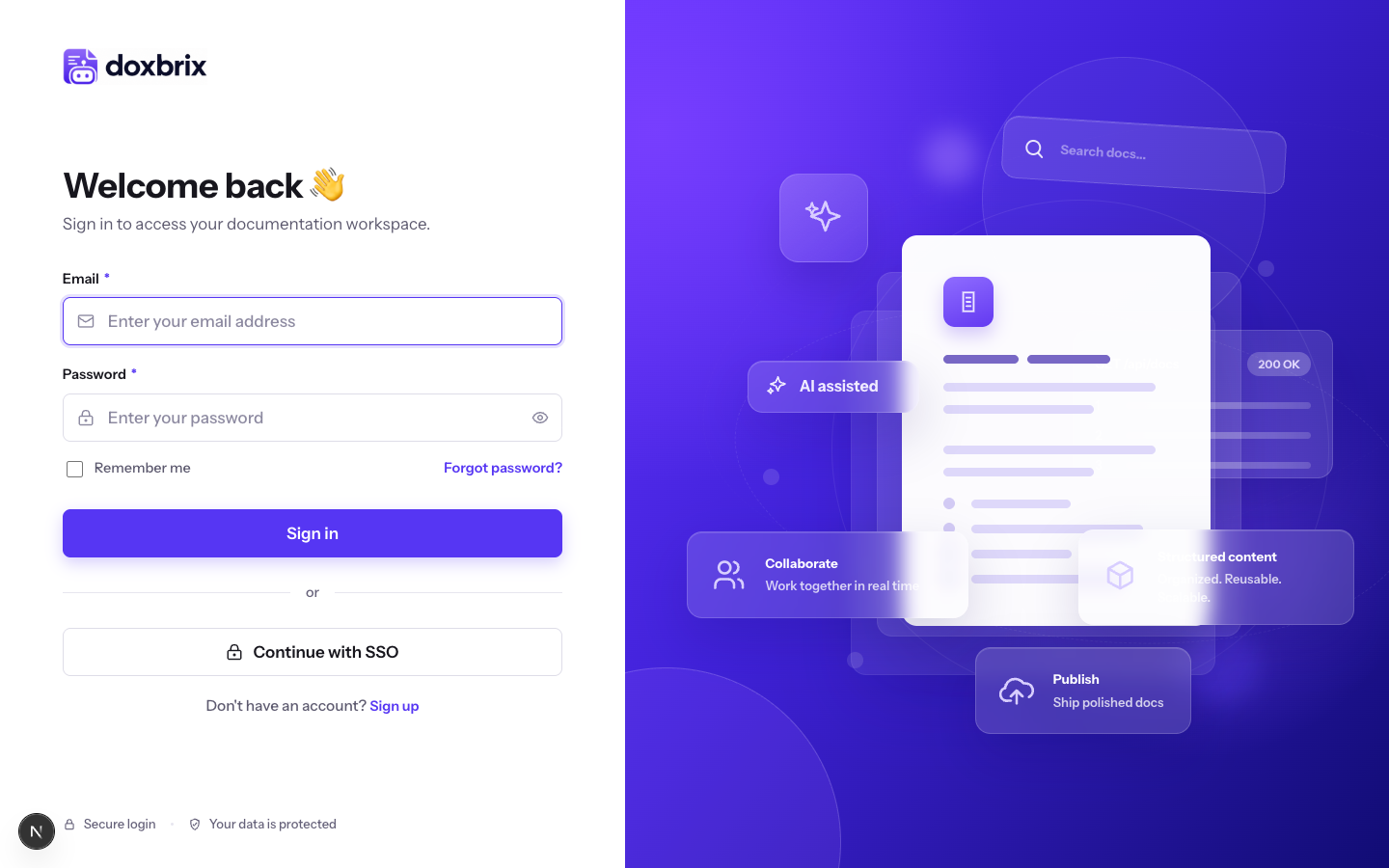
Type the email address for your account in Email, for example name@example.com. If you came from a workspace invitation, use the invited email address. The subheading then reads Sign in with the invited email address to continue the workspace invite.
Type your password in Password. To check what you typed, select Show password.
Select Remember me if you want Doxbrix to keep you signed in on this device. Leave it cleared on a shared computer.
Select Sign in. The button reads Signing in… while Doxbrix checks your details. Then Doxbrix opens the page you requested, or your dashboard.
If Doxbrix shows Invalid email or password., check the address for typos and try again. If you still can't sign in, reset your password.
Verify your email when prompted
If you haven't confirmed your email yet, Doxbrix doesn't sign you in. Instead, it shows Please verify your email before signing in. We've sent a verification link to your address. Doxbrix sends a fresh verification link automatically each time you try to sign in this way.
- Open the verification email and select the link. Verification links stay valid for 24 hours.
- If the email doesn't arrive, select Resend next to the notice. The notice changes to say the link was re-sent.
- After you verify, Doxbrix signs you in automatically.
Sign in with SSO
On /sign-in, type your work email in Email, for example name@example.com. You don't need a password. Doxbrix uses the email domain to find your workspace's identity provider.
If you select Continue with SSO before you enter an email, Doxbrix shows Enter your work email first. We use it to find your organisation's SSO provider.
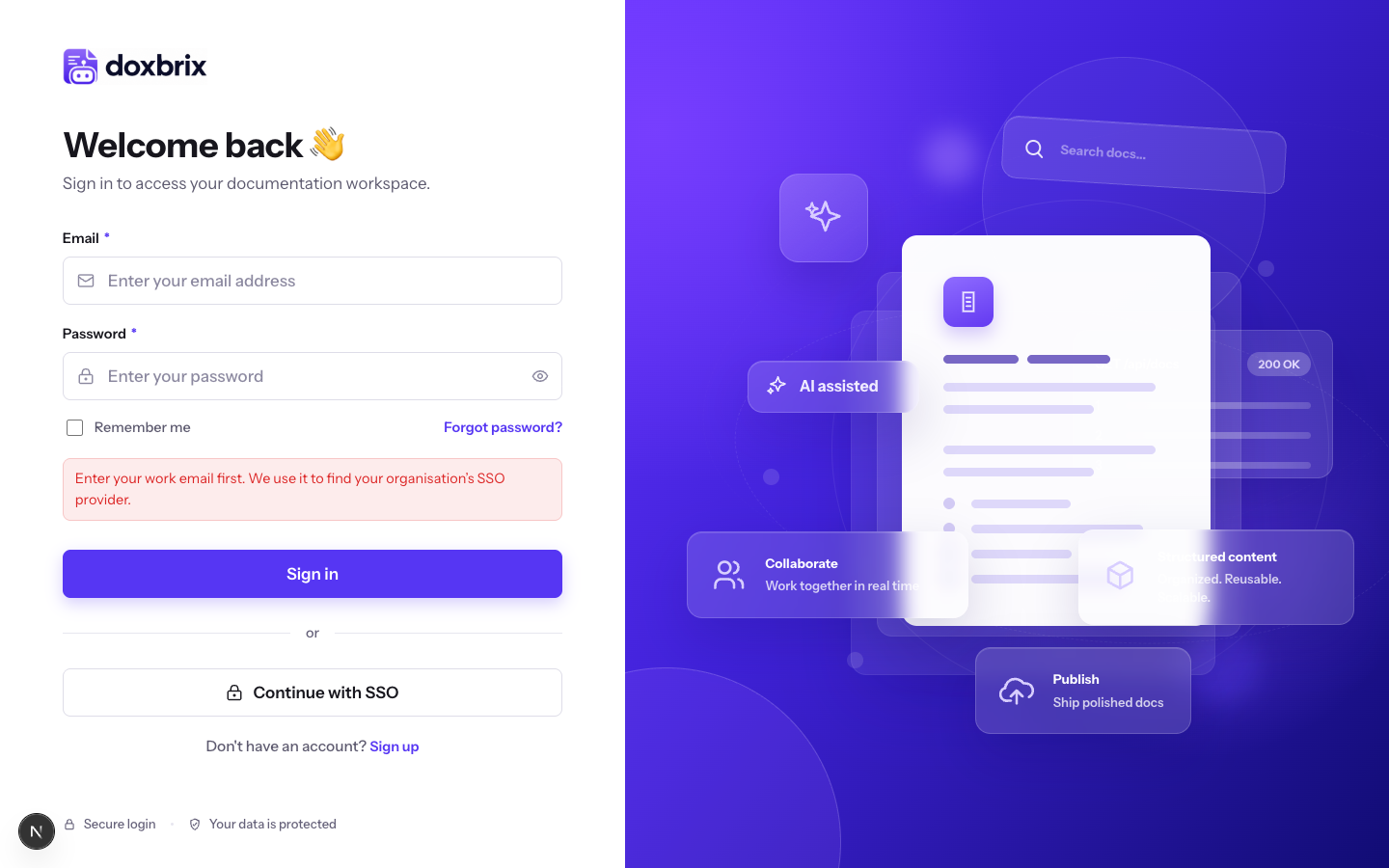
Select Continue with SSO. The button reads Redirecting to your identity provider... and your browser opens your company's sign-in page.
Complete sign-in on your company's identity provider page. Your provider then returns you to Doxbrix, signed in.
If Doxbrix shows No SSO provider is configured for this email domain. Ask your workspace owner to set one up., your domain has no SSO connection yet. Ask your workspace owner to set one up, or sign in with your password if your account has one.
Reset a forgotten password
Use this procedure when you know your email but not your password. For security, Doxbrix never tells you whether an account exists for the address you enter.
On the sign-in page, select Forgot password?. The Forgot your password? page opens with an Email field and a Send reset link button.
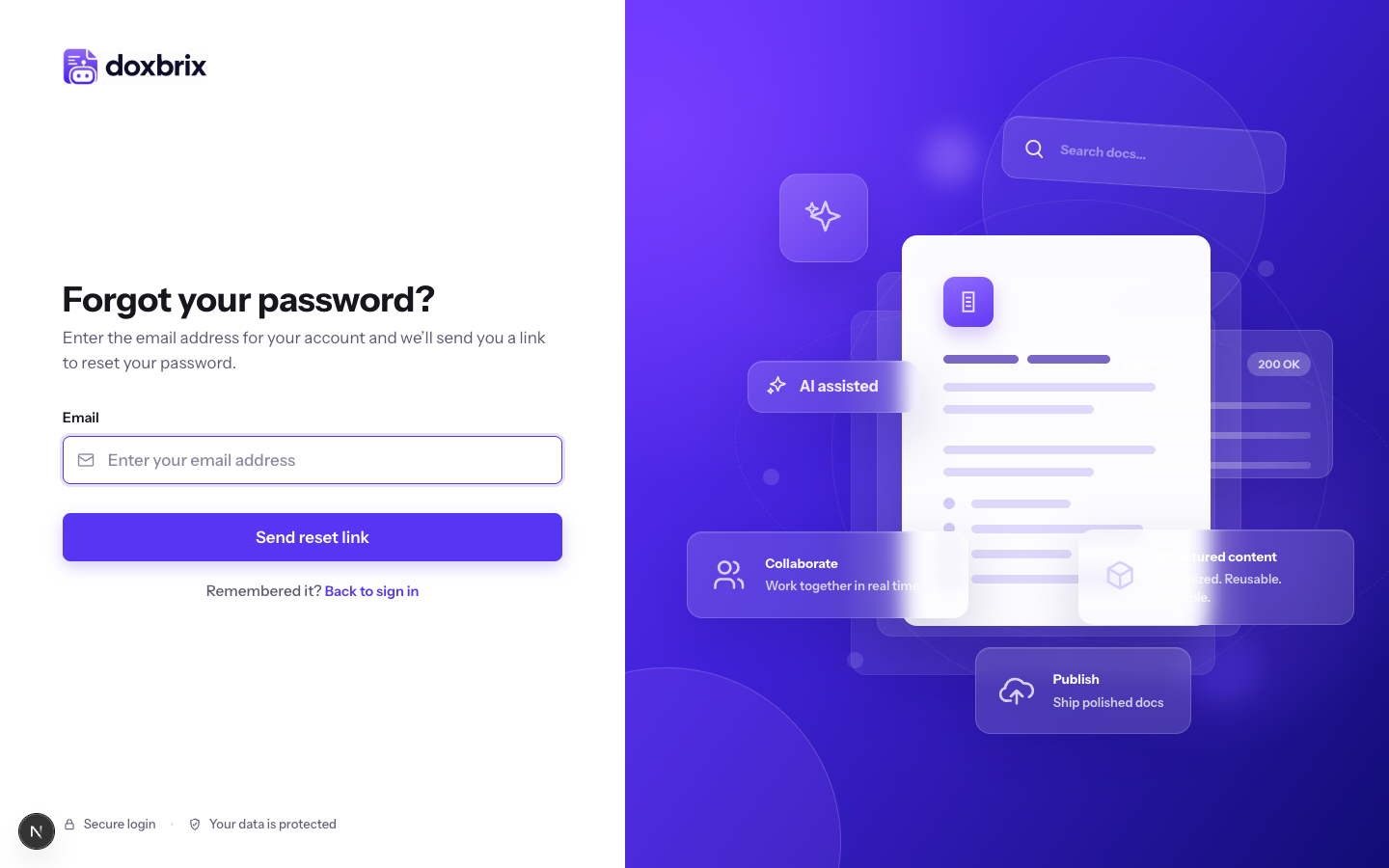
Type the email address for your account in Email, for example name@example.com.
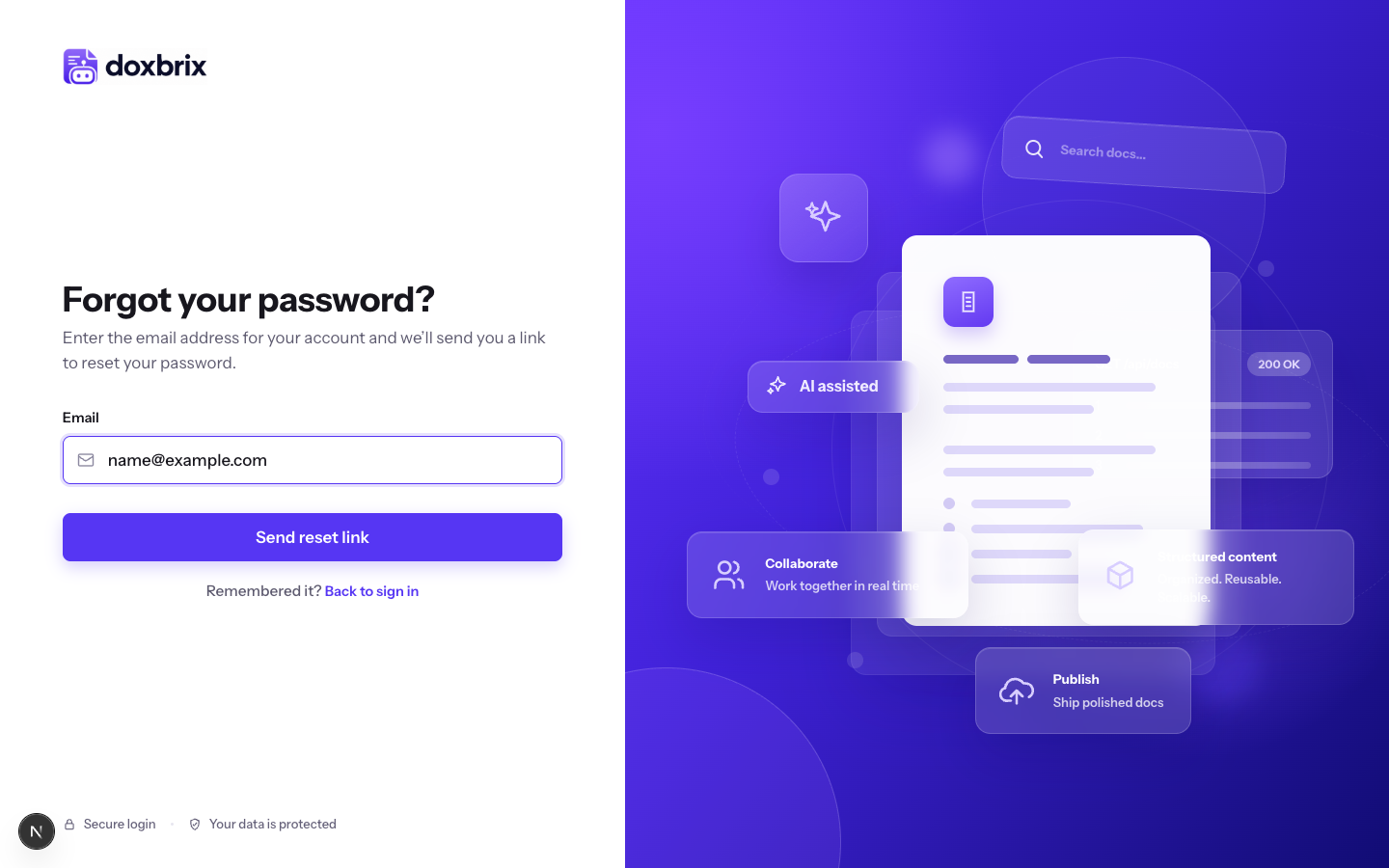
Select Send reset link. The page changes to Check your email and says that, if an account exists for your address, Doxbrix has sent a reset link. The link expires shortly, so use it soon.
Open the password reset email and select the link. Doxbrix opens the Set a new password page.
Type your new password in New password and again in Confirm password. Use at least 8 characters and a password you don't use anywhere else. Then select Update password.
When the page shows Password updated, select Go to sign in and sign in with your new password.