
Configure publishing controls and SEO indexing
Set the canonical URL, robots rule, indexing policy, sitemap generation and unpublished page handling for a project's reader site.
Publishing controls decide how search engines find your reader site and which address they treat as the original. Use this guide to set a canonical URL, choose whether the site is indexed, turn the sitemap on or off, and choose how unpublished pages behave for readers.
Typical reasons to change these settings: you connected a custom domain and want search results to use it, you are preparing a launch and want to keep the site out of search engines, or you want drafts to stay out of search results.
Before you begin
- You need to be a workspace Owner or Admin, or an Owner or Admin of the project. Other roles cannot open or save project settings.
- If you plan to use your own domain as the canonical URL, connect and verify it first. See Connect a custom domain.
- Read How reader sites are hosted for how
robots.txtandsitemap.xmlare generated from these settings.
Steps
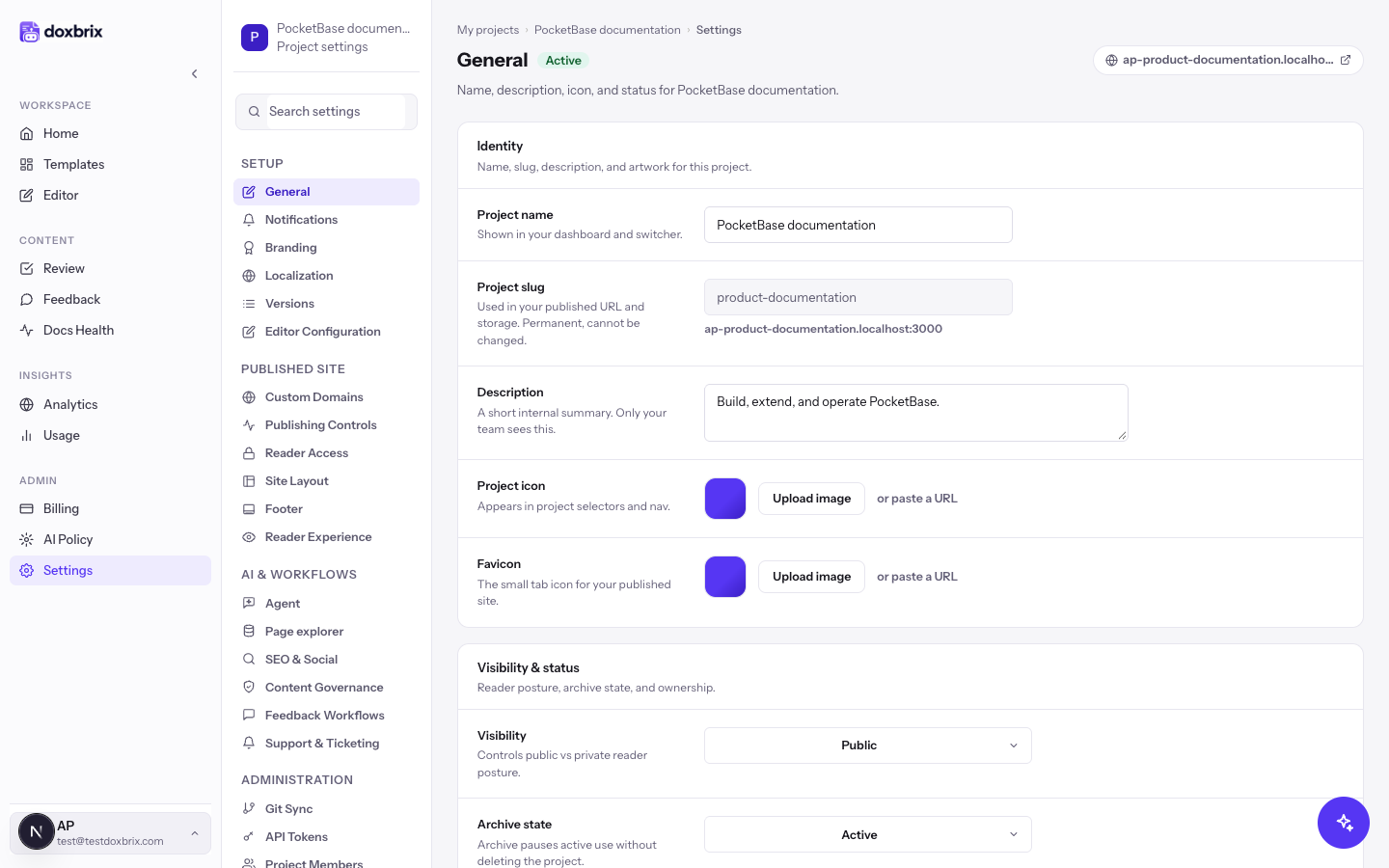
On the dashboard, click the gear on the project card, for example the PocketBase documentation card. Project settings open on General, with the settings sections listed in the left navigation.
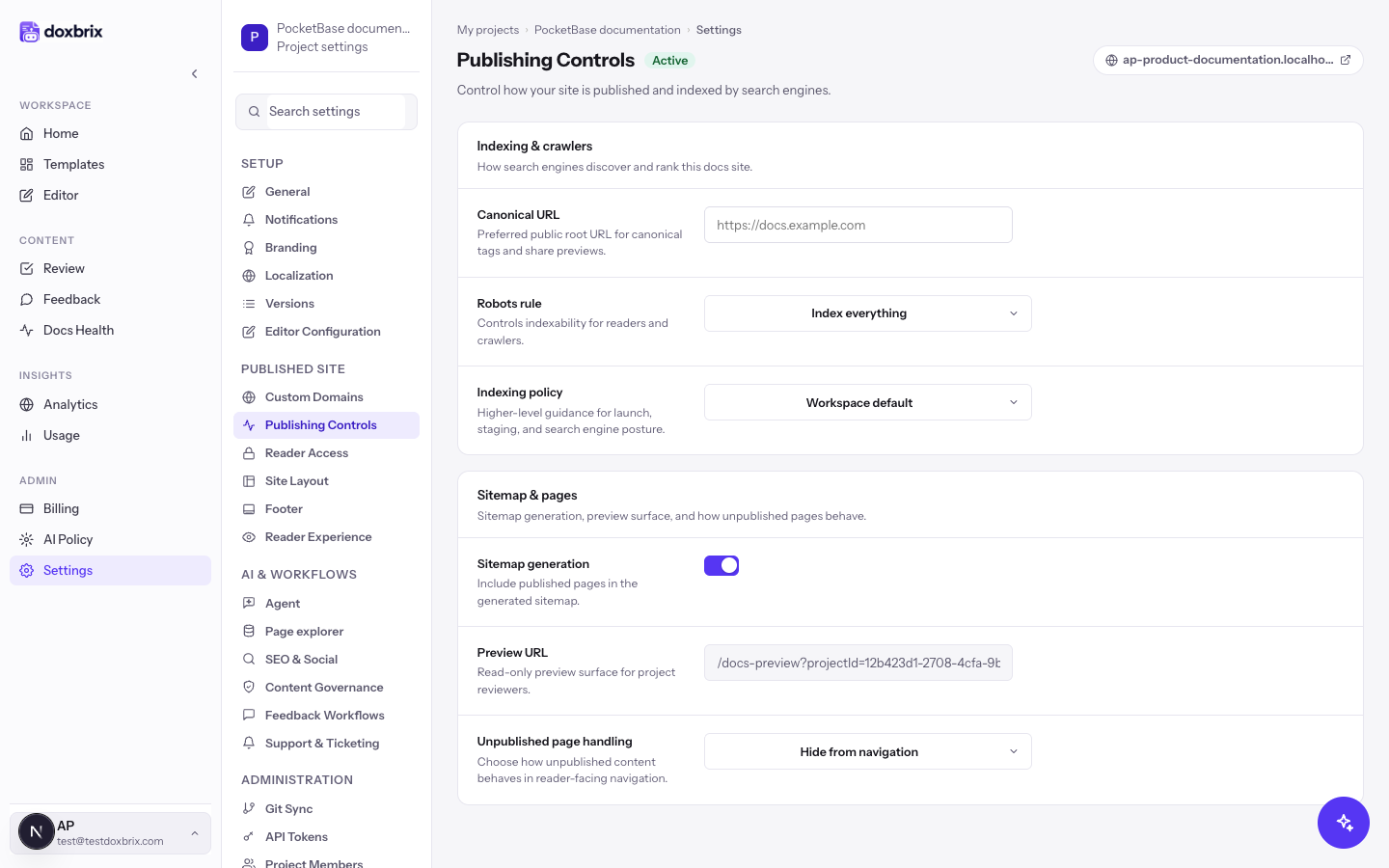
Click Publishing Controls in the left navigation. The section has two groups: Indexing & crawlers holds Canonical URL, Robots rule and Indexing policy; Sitemap & pages holds Sitemap generation, Preview URL and Unpublished page handling.
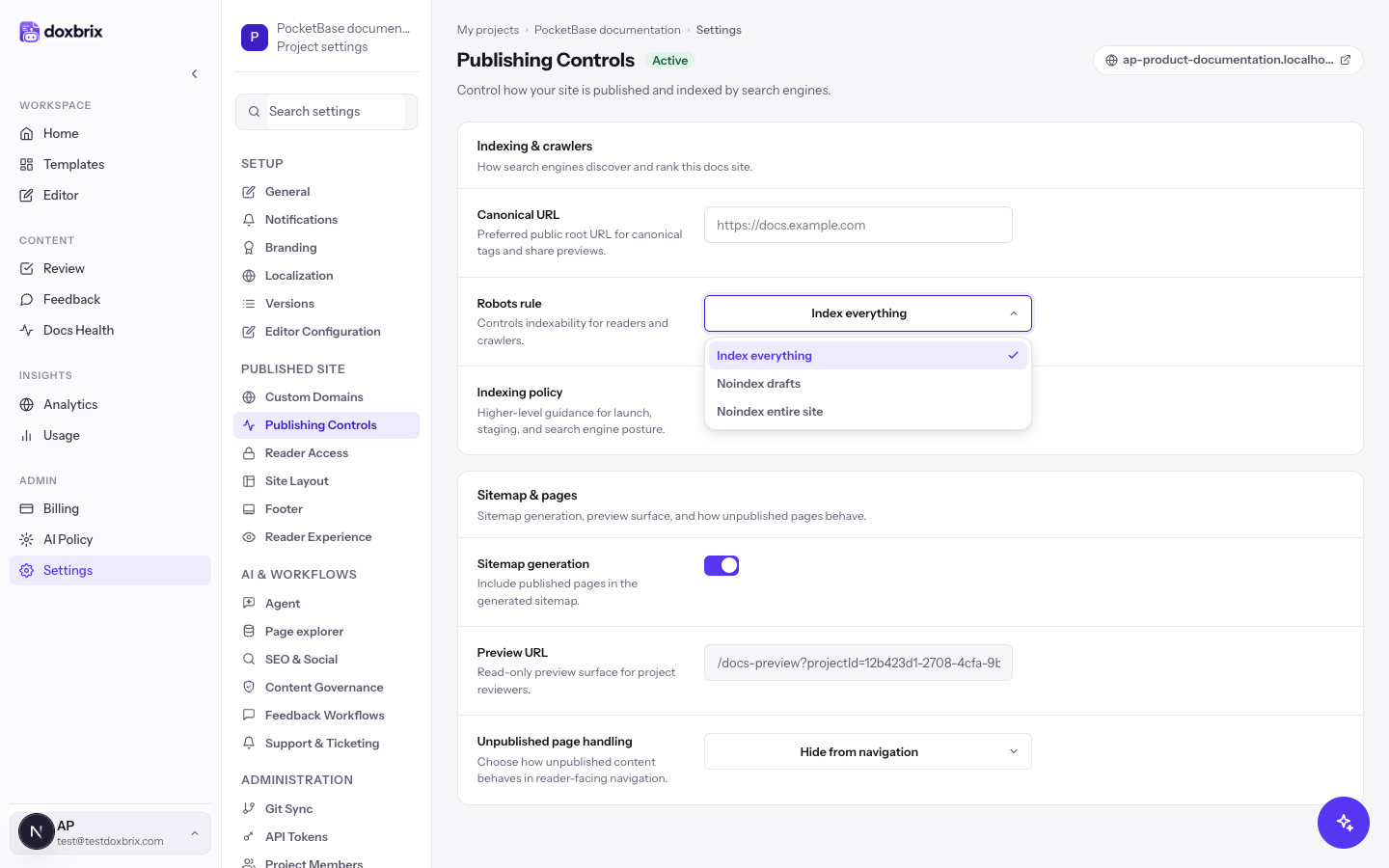
Open Robots rule and choose how crawlers may index the site:
| Option | Effect |
|---|---|
| Index everything | Published pages can be indexed. This is the default. |
| Noindex drafts | Published pages can be indexed; any page that is not published is marked not to be indexed. |
| Noindex entire site | No page is indexed. robots.txt returns Disallow: / and the sitemap is empty. |
Open Indexing policy and choose Workspace default, Allow indexing or Discourage indexing. Discourage indexing keeps the whole site out of search engines regardless of the robots rule, which is useful for a staging or pre-launch site. The other two options leave indexing to the robots rule.
Leave Sitemap generation on to list every published page in the site's sitemap.xml and reference it from robots.txt. Turn it off to publish an empty sitemap. Preview URL below it is read-only and shows the preview address that project reviewers use.
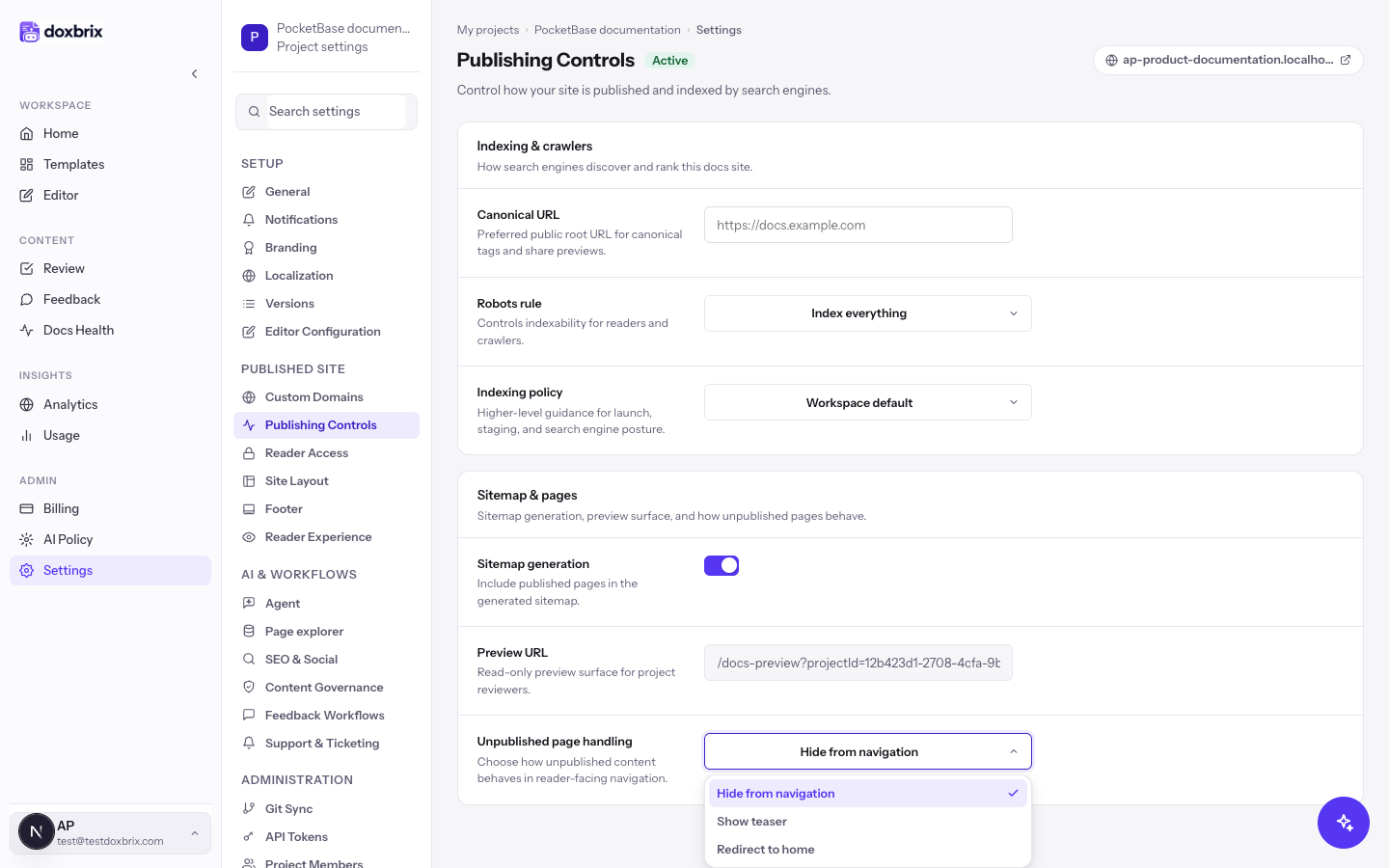
Open Unpublished page handling and choose how unpublished content behaves in reader-facing navigation: Hide from navigation (the default), Show teaser or Redirect to home.
In Canonical URL, enter the preferred public root address of your site, for example https://docs.example.com. Doxbrix uses it for canonical tags, share previews and the addresses listed in the sitemap. As soon as you change a field, an Unsaved changes bar appears with Cancel and Save changes.
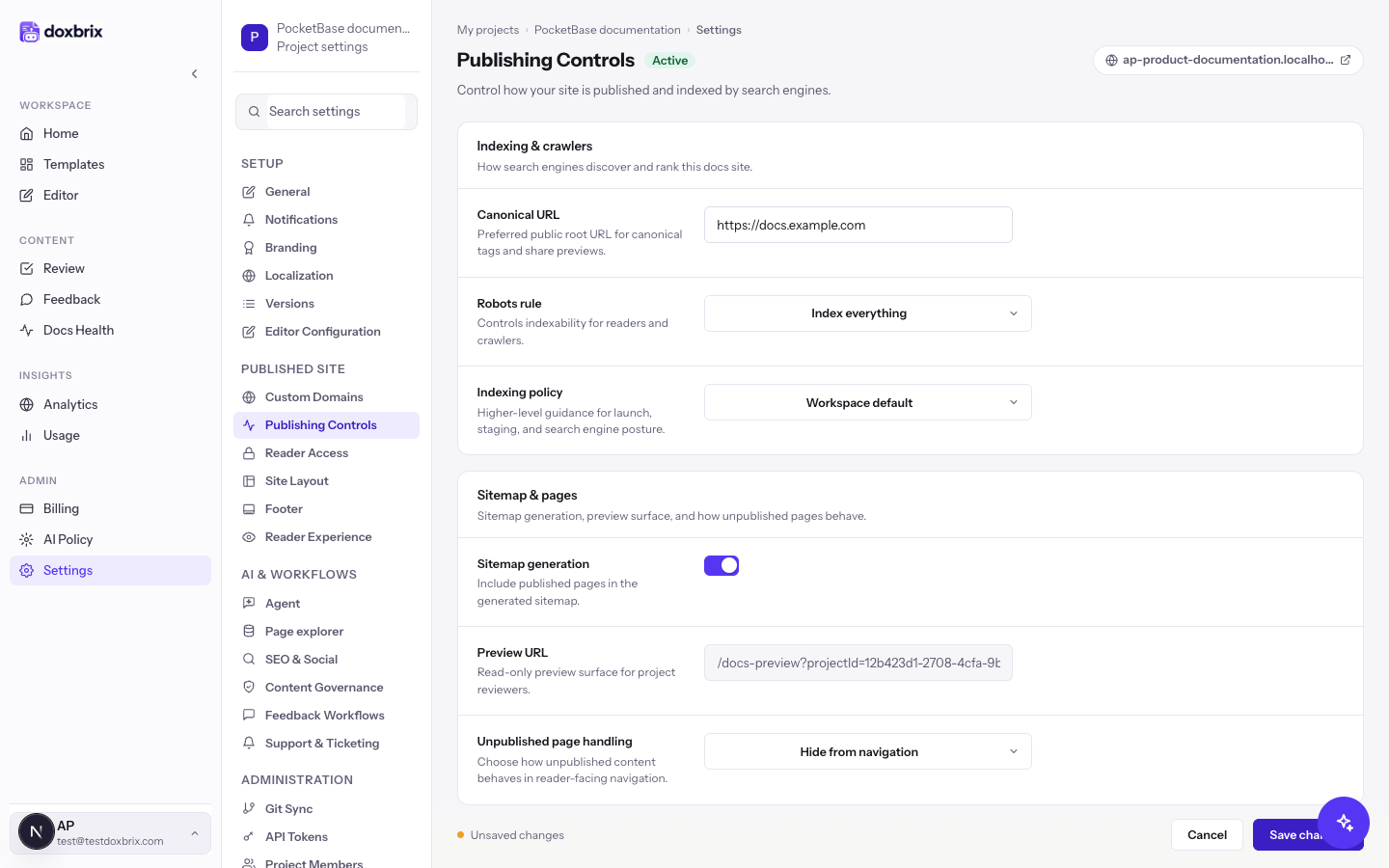
https:// and without a page path. Page addresses are added after it, such as https://docs.example.com/quickstart. Leave the field empty to use the hosted subdomain.Click Save changes. To discard your edits instead, click Cancel.
Verify
robots.txt and sitemap.xml at the root of your site, for example https://pocketbase.doxbrix.app/robots.txt. An indexable site shows Allow: / and a Sitemap: line; the sitemap lists your published pages under the canonical URL you entered. A site set to Noindex entire site or Discourage indexing shows Disallow: / and an empty sitemap.The sitemap is regenerated from the current settings, so allow a few minutes before a change appears. Search engines update their own results on their own schedule.
Recommended settings
| Situation | Robots rule | Indexing policy | Sitemap generation |
|---|---|---|---|
| Public product docs | Index everything | Allow indexing or Workspace default | On |
| Staging or pre-launch site | Noindex entire site | Discourage indexing | Off |
| Public docs with drafts kept out of search | Noindex drafts | Workspace default | On |
A private site is never indexed, whatever these settings say. See Make a site private.