
Embed the assistant on another website
Create an origin-restricted assistant key and add the Doxbrix assistant to any website with one script tag, or call it from your server.
You can put the Ask AI assistant on any website you own, such as your product, marketing site, or help center, so visitors get answers from your documentation without leaving the page. You create an assistant key that only works on the origins you allow, then add one script tag to your site. The same key also authorizes the headless assistant API for server-to-server use.
Before you begin
- Set up the assistant for the project and confirm it answers on your published site. See Set up the Ask AI assistant.
- You need a role that can manage the project, such as project owner or admin. See Roles and permissions.
- Know the exact origin of each site that will host the assistant, for example
https://www.example.com. An origin is the scheme and host, plus a port if the site uses one, with no path. - You need access to edit the HTML of the website where you add the assistant.
Create an assistant key
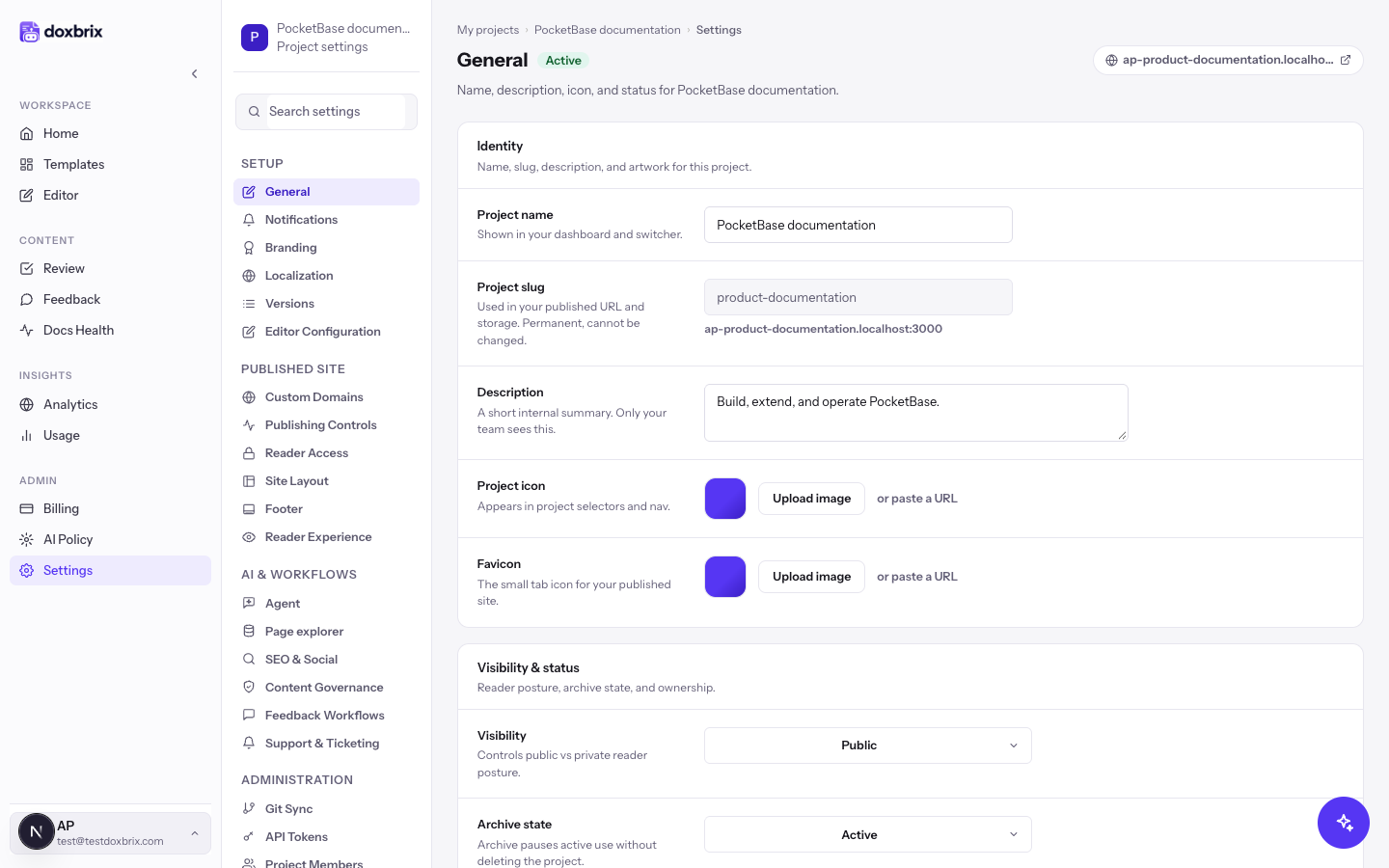
On the dashboard, select the gear icon on your project card. The project settings open on General, and the settings sidebar lists Agent under AI & workflows.
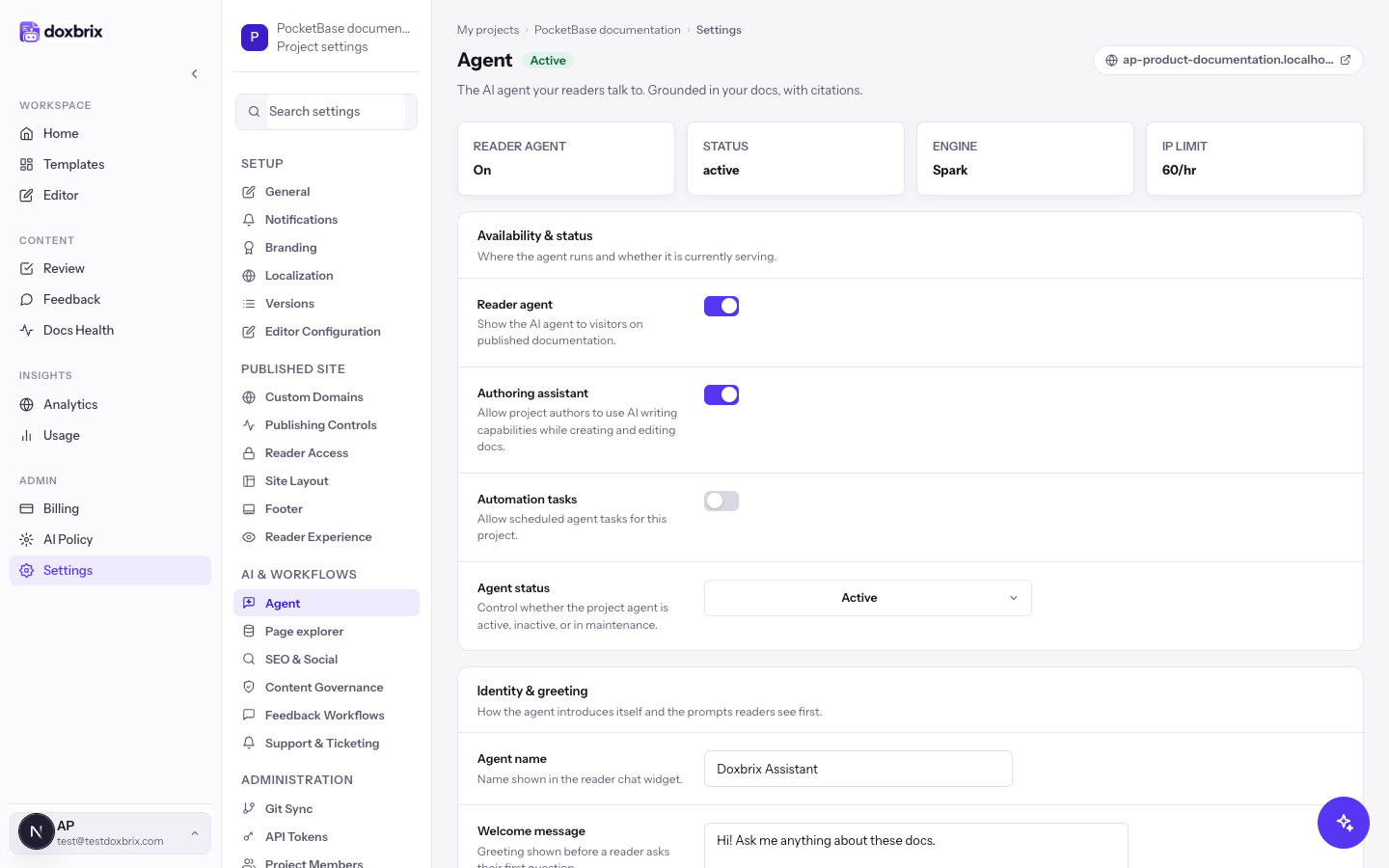
Select Agent. The page opens with the reader agent summary and the Availability & status group. Check that Reader agent is on and Agent status is Active; the embed does not work while the assistant is disabled.
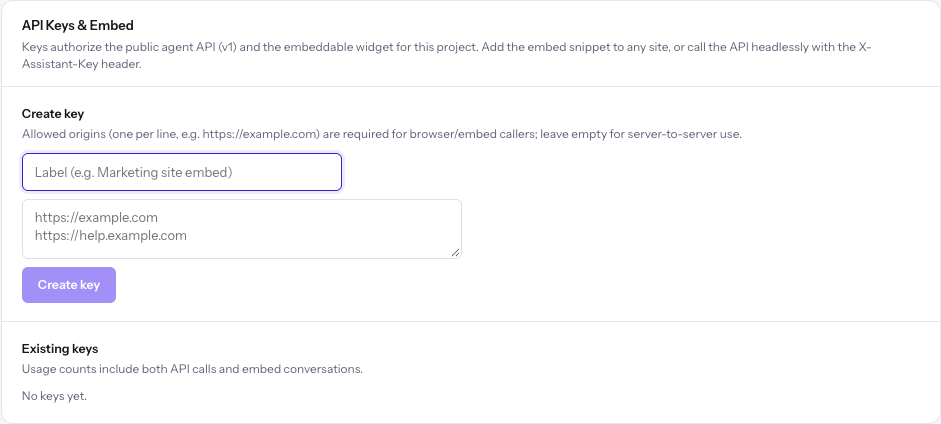
Scroll to API Keys & Embed. The Create key form has a label field, an allowed origins box, and a Create key button that stays disabled until you enter a label.
Enter a label that tells you where the key is used, for example Marketing site. It can be up to 80 characters.
In the origins box, enter each site that will host the assistant, one per line, for example https://www.example.com. You can allow up to 10 origins per key. Enter bare origins only: https://www.example.com is valid, and https://www.example.com/help is not. A trailing slash is removed for you.
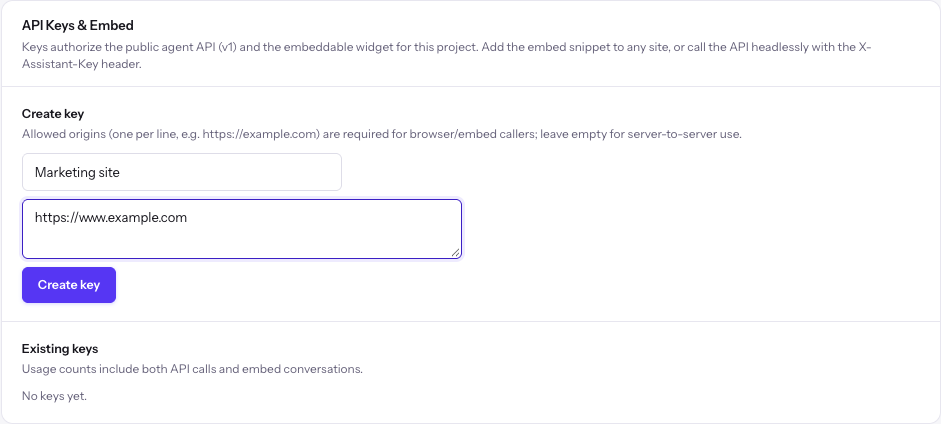
Select Create key. The page shows New key, copy it now with the full key, which starts with dak_, and a ready-made embed snippet.
Add the embed script to your site
Paste the script tag into the HTML of every page that should show the assistant, just before the closing </body> tag. Replace the key with your own.
<script
  src="https://app.doxbrix.com/assistant-embed.js"
  data-assistant-key="dak_your_key_here"
  data-accent="6d35ff"
  data-position="right"
  async
></script>| Attribute | Required | Default | Description |
|---|---|---|---|
src | Yes | None | The embed loader on the Doxbrix app origin. Use the snippet shown after you create the key. |
data-assistant-key | Yes | None | The assistant key. Without it, the script logs [doxbrix-assistant] data-assistant-key is missing to the browser console and does nothing. |
data-accent | No | 6d35ff | The launcher and accent color as a six-digit hex value, with or without #. |
data-position | No | right | The corner for the launcher: right or left. |
async | Recommended | None | Loads the script without blocking your page. |
The script adds a round launcher button in the bottom corner of the page. Selecting it opens the assistant in a panel titled Documentation assistant; selecting it again closes the panel.
Verify
- Open a page of your site that includes the script, on an origin you allowed.
- Select the launcher button in the bottom corner. The assistant panel opens with your greeting and starter questions.
- Ask a question and confirm that the answer cites your documentation.
- In API Keys & Embed, under Existing keys, check the key's request count. Usage counts include both API calls and embed conversations.
Call the assistant from your server
The same key authorizes the headless assistant API. Send the key in the X-Assistant-Key header. Requests from a server have no browser origin, so they work with a server-only key.
curl -X POST "https://app.doxbrix.com/api/v1/assistant/ask" \
  -H "Content-Type: application/json" \
  -H "X-Assistant-Key: dak_your_key_here" \
  -d '{
    "messages": [
      { "role": "user", "content": "How do I back up PocketBase?" }
    ],
    "sessionId": "session-123",
    "locale": "en"
  }'
The request takes 1 to 10 messages, each with a role of user or assistant and up to 4,000 characters of content. sessionId, locale, and pageId are optional. The response contains answer, sources, followUps, resolved, handoff, usage, and turnId. For the full contract, see REST API reference.
Revoke a key
In API Keys & Embed, under Existing keys, select Revoke next to the key. The key stops working immediately and is marked (revoked). Any site that uses it shows an error in place of the assistant.