
Set up the Ask AI assistant
Configure the reader assistant's status, name, greeting, instructions, engine, answer style, help button, budget and rate limit.
Ask AI is the assistant readers use on your published site to get answers grounded in your documentation, with links to the source pages. This guide shows you how to turn it on, give it a name and greeting, steer its answers, choose its engine, set spending and usage limits, and decide how readers reach a person when the docs do not answer their question.
Before you begin
- You need a project with published pages. The assistant answers only from content readers can see. See Publish and edit published pages.
- You need a role that can manage project settings, such as project owner or admin. See Roles and permissions.
- Check your plan's monthly allowance of AI answers. See Plans and limits reference.
- Your workspace AI policy can restrict AI features. See Govern AI with the AI policy.
Configure the assistant
On the dashboard, select the gear icon on your project card. In the settings sidebar, under AI & workflows, select Agent.
The top of the page summarizes the current state: Reader agent, Status, Engine, and IP limit.
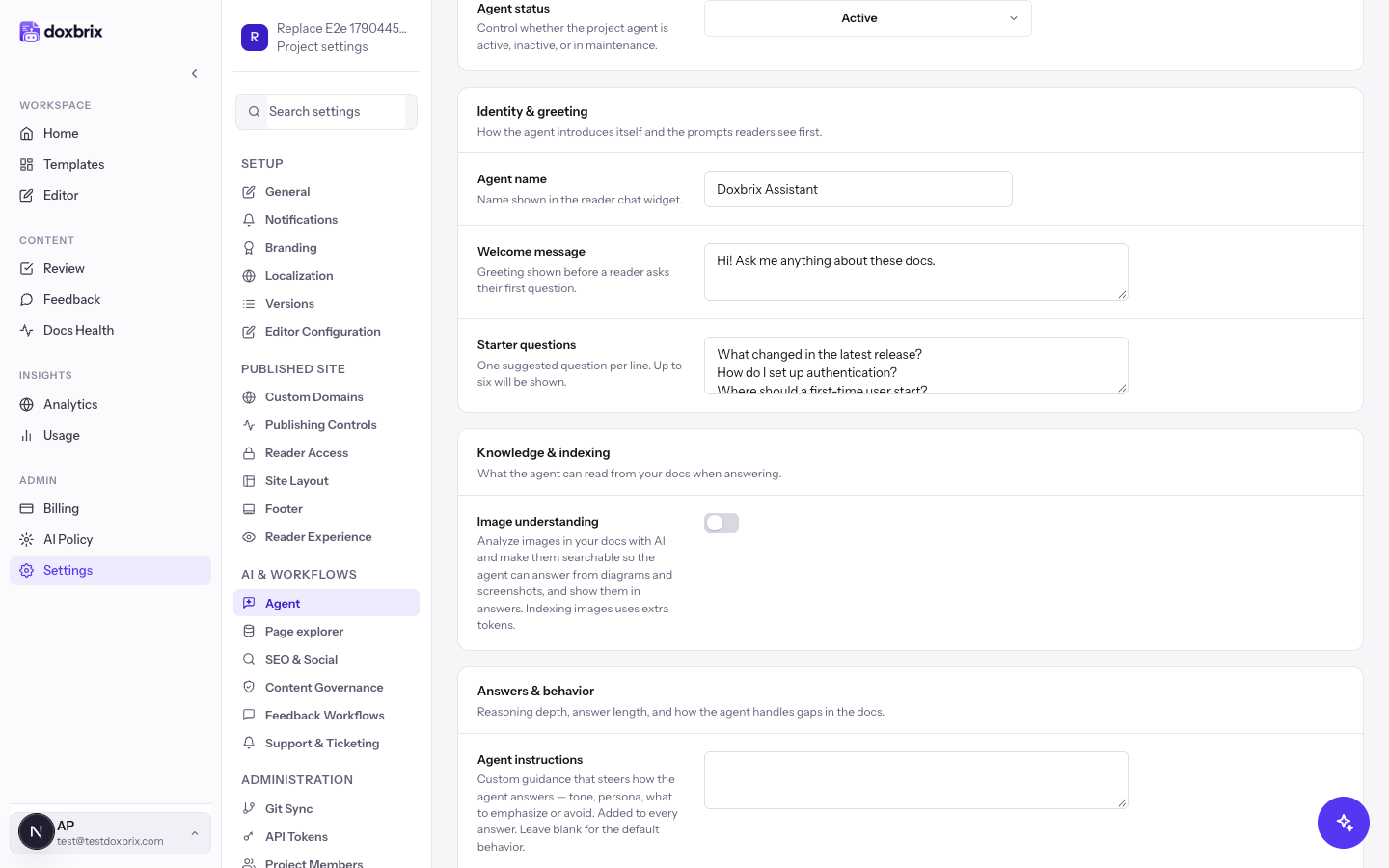
In Availability & status, turn on Reader agent to show the assistant to visitors on your published documentation. Set Agent status to one of these values:
- Active: the assistant serves readers.
- Inactive: the assistant is turned off.
- Maintenance: the assistant is temporarily out of service.
Readers see the assistant only when Reader agent is on and Agent status is Active. The same group also contains Authoring assistant and Automation tasks, which control AI writing for authors and scheduled agent tasks. They do not affect readers. Projects that host an existing docs site do not show these two toggles.
In Identity & greeting, fill in these fields:
- Agent name: the name shown in the reader chat widget, for example
PocketBase Assistant. - Welcome message: the greeting shown before a reader asks the first question.
- Starter questions: suggested questions, one per line. For example:
How do I install PocketBase?
How do I back up PocketBase?
How do I create a superuser?
The reader panel shows up to four starter questions.
In Knowledge & indexing, turn on Image understanding to let the assistant answer from diagrams and screenshots in your docs and show them in answers. Indexing images uses extra tokens.
In Answers & behavior, enter optional Agent instructions to steer tone, persona, and what to emphasize or avoid. The instructions are added to every answer. For example:
Answer in a friendly, concise tone. Prefer command-line examples.
Do not speculate about unreleased features.
Then open Agent engine and choose an engine:
- Spark: faster, for direct answers.
- Atlas: deeper reasoning, for complex questions.
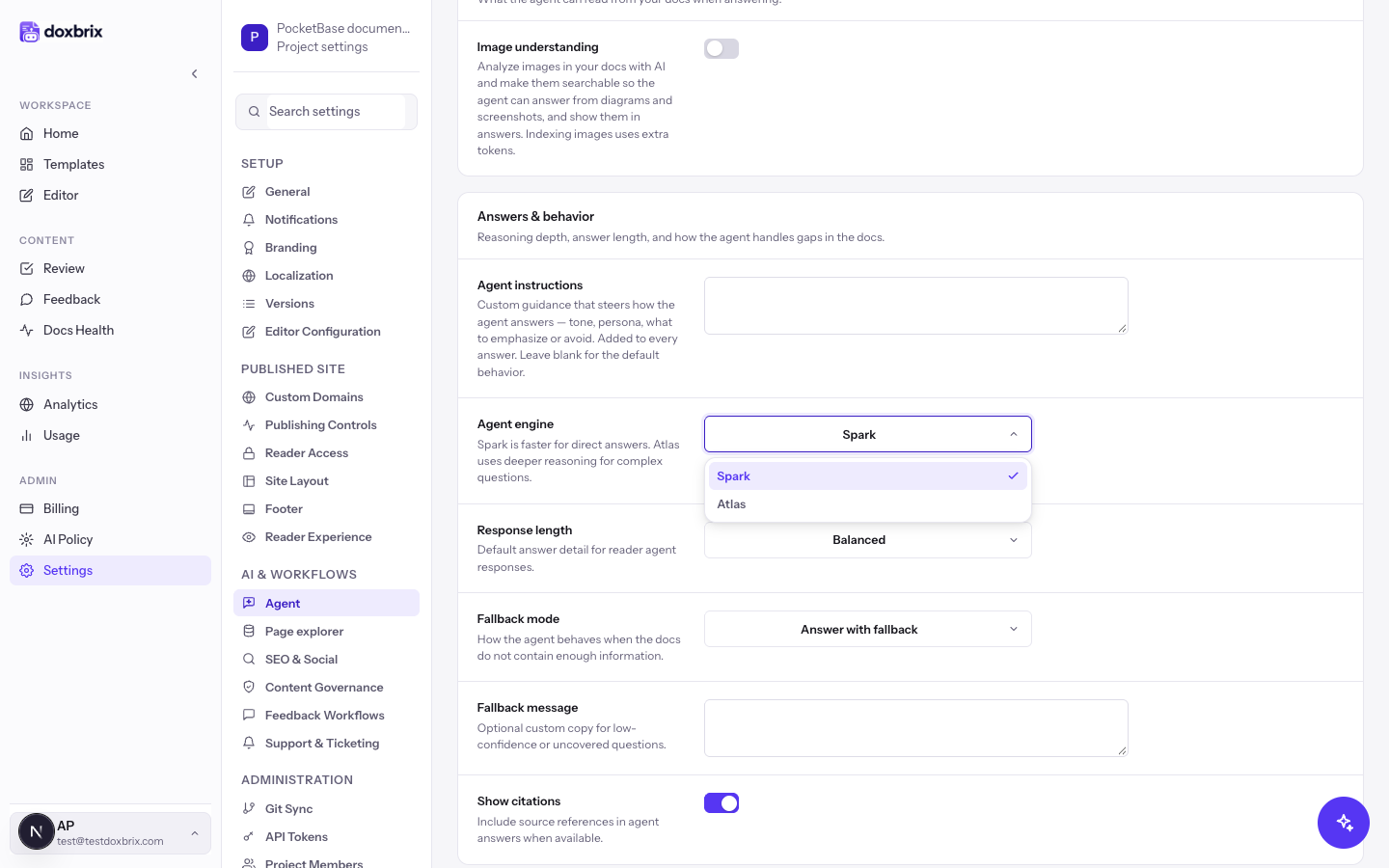
In the same group, choose these options:
- Response length: Brief, Balanced, or Detailed.
- Fallback mode: how the assistant behaves when the docs do not contain enough information. Choose Answer with fallback, Deflect only, or Custom message.
- Fallback message: optional text for low-confidence or uncovered questions.
- Show citations: include source references in answers when available.
In Help button, decide how readers reach a person:
- Support email: the fallback email used when the assistant hands off an unresolved question, for example
support@example.com. - Show help button: shows the help button in the assistant.
- Help button label: the button text, for example
Contact support. - Help button action: Email opens an email to the support address; URL opens a support page.
- Help button URL: the support page, used when Help button action is URL.
To create tickets in a helpdesk instead, use Support & Ticketing. See Offer reader support and connect a helpdesk.
In Safety & limits, set these fields:
- Monthly budget: an optional project AI budget in USD, for example
50. Leave it blank for no project cap. - Rate limit per IP: the maximum number of reader assistant requests from one IP address each hour, from 1 to 5000. The default is 60.
Approval mode in this group controls how AI changes to your docs are applied by authoring and automation tasks. It does not affect reader answers.
Select Save changes. The summary cards at the top of the page update to show the new state.
Verify the assistant on your site
On the dashboard, select Docs site on the project card. The assistant button appears next to the search box in the top bar.
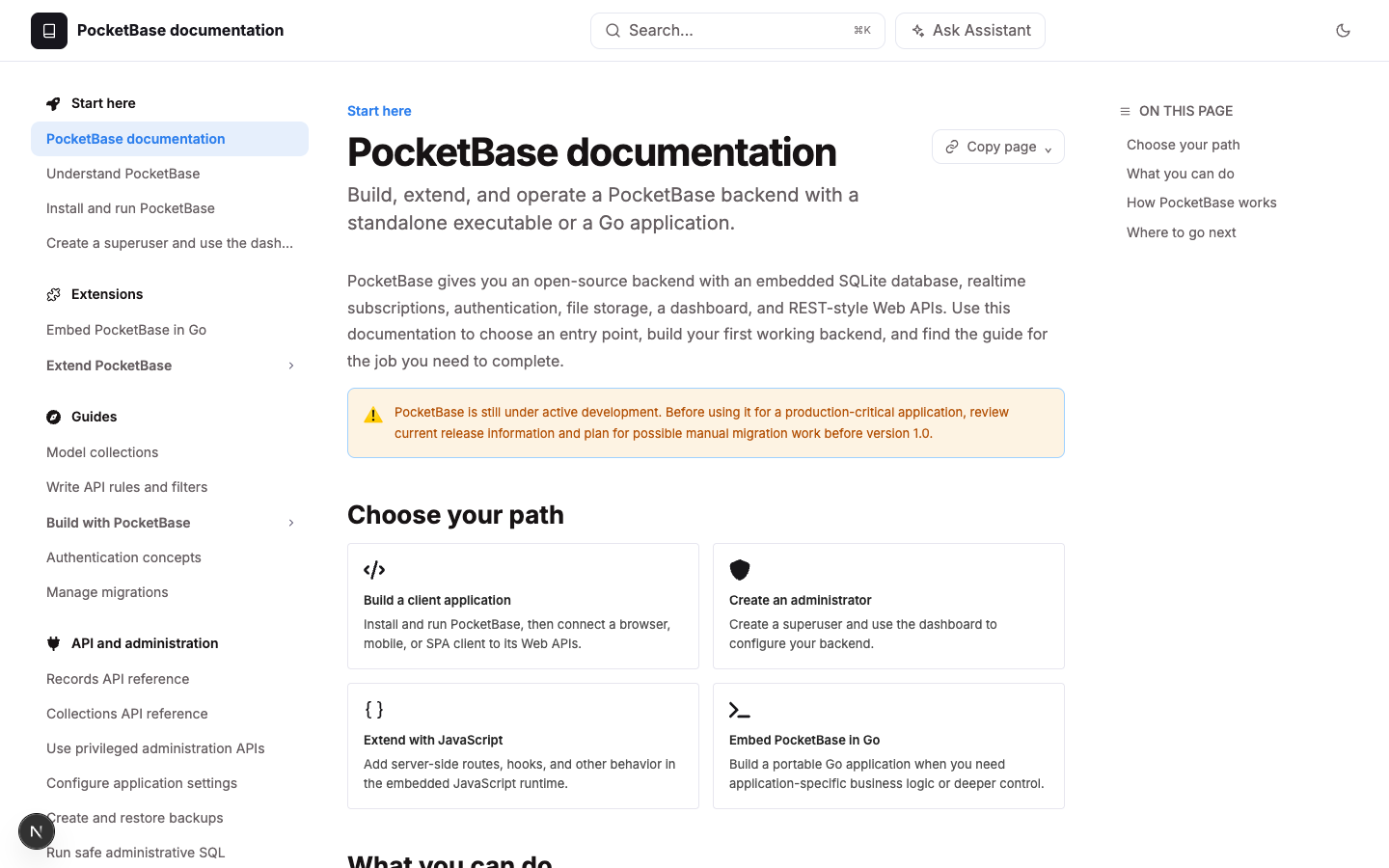
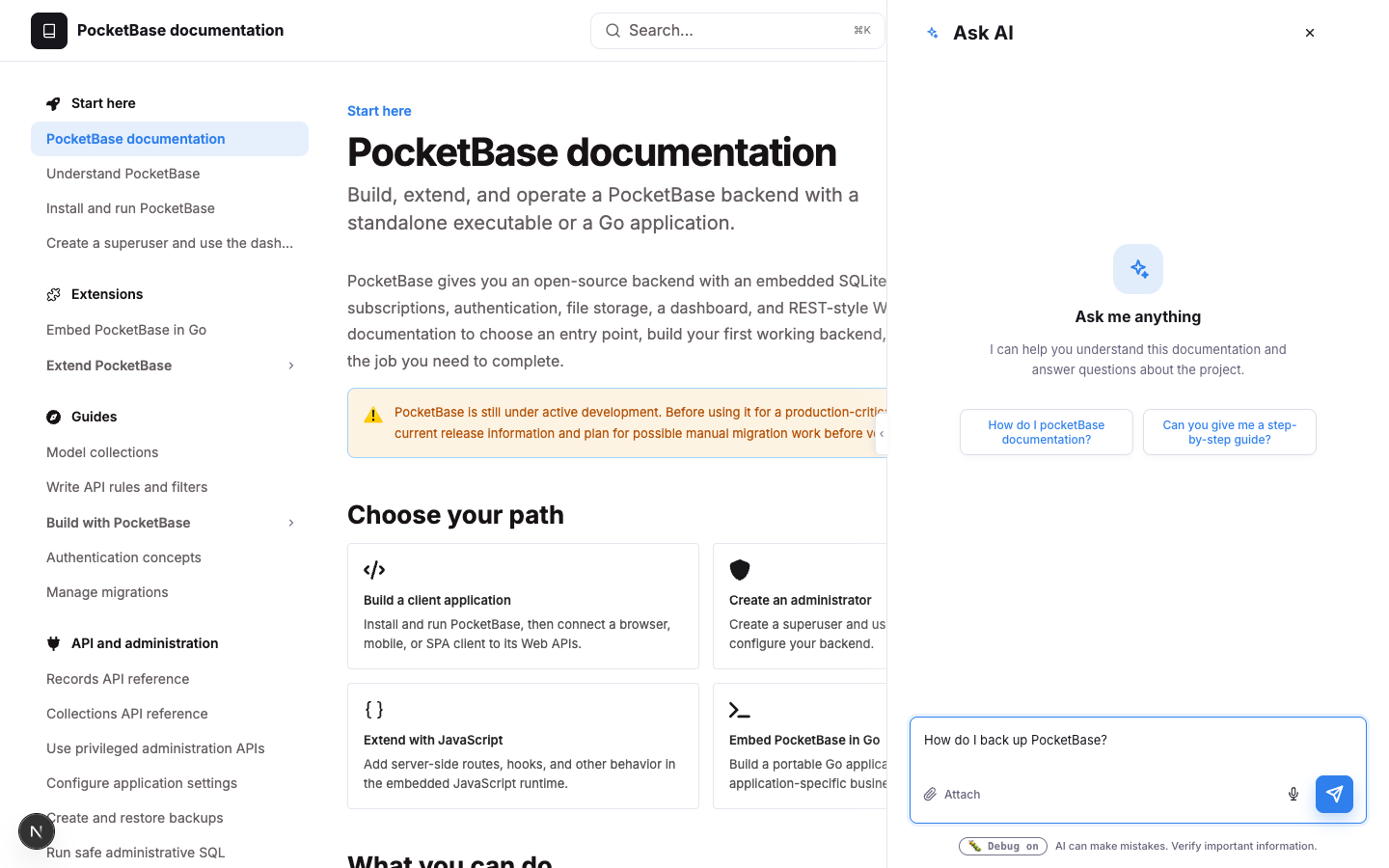
Select the assistant button. The panel opens beside the docs with the greeting, your starter questions, and an empty question box.
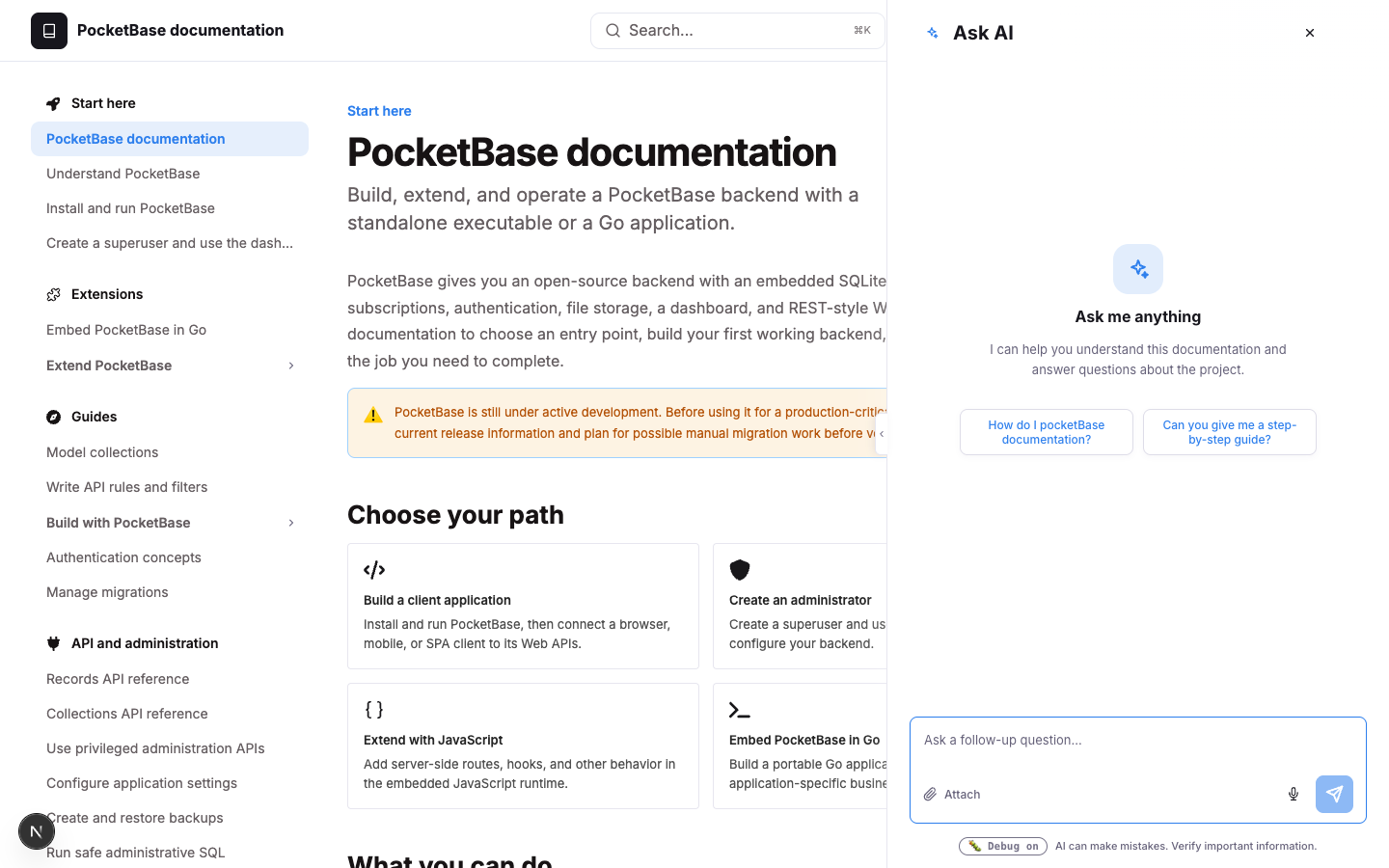
Type a question such as How do I back up PocketBase? and send it, or select a starter question.
How support handoff works for readers
When an answer does not solve the problem, the reader sees Didn’t solve it? and can contact support:
- The assistant prepares a summary of the question. Nothing is sent until the reader chooses to share it.
- If a helpdesk is connected, the reader reviews a Support ticket form with Your email, Subject, Priority, and Details. The ticket is created only when the reader selects Create ticket.
- If no support contact is configured, the assistant tells the reader to use their usual support channel.
Handed-off conversations are marked in your assistant analytics. See Measure readership and assistant performance.
The reader widget text is translated into English, French, German, Spanish, Portuguese, Japanese, and Chinese.