
Version your product documentation
Snapshot your docs as a product version, choose the default and visible versions, and let readers switch versions on the published site.
Keep documentation for older product releases available while you keep writing for the current one. In this guide, you freeze your current docs as a named version, choose which version is the default, and control which versions readers can pick from the version switcher.
How versions work
A version is a frozen copy of your docs: all pages, navigation, and media references at the moment you create it. You create one with a snapshot, usually when a new product release ships.
- Your current docs stay editable and remain the default version.
- The default version is served at your normal URLs. Other versions are served under a
/<version>/path, for example/v1-0/getting-started. - Ask AI and search answer only from the version the reader is viewing.
- Readers choose a version from a dropdown in the docs sidebar. The dropdown appears once the site has two or more versions.
Before you begin
- You need the Owner or Admin role in the project. See Roles and permissions.
- Make sure the current docs match the release you want to freeze. A snapshot copies what is there now.
- Choose a version name, such as
v1.0, and an optional tag, such asDeprecatedorBeta.
Steps
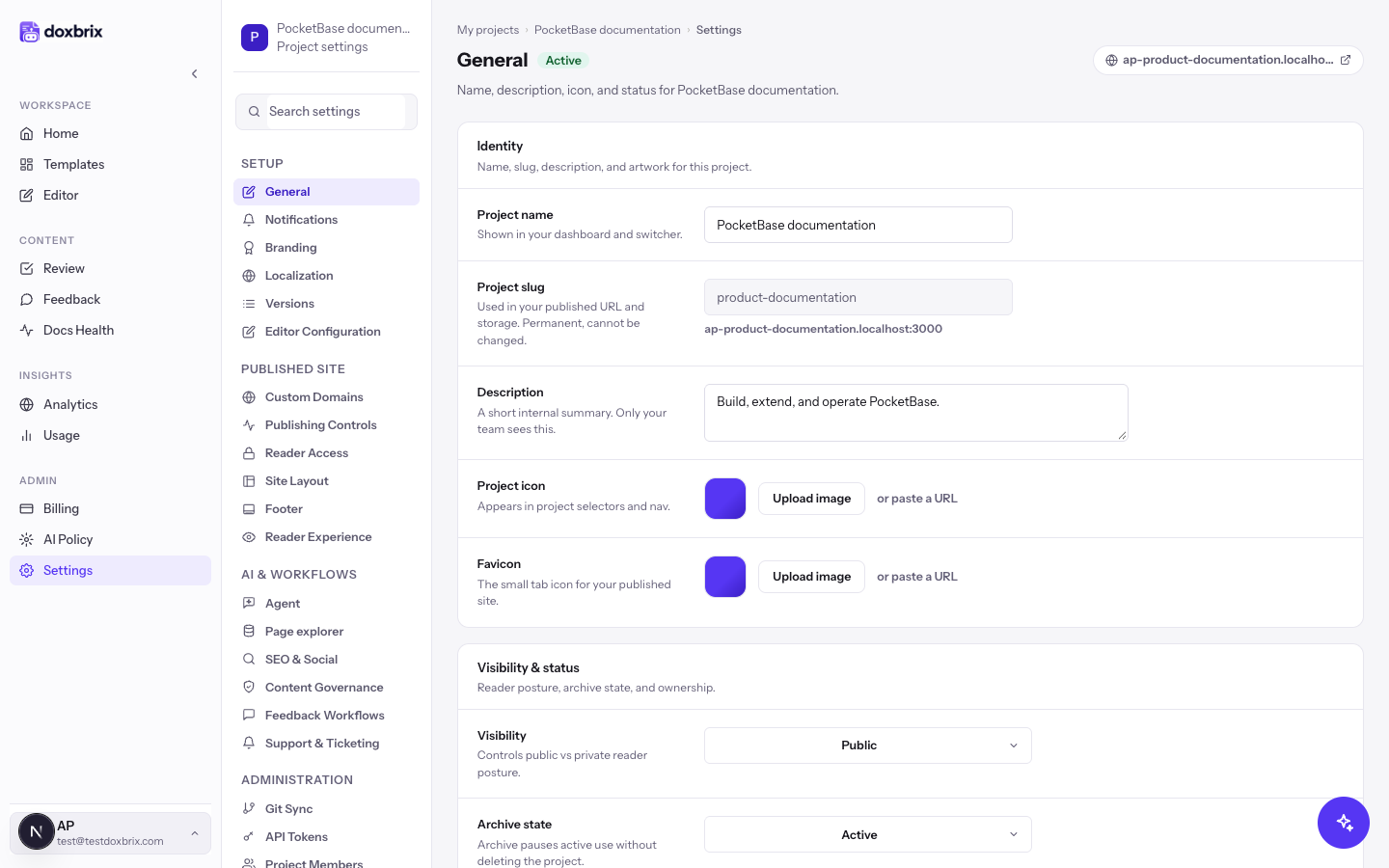
On the dashboard, select the gear icon on your project card, for example PocketBase documentation. Project settings open on General.
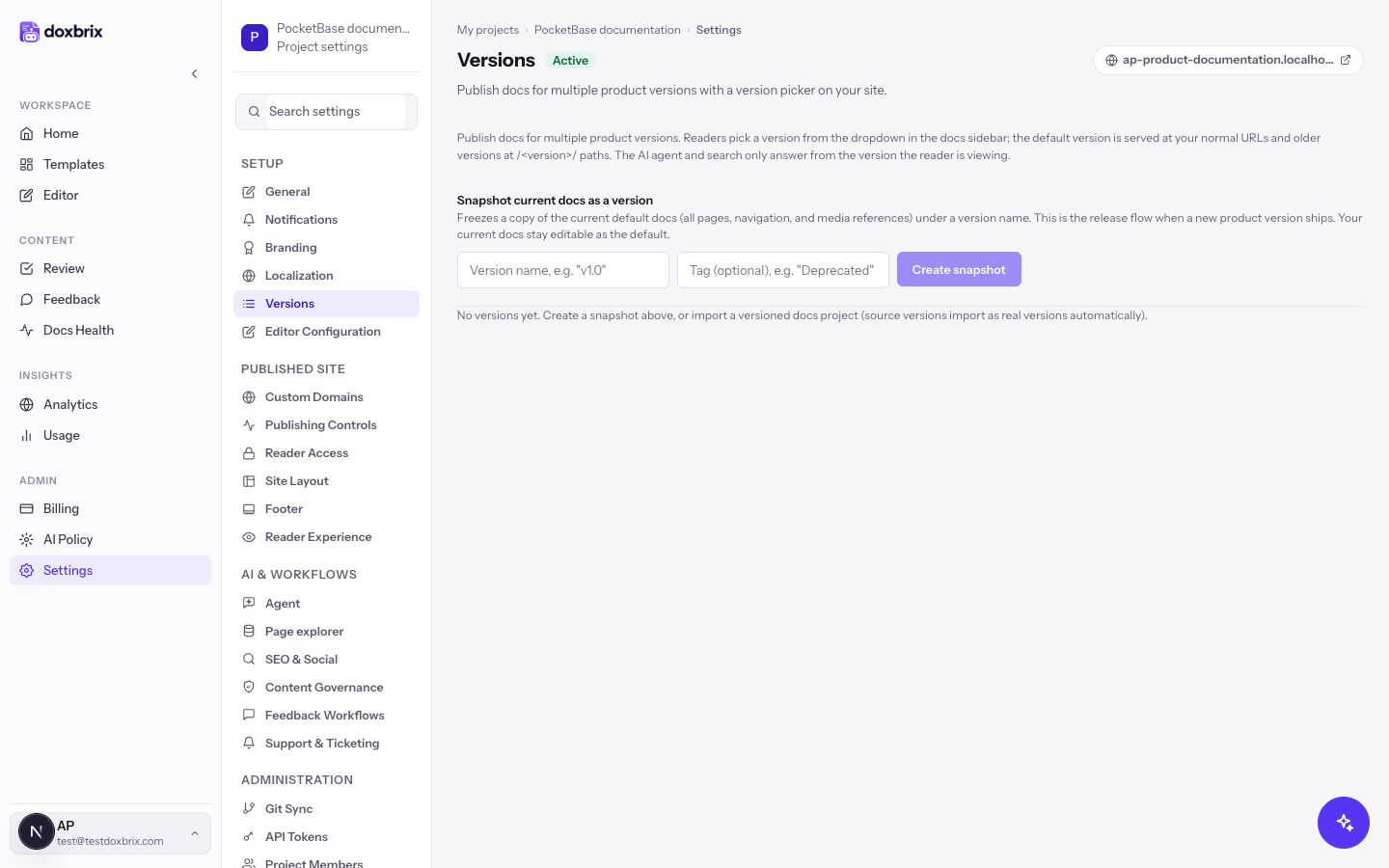
In the settings sidebar, select Versions. The section shows the Snapshot current docs as a version form and your existing versions.
If the project has no versions yet, the section shows No versions yet.
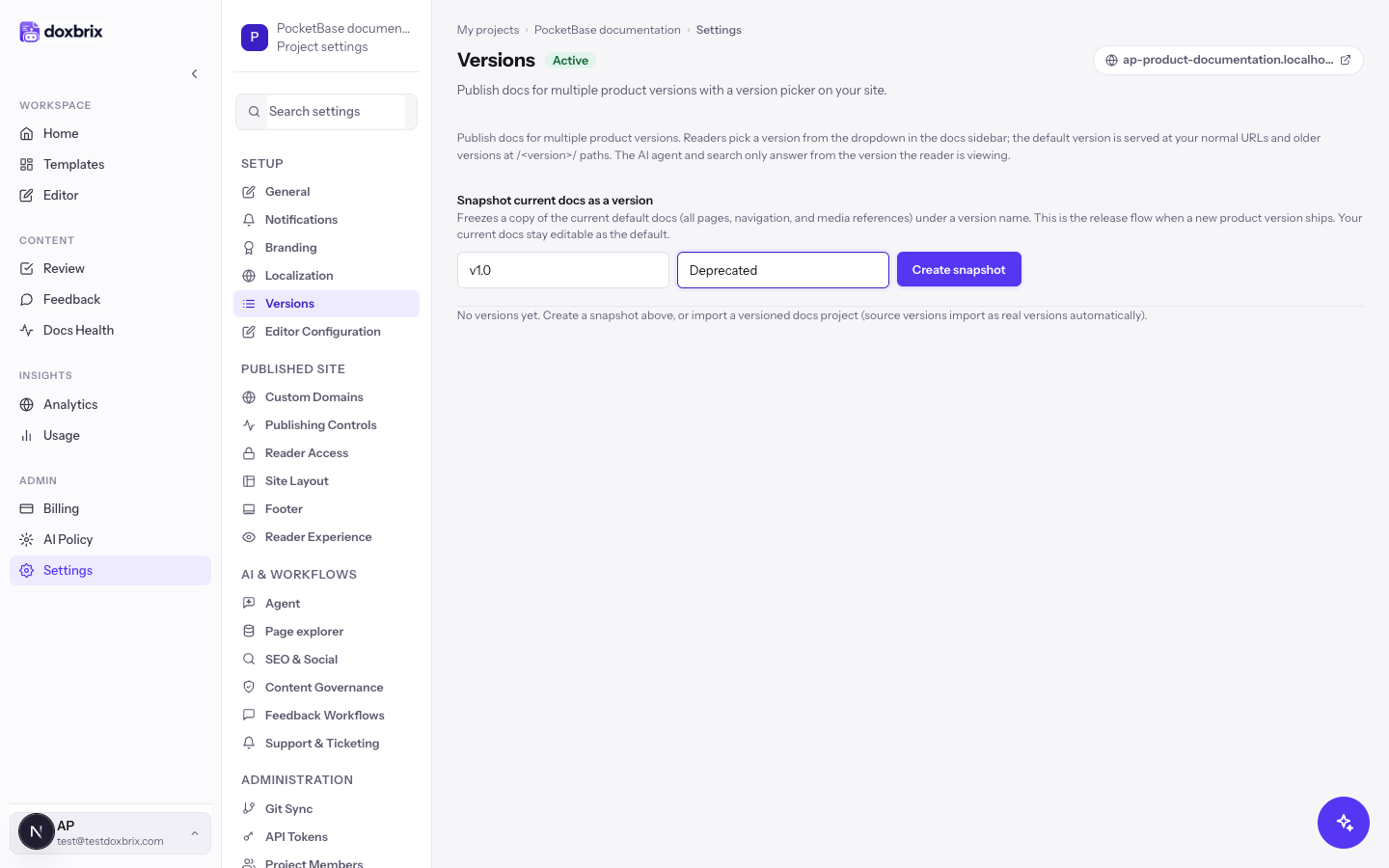
In Version name, enter the release name, for example v1.0. In Tag, optionally enter a short label that readers see next to the version, for example Deprecated.
The Create snapshot button stays disabled until you enter a version name.
Select Create snapshot. When it finishes, a message confirms the result, for example Snapshot created: 24 pages frozen. Current docs remain the default version.
The new version appears in the list with its label, tag, and URL path. Doxbrix builds the path from the version name in lowercase, with dots and other separators turned into hyphens, so v1.0 is served at /v1-0/.
For each version in the list, set:
- Default: the version served at your normal URLs. Only one version can be the default.
- Visible: whether the version appears on the published site and in the version switcher. Clear it to hide a version without deleting it.
You can also edit a version's label and tag in place.
Select Save versions. The message Versions saved. confirms the change.
Select Delete next to the version, and then confirm with Delete version. You cannot delete the default version; make another version the default first.
Verify
- Open the published site from the project card's Docs site button.
- In the docs sidebar, open the version dropdown. It lists each visible version with its tag.
- Select an older version. The URL changes to include the version path, such as
/v1-0/, and the same page opens when it exists in that version. - Select the default version to return to your normal URLs.
If the dropdown does not appear, the site has fewer than two visible versions.