
Make a site private
Restrict a published Doxbrix site so readers must sign in with a shared password, an allowed email domain, a helpdesk account, workspace SSO or a custom identit
Make a published site private when only customers, partners or employees should read it. You choose how readers prove who they are and, optionally, limit access to a list of allowed readers. Readers who are not signed in see a sign-in page instead of your docs.
Use this guide for internal handbooks, partner portals and customer-only product docs. To hide individual draft pages from a public site instead, see Configure publishing controls and SEO indexing.
Before you begin
- You need the Owner or Admin role in the workspace or in the project. Other roles cannot save project settings. See Roles and permissions.
- Private sites are available on every plan, but each plan caps the number of private readers. See Private reader limits.
- Depending on the sign-in method you choose, prepare one of the following:
- Password: the shared password you will give readers.
- Email domain: the domains readers' email addresses use, such as
example.com. - Helpdesk customers: a helpdesk with contact lookup connected under Support & Ticketing. See Offer reader support and connect a helpdesk.
- Workspace SSO: an identity provider added to your workspace. See Set up single sign-on.
- Custom IdP: admin access to the identity provider you want to connect for this site only.
Choose a sign-in method
| Method | How readers get in | Setup needed |
|---|---|---|
| Public | Anyone can read, with no sign-in. | None |
| Password | One shared password unlocks the site. | A site password |
| Email domain | Readers verify an email address on an allowed domain. | Allowed domains (optional) |
| Helpdesk customers | Readers sign in with the email your support helpdesk knows them by. | A connected helpdesk with contact lookup |
| Workspace SSO | Readers sign in through an identity provider your workspace already uses. | A workspace identity provider |
| Custom IdP | Readers sign in through an identity provider dedicated to this site. | A connected identity provider |
Steps
On the dashboard, select the gear on the project card to open project settings. Under Published site, select Reader Access.
The Heads up banner shows the current state, for example "This site is Public, anyone can read it without signing in."
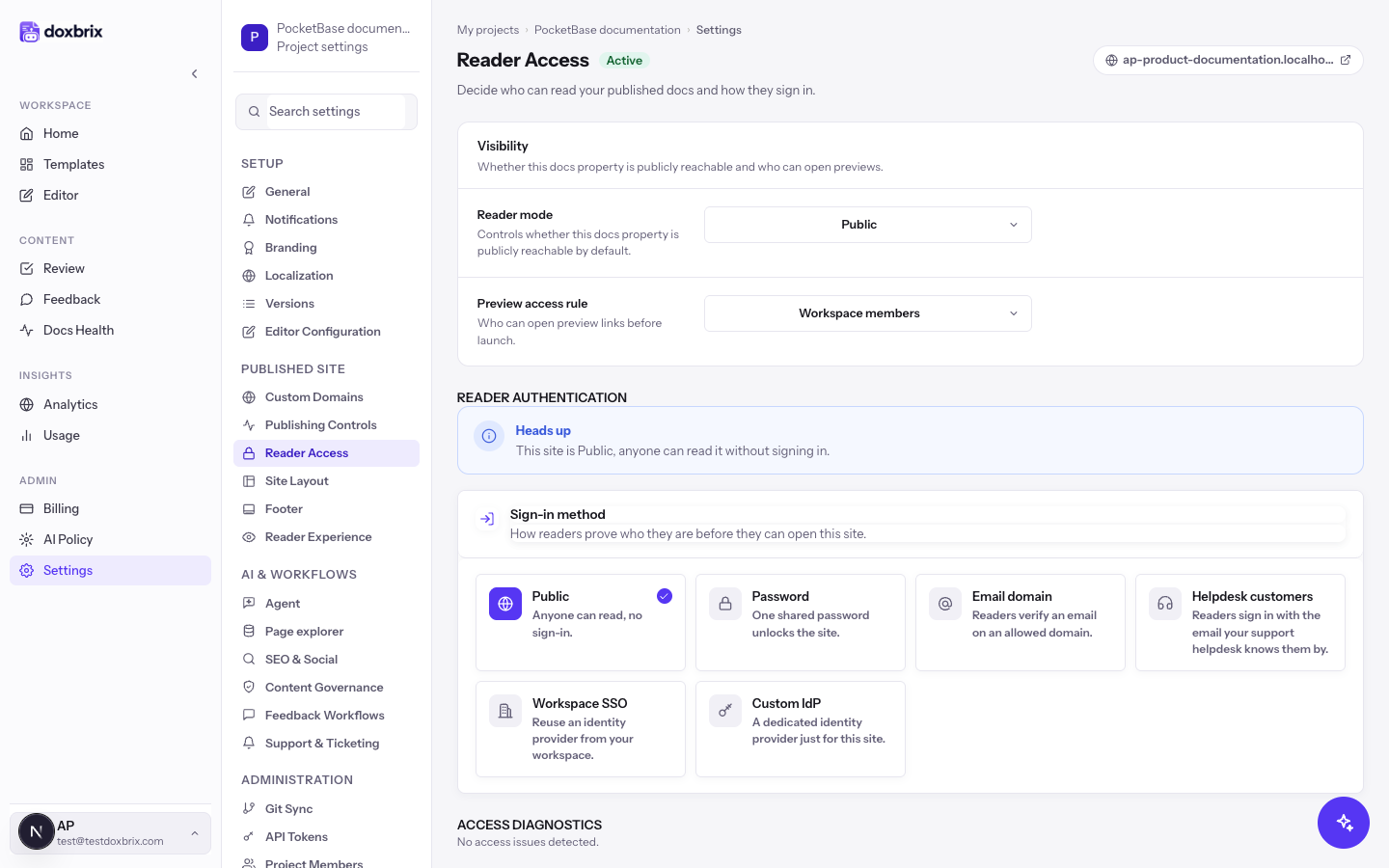
Under Visibility, set Reader mode to Private.
Optionally, change Preview access rule to control who can open preview links before launch: Workspace members, Project members or Anyone with link.
Under Sign-in method, select the card for the method you want. A Configure panel opens below with the fields that method needs. Configure the method as described in the matching tab.
Enter the shared password in Site password. Optionally, add a Password hint (optional) that appears on the sign-in screen.
To change the password later, type a new one in New password (leave blank to keep current).
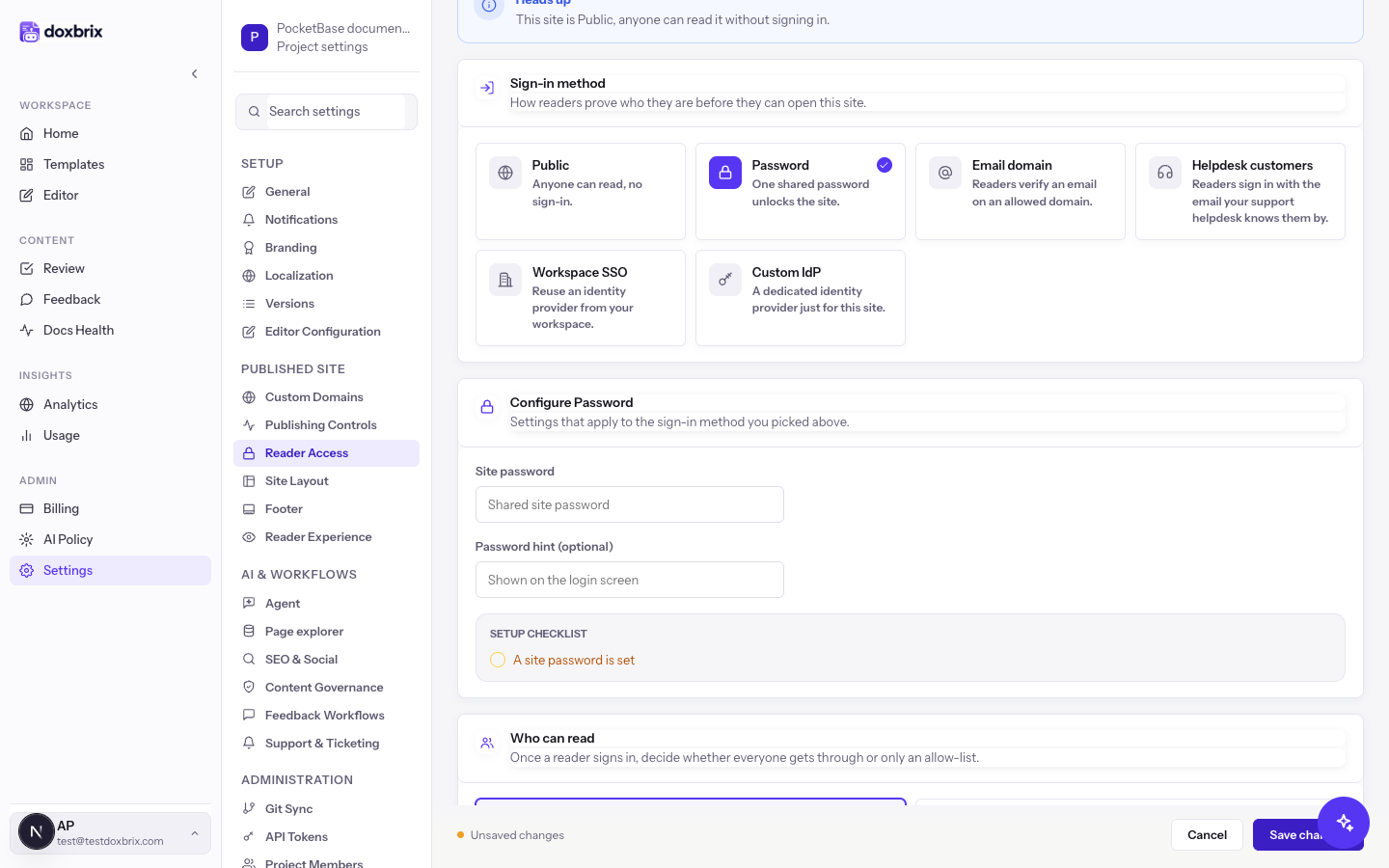
The Setup checklist in the panel marks each requirement as met, for example "A site password is set" or "A provider is selected".
Under Who can read, select one option:
- Anyone who authenticates: everyone who signs in successfully can read.
- Only allowed readers: workspace members plus the emails you list can read. Enter one email per line in Allowed readers, for example
reader@example.com.
Workspace members are always allowed.
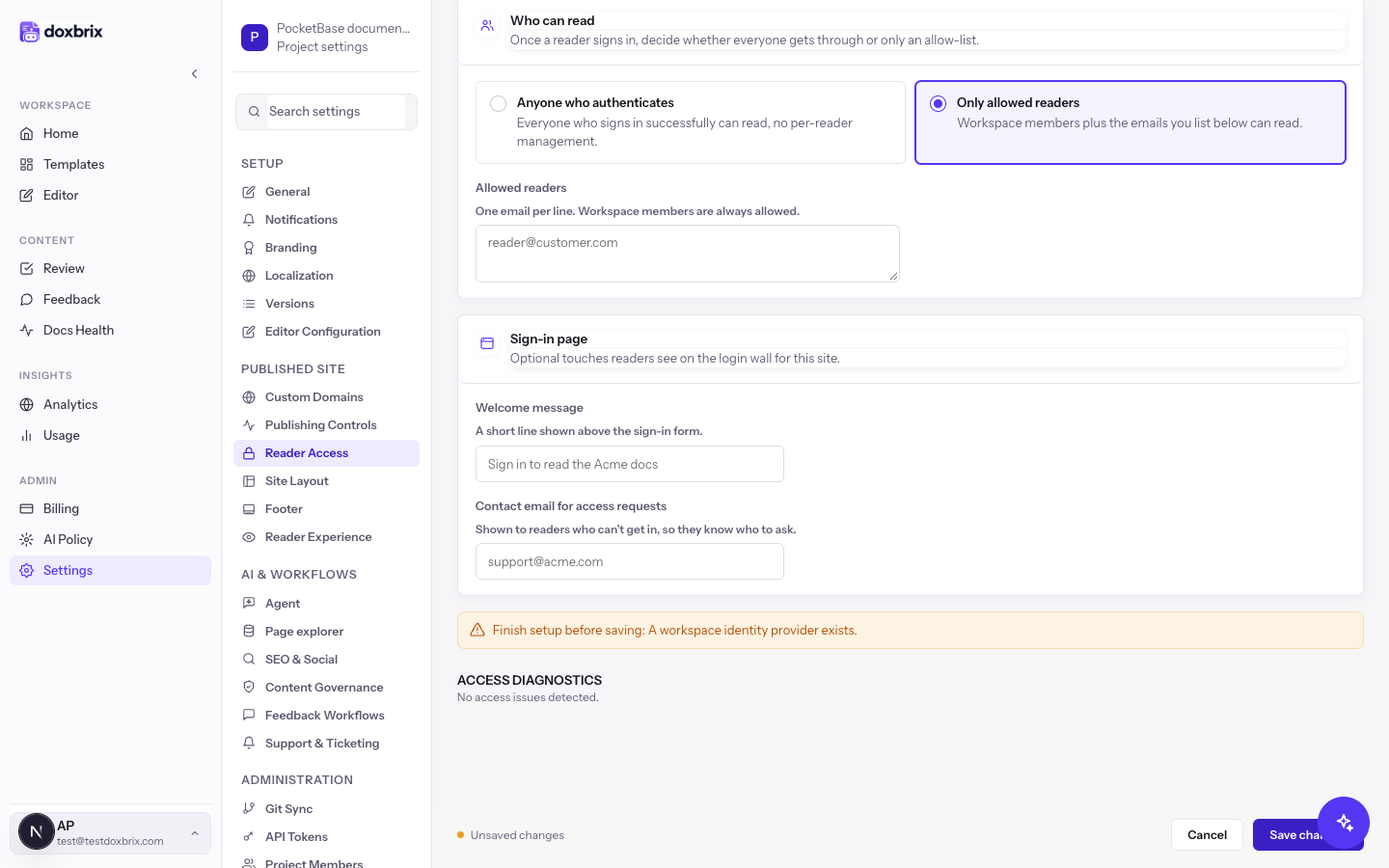
Under Sign-in page, enter a Welcome message shown above the sign-in form, for example Sign in with your work email.
In Contact email for access requests, enter the address readers who cannot get in should contact, for example docs-access@example.com.
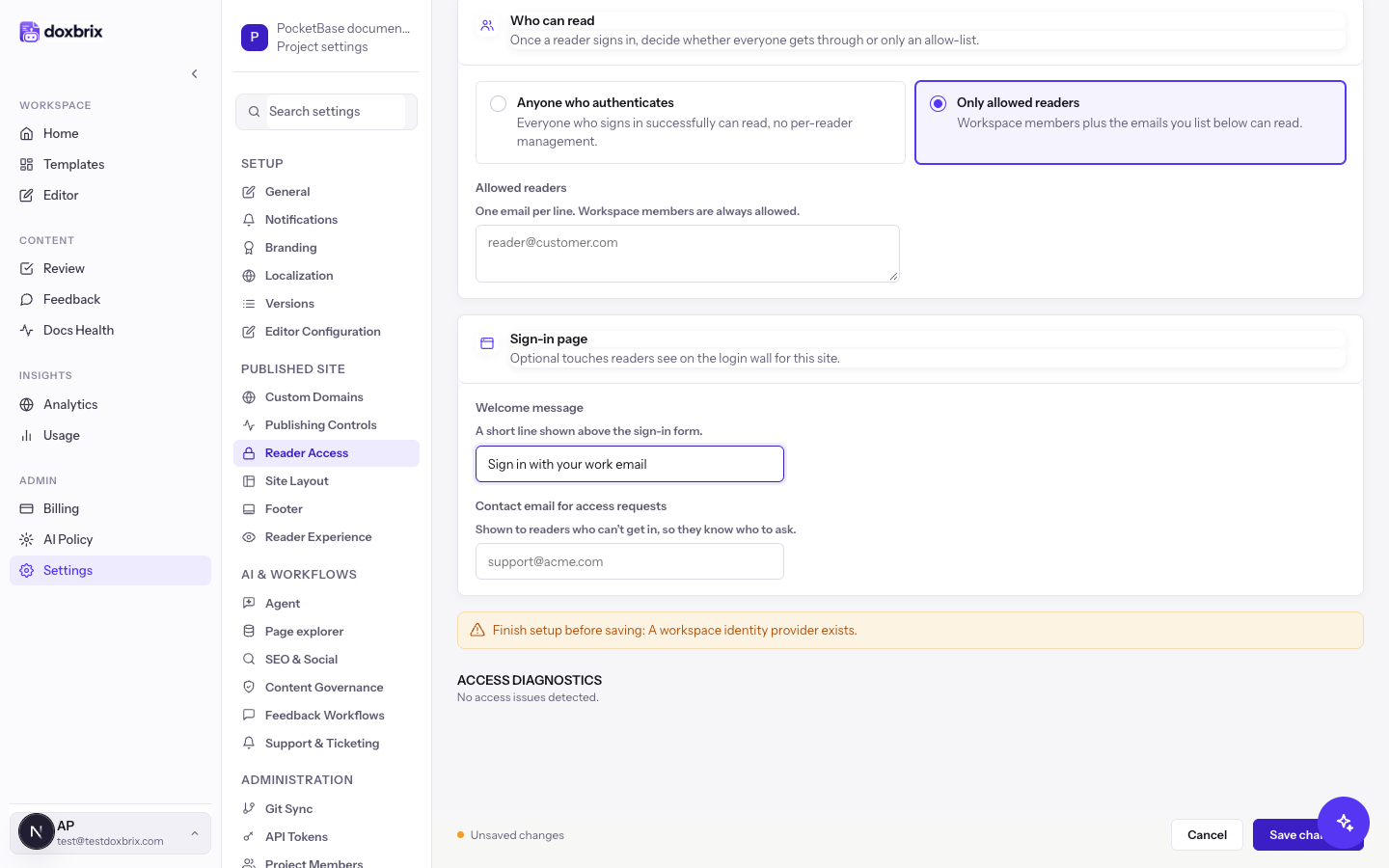
Select Save changes in the page footer.
If a requirement is missing, Doxbrix shows "Finish setup before saving:" followed by the first unmet item. Complete it and save again.
Verify
After you save, the status banner at the top of Reader Access reads Live now with the active method, for example "Readers currently sign in via Email domain (allow-listed readers only)."
To test as a reader, open the published site in a private browser window. You are redirected to the sign-in page, which shows your welcome message and the method, such as Password protected, Email sign-in link, Customer sign-in or Single Sign-On. Sign in and confirm the docs open.
Private reader limits
Your plan caps how many distinct readers can access private projects.
| Plan | Private reader seats |
|---|---|
| Free | 0 |
| Starter | 25 |
| Pro | 200 |
| Business | 1,000 |
If making a project private would exceed the cap, saving fails with "Private reader limit reached (N)." Upgrade your plan or add reader seats. See Plans and limits reference and Manage billing and change plans.
Troubleshooting
For more reader access problems, see Troubleshoot sites, domains and reader access.