
Collect reader feedback and article requests
Turn on helpfulness votes, written feedback and article requests on your published site, and learn what readers see.
Turn on Feedback Workflows for a project so readers can rate each published article, explain their rating, and ask for documentation that does not exist yet. Everything readers send lands in the Feedback inbox, where your team triages it.
Use this guide when you launch a site and want a steady signal about which pages help readers and which topics are missing.
Before you begin
- You need a role that can edit project settings, such as a workspace owner or admin, or a project owner or admin. See Roles and permissions.
- The project must have a published reader site. Feedback widgets appear only on published pages. See Publish and edit published pages.
- Decide whether you want to collect reader email addresses. Written feedback and its email field are optional for readers.
The settings in this guide apply to one project at a time. Each project keeps its own feedback configuration.
Feedback options
Feedback Workflows has one switch or field for each reader-facing capability:
| Setting | What it does |
|---|---|
| Page helpfulness | Shows the Was this article helpful? widget with Yes and No buttons on published pages. |
| Feedback comments | Lets readers add written context and an optional email after they vote. Requires Page helpfulness. |
| Request an article | Shows a Request an article button so readers can ask for missing documentation. |
| Unresolved questions queue | Keeps unanswered requests visible for follow-up triage in the Feedback inbox. |
| Thank-you message | Text shown to a reader after they leave feedback. |
Turn on reader feedback
On the dashboard, select the gear icon on your project card to open project settings, then select Feedback Workflows in the left navigation.
The section opens with summary cards for Responses, Positive, Negative, Open comments and Open requests, followed by the Reader feedback switches.
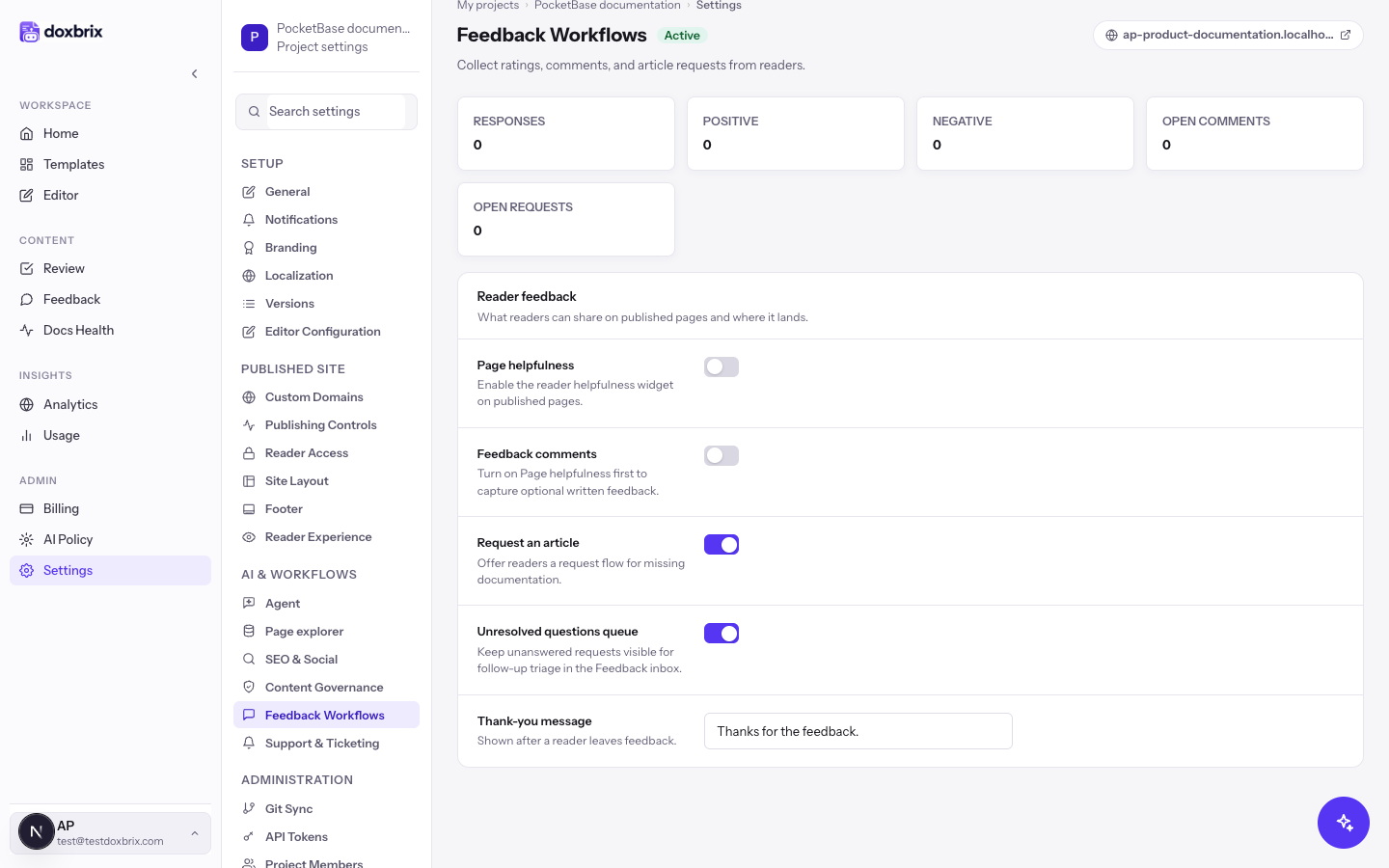
Turn on Page helpfulness to add the helpfulness widget to every published page in the project.
Feedback comments stays unavailable until this switch is on. While it is off, its description reads "Turn on Page helpfulness first to capture optional written feedback."
Turn on Feedback comments if you want readers to explain their vote in their own words. When it is on, the reader form includes a comment box of up to 1,000 characters and an optional email field.
Leave it off if you want only the structured reasons that readers choose from a list.
Turn on Request an article to show a request button at the end of published pages. Readers use it to ask for a topic your documentation does not cover.
Turn on Unresolved questions queue to keep unanswered requests visible in the Feedback inbox until someone follows up.
If you turn it off, Doxbrix still captures items, and the inbox shows a banner that says the queue is disabled for the selected project.
In Thank-you message, enter the text readers see after they send feedback, for example Thanks! Your feedback helps us improve these docs.
Save the project settings. The widgets appear on published pages the next time readers load them.
What readers see
When Page helpfulness is on, each published article ends with an Article feedback panel titled Was this article helpful? with Yes and No buttons.
After a reader votes, a short form asks them to choose one reason:
The form asks "Great! What worked best for you?" and offers:
- The guide worked as expected
- It was easy to find the information I needed
- It was easy to understand the product and features
- The documentation is up to date
- Something else
With Feedback comments on, the form also shows a comment box, "(Optional) Could you share more about your experience?", and an email field, "Email (optional, we may follow up)". The form notes that all feedback is anonymous unless the reader includes an email. The reader selects Submit feedback, and then sees your thank-you message.
When Request an article is on, the page shows "Missing something from project name?" with a Request an article button. The request dialog has these fields:
| Field | Required | Example |
|---|---|---|
| Topic | Yes | How to back up PocketBase |
| Why it matters (optional) | No | We need a restore plan before going live. |
| Only for readers who are not signed in | reader@example.com |
The reader selects Submit request to send it or Cancel to close the dialog.
Verify
- Open a published page on your reader site. For the site address, see How reader sites are hosted.
- Scroll to the end of the article and confirm that Was this article helpful? appears.
- If you turned on article requests, confirm that the Request an article button appears.
- Return to Feedback Workflows and check that Responses increases after a test vote.