
Triage reader feedback in the inbox
Filter, review and set a status on reader comments and article requests from every project in the Feedback inbox.
Use the Feedback inbox to review what readers tell you on your published sites, decide what to act on, and record each decision with a status. The inbox collects helpfulness comments and article requests from every project you manage, so you can triage your whole documentation set from one screen.
Readers leave this feedback through the Was this article helpful? widget and the Request an article flow on published pages. To turn those on or change what readers see, read Collect reader feedback and article requests.
Before you begin
- Role: You need the workspace Owner or Admin role, or the Owner, Admin or Editor role on the project. Doxbrix hides feedback from projects where you have none of these roles and returns a
Forbiddenerror if you open one directly. See Roles and permissions. - Reader feedback enabled: At least one project has Page helpfulness or Request an article turned on in its project settings, under Reader feedback.
- Published pages: Readers can only leave feedback on a published site. See Publish and edit published pages.
What the inbox tracks
The inbox shows two kinds of items. Each kind has its own set of statuses.
| Item | Where it comes from | Statuses |
|---|---|---|
| Comment | A reader answers Was this article helpful? and picks a reason, writes a comment, or both. | New, Acknowledged, Resolved, Dismissed |
| Request | A reader submits Request an article to ask for missing documentation. | New, Acknowledged, In Progress, Published, Wont Do, Duplicate |
A comment is open while its status is New or Acknowledged. A request is open while its status is New, Acknowledged or In Progress. The counters at the top of the inbox count open items only.
Triage feedback
In the left sidebar, select Feedback. The Feedback inbox opens at /feedback with the Comments tab selected.
The summary row shows five counters:
- Open comments and Open requests: items still waiting for a decision.
- Positive feedback and Negative feedback: the Yes and No helpfulness votes readers have cast.
- Resolved this week: comments and requests closed in the last seven days.
The side panel shows Feedback trends, Top mentioned reasons and a short Triage guide.
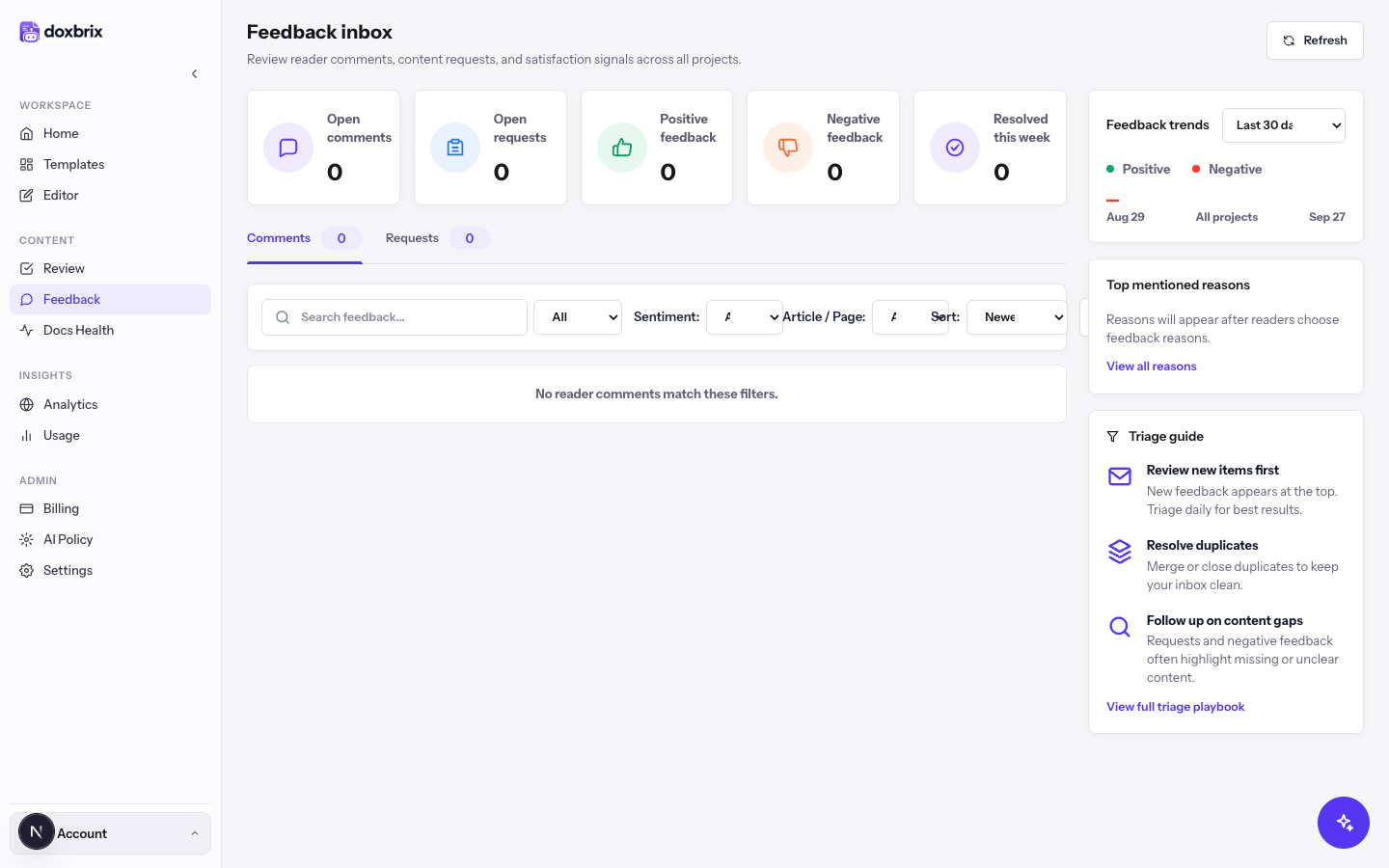
By default the inbox combines feedback from all the projects you manage, and the subtitle reads across all projects. To focus on one site, open the Select project list next to Refresh and choose a project, for example PocketBase documentation. The subtitle changes to across this project, and the trend chart is labeled with the project name.
To return to the combined view, choose All projects. When your workspace has no projects you can manage, the list does not appear and the inbox shows All projects.
Select Refresh at any time to load feedback that arrived after you opened the page.
Use the filter bar below the tabs to find the items you want to handle first:
- Search feedback... matches the comment text, reader email, page title, project name and reason.
- Status: shows All or a single status.
- Sentiment: shows All, Positive or Negative votes. This filter applies only to the Comments tab.
- Article / Page: limits the list to one page.
- Sort: orders items by Newest or Oldest.
Select Filters to hide or show the filter controls. If nothing matches, the list shows No reader comments match these filters.
For example, set Sentiment: to Negative and Status: to New to find the unhappy readers nobody has answered yet.
Each comment card shows the vote (Helpful or Not helpful), the page, the project, the current status and how long ago the reader wrote it. Below that, you see the Reason: the reader picked, their comment, and Reader email: when they chose to leave one.
To act on the comment:
- Select Open article to open the page in the editor and fix the content.
- Open the Comment status list on the card and choose Acknowledged while you work on it, or Dismissed if you will not act on it.
- Select Mark resolved when the fix is done. Doxbrix sets the status to Resolved and the item counts toward Resolved this week.
The inbox reloads after each change. If the update fails, an error message appears above the list.
Select the Requests tab. Each request card shows the number of votes, the page the reader was on (or New content request when there was none), the project, the status and the request age. The card body shows the request title, the description, and Requester: with the email address the reader left.
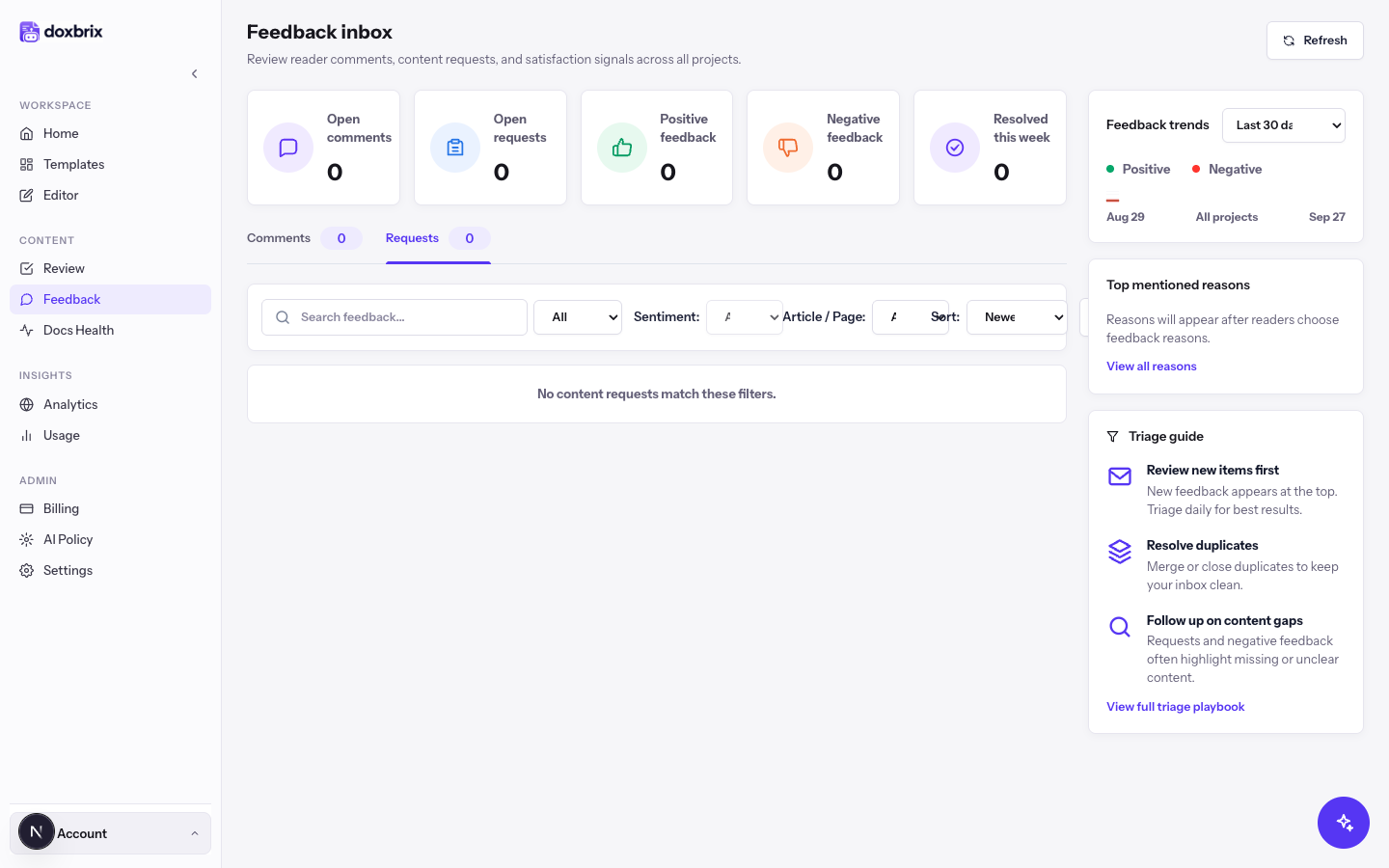
Open the Request status list on the card and choose the status that matches your decision:
| Status | Use it when |
|---|---|
| Acknowledged | You have seen the request and plan to review it. |
| In Progress | Someone is writing the article. |
| Published | The article is live. Mark resolved also sets this status. |
| Wont Do | You decided not to write the article. |
| Duplicate | Another request or page already covers the topic. |
Select Open article to jump to the linked page or the page the reader requested from. The button is unavailable when the request has neither.
When you change tabs, Status: resets to All if the selected status does not exist on the new tab.
In the side panel, use the Trend range list under Feedback trends to chart positive and negative votes for Last 30 days, Last 14 days or Last 7 days.
Top mentioned reasons lists the five reasons readers pick most often, such as Documentation seems outdated or Couldn't find the information. A reason that keeps rising points to a page or topic to fix first. Until readers choose reasons, the panel shows Reasons will appear after readers choose feedback reasons.
Verify
After you change a status, confirm the result in the inbox:
- The status pill on the card shows the new status.
- Open comments or Open requests decreases when an item moves to a closed status.
- Resolved this week increases when you select Mark resolved.
- Setting Status: to the new status shows the item in the filtered list.