Every block you can insert in the Doxbrix block editor and WYSIWYG editor, grouped by palette section, with slash shortcuts and formatting keys.
This reference lists every item in the Doxbrix block menu, grouped by the sections you see in the editor, with each item's slash shortcut. It also covers the WYSIWYG editor's formatting toolbar and Insert block menu. Use it to find the right block for your content or to learn the shortcut for one you use often.
A block is one unit of page content, such as a paragraph, a code sample, a callout, or a set of tabs. Each project uses one of two editors, chosen when the project is created: the block editor or the WYSIWYG editor. See Create a project.
Open the block menu
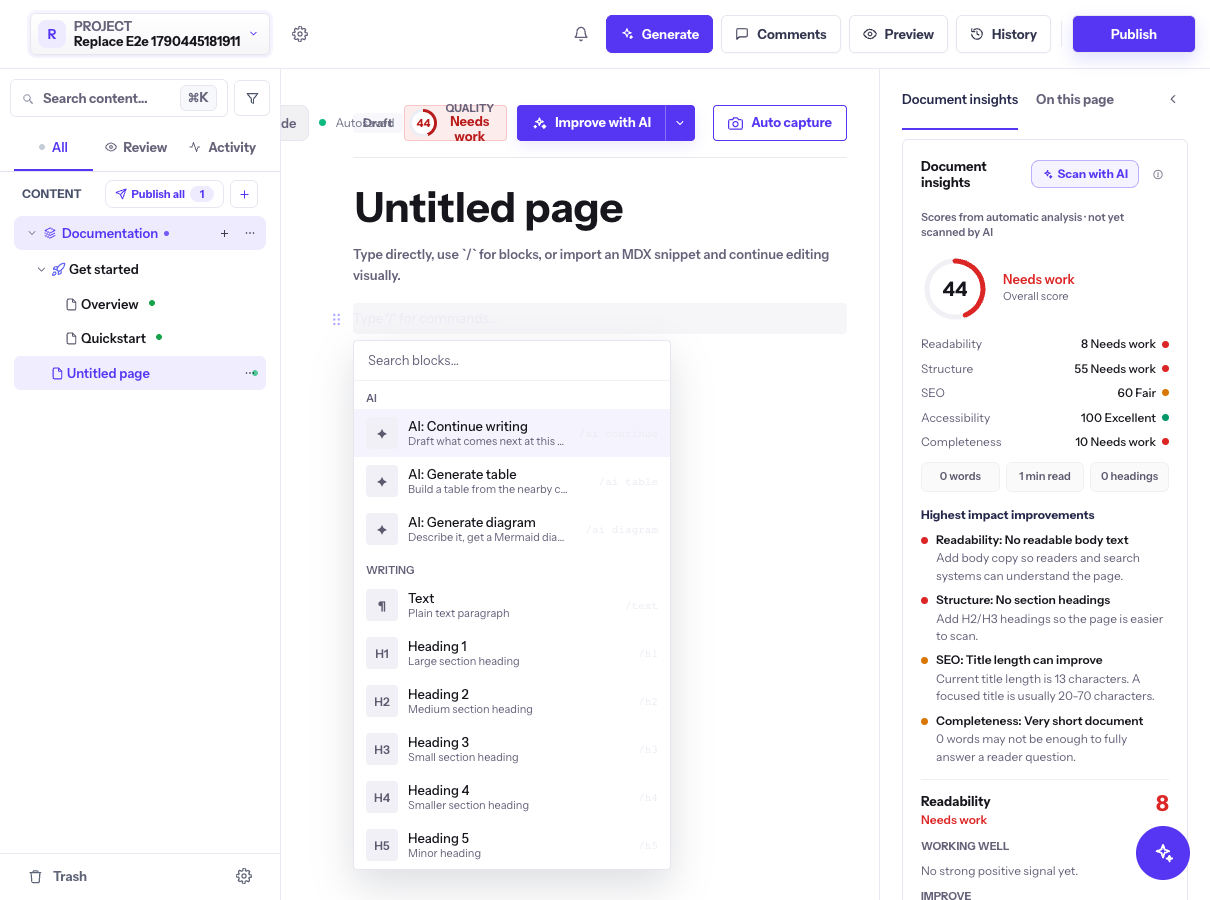
In the block editor, type / on an empty line. The empty-line placeholder reads "Type '/' for commands…". The block menu opens with a Search blocks... box and the sections listed on this page.
Typing / on an empty line opens the block menu, starting with the AI and Writing sections.
Type part of a block name or its shortcut to filter the list. For example, type warn or /warning to show Warning.
Press Arrow Down and Arrow Up to move through items, and Enter to insert the highlighted block.
Press Escape to close the menu without inserting anything.
When you add a block inside another block, such as the body of a step, the menu hides the AI section and the import items, because those do not produce a nested block.
Tabs, Accordion, Expandable, Steps, Card, Card group
Changelog
Update
API Reference
API Endpoint, Parameter Table, Response Example
Diagrams
Flowchart, Sequence Diagram, ER Diagram, Gantt Chart, Class Diagram, Pie Chart, State Diagram, Mermaid (blank), Math / LaTeX, Excalidraw
The WYSIWYG menu has no AI section, no Heading 5 or Heading 6, none of the extra Visual and Interactive items (such as Color palette or Prompt card), and no Request Example. To use those, create the project with the block editor.
Blocks and MDX
Every block maps to MDX. In the block editor, switch the page toolbar from View to Code to see and edit that MDX directly. Pages synced with Git or edited with the dxb CLI use the same format; see docs.json and page format reference.
For example, a Warning callout and a Steps block appear in MDX like this:
mdx
<Warning>Rotate the key before you revoke the old one.</Warning>

<Steps>
<Step title="Create a key">Open **Settings** and select **Create key**.</Step>
<Step title="Copy the key">Copy the key and store it in your secret manager.</Step>
</Steps>
Doxbrix supports 47 block types. The PDF document page template produces a PDF block, which has no menu item; see Start from a template.