
Start from a template
Browse the 13 Doxbrix project templates, preview a live demo, start a project from one, and choose a page template for new pages.
A template gives a new project a complete starting structure: spaces, navigation, and pre-written sample pages that you replace with your own content. This guide shows you how to compare the project templates in the gallery, preview one as readers would see it, start a project from it, and pick a page template when you add pages later.
Choose a project template
Every template except Blank is pre-filled for a fictional product, so you can see how a finished site of that type reads. Replace the sample product with your own after you create the project.
| Template | Gallery category | What you get |
|---|---|---|
| Blank | General | A minimal structure: three spaces and a few starter pages. This is the default. |
| Help Center | Help Center | A customer-facing help center with getting-started guides, feature docs, FAQs, and support contact pages. |
| API Documentation | API Docs | REST API docs with authentication, endpoint references, multi-language code examples, webhooks, and SDKs. |
| Product Documentation | Product Docs | A pre-written docs site: overview, guides, tutorials, integrations, admin, and FAQ. |
| Internal Knowledge Base | Internal Wiki | A company handbook covering onboarding, culture, engineering standards, product process, and operations. |
| Release Notes & Changelog | Changelog | A versioned changelog with release notes, migration guides, and deprecation notices. |
| Developer Product Docs | Developer | Developer docs with quickstart, guides, concepts, a live API reference with a Try it explorer, and recipes. |
| Marketing Site | Marketing | Landing pages, product overviews, customer stories, pricing, and company pages. |
| SDK Reference | Developer | Per-language SDK reference with installation, initialization, framework integrations, and a live REST API reference. |
| Design System | General | Component library docs covering design tokens, component specs, patterns, writing guidelines, and accessibility. |
| Support FAQ | Support | A FAQ-first support site with getting started, features, billing, and troubleshooting sections. |
| Education Course | Education | Course documentation with modules, lessons, quizzes, and interactive checklists. |
| Runbooks & Playbooks | Developer | On-call reference with severity levels, incident runbooks, post-mortem templates, and deployment procedures. |
Steps
Select Templates in the app navigation. The Templates page opens with the All tab selected and shows a card for every template. Each card has an Open live demo button and a Use this template button.
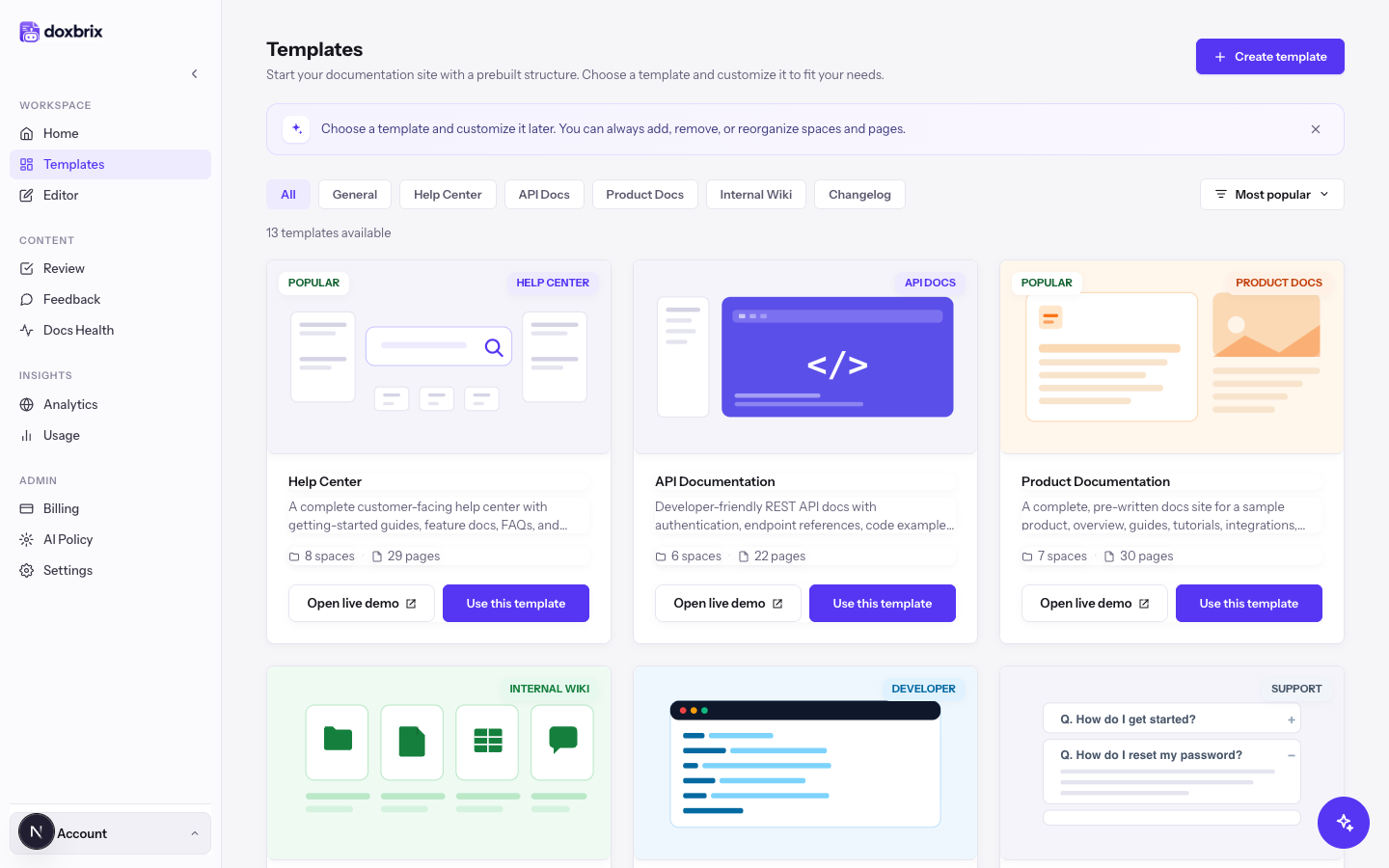
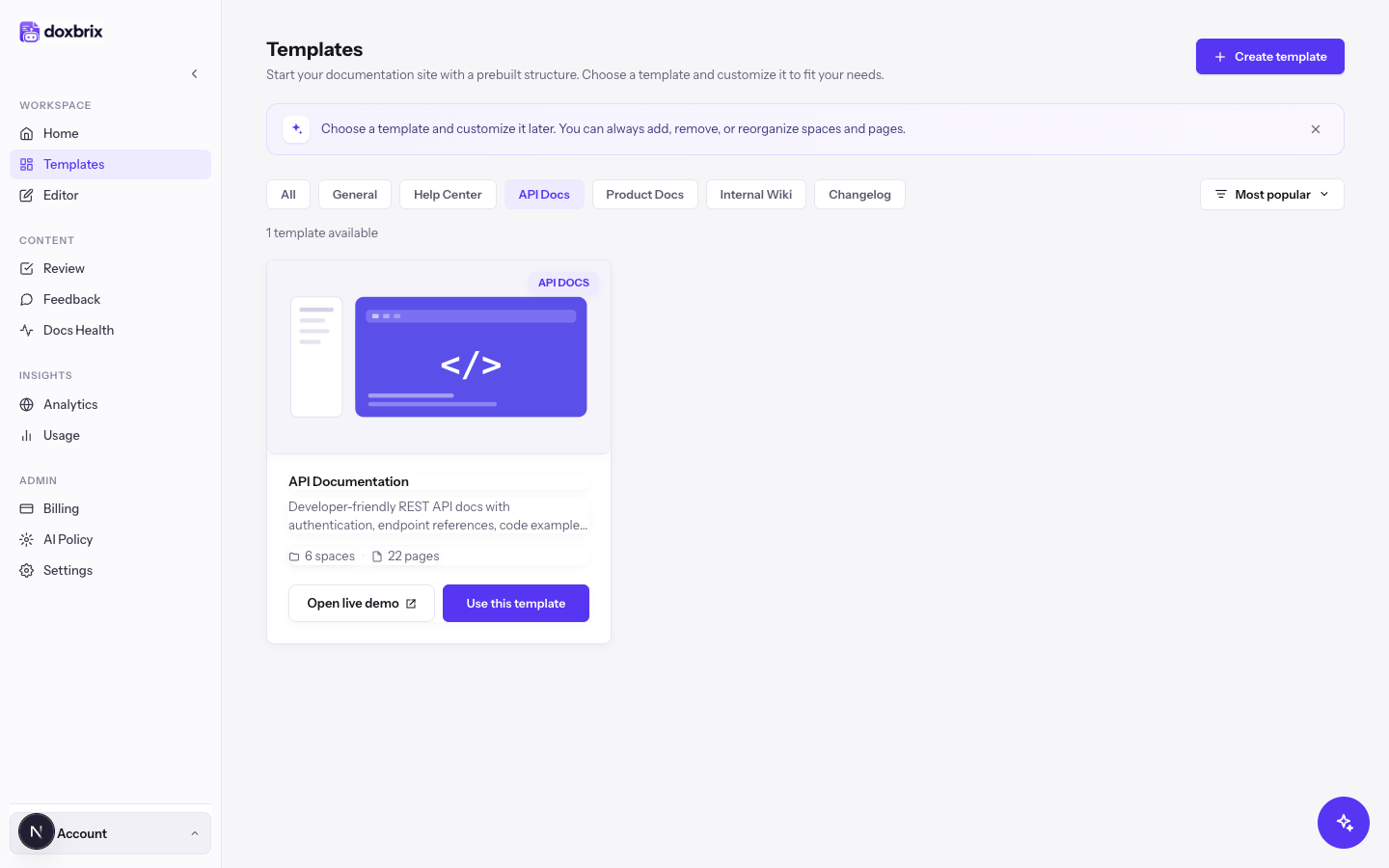
Select a category tab to narrow the list. The tabs are All, General, Help Center, API Docs, Product Docs, Internal Wiki, and Changelog. For example, select API Docs to show only the API Documentation template.
Templates in the Developer, Marketing, Education, and Support categories have no tab of their own. Find them under All.
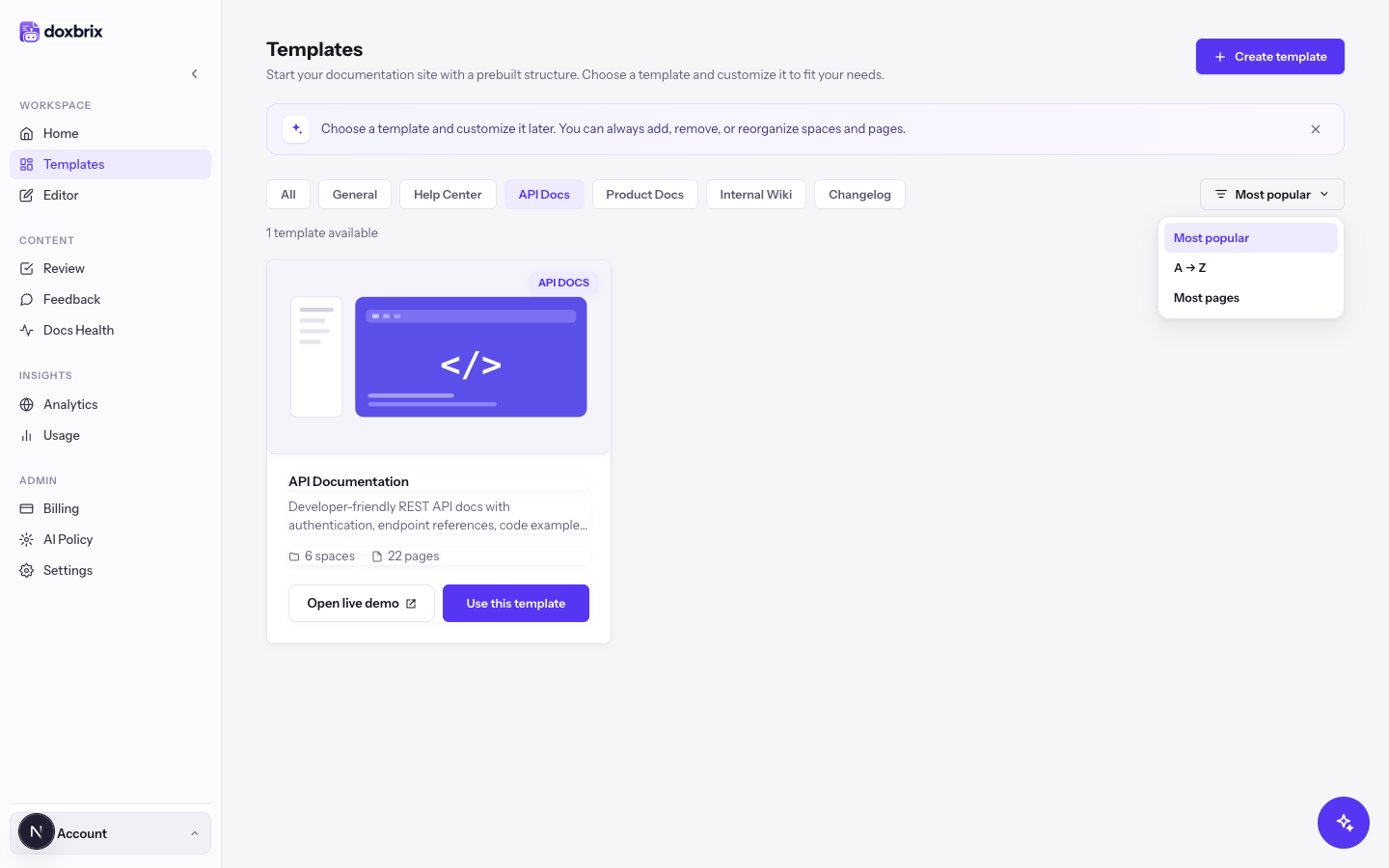
Open the sort menu, which shows Most popular by default, and choose an order:
- Most popular lists the most-used templates first.
- A → Z lists templates alphabetically.
- Most pages lists the templates with the most sample pages first.
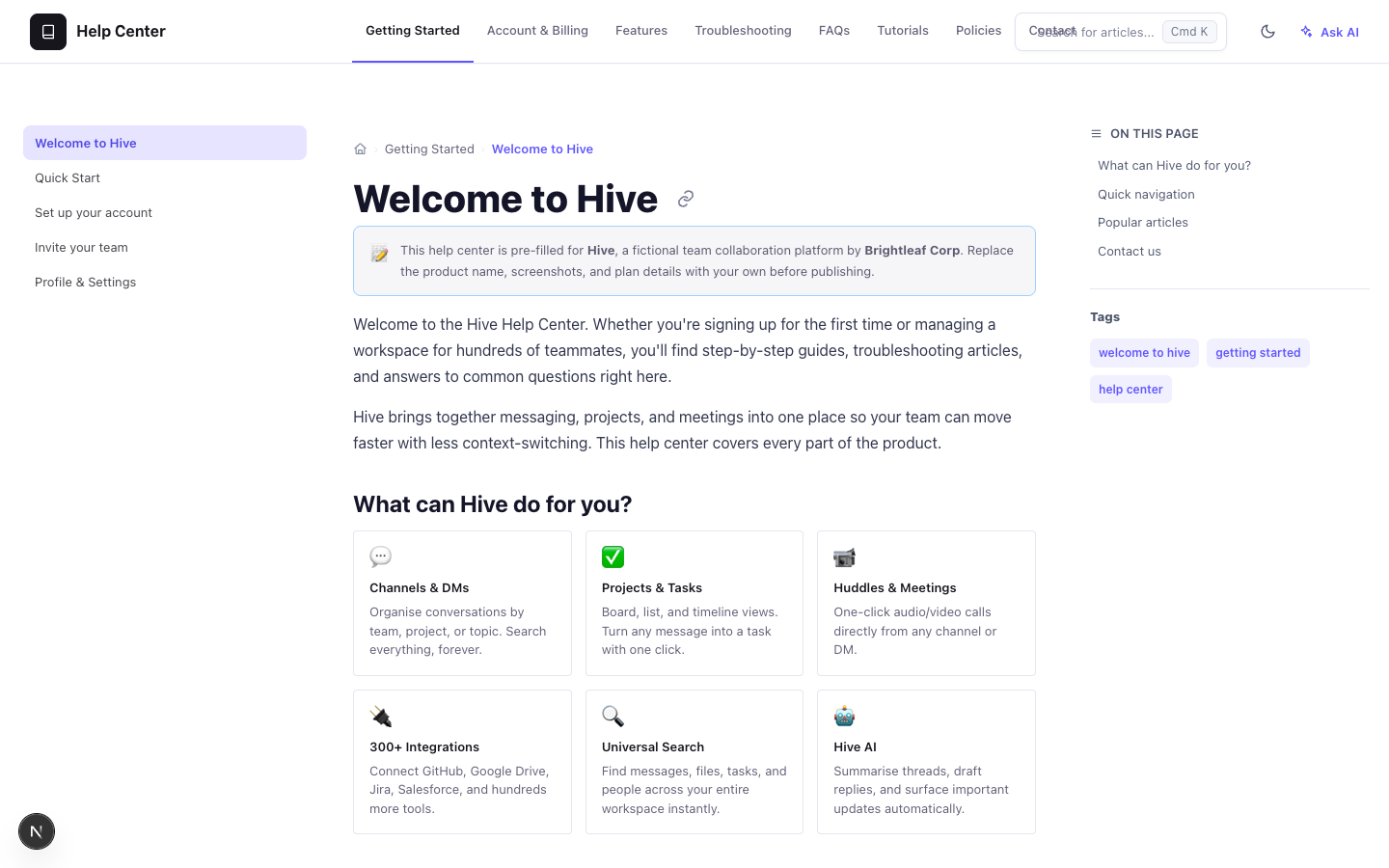
Select Open live demo on a template card, for example Help Center. The demo shows the template as a published reader site, with its top tabs, page list, and On this page outline. A Preview banner at the top reads "You're previewing the Help Center template." and includes a Use this template link.
Start a project from the template in one of these ways:
- Select Use this template on the gallery card or in the demo's Preview banner. The dashboard opens the Create new project wizard with that template chosen.
- On the dashboard, select New project, then Create new docs. The wizard opens on the Choose a template step.
On the Choose a template step, type in the Search templates… box to filter the list. For example, type help to show only Help Center.
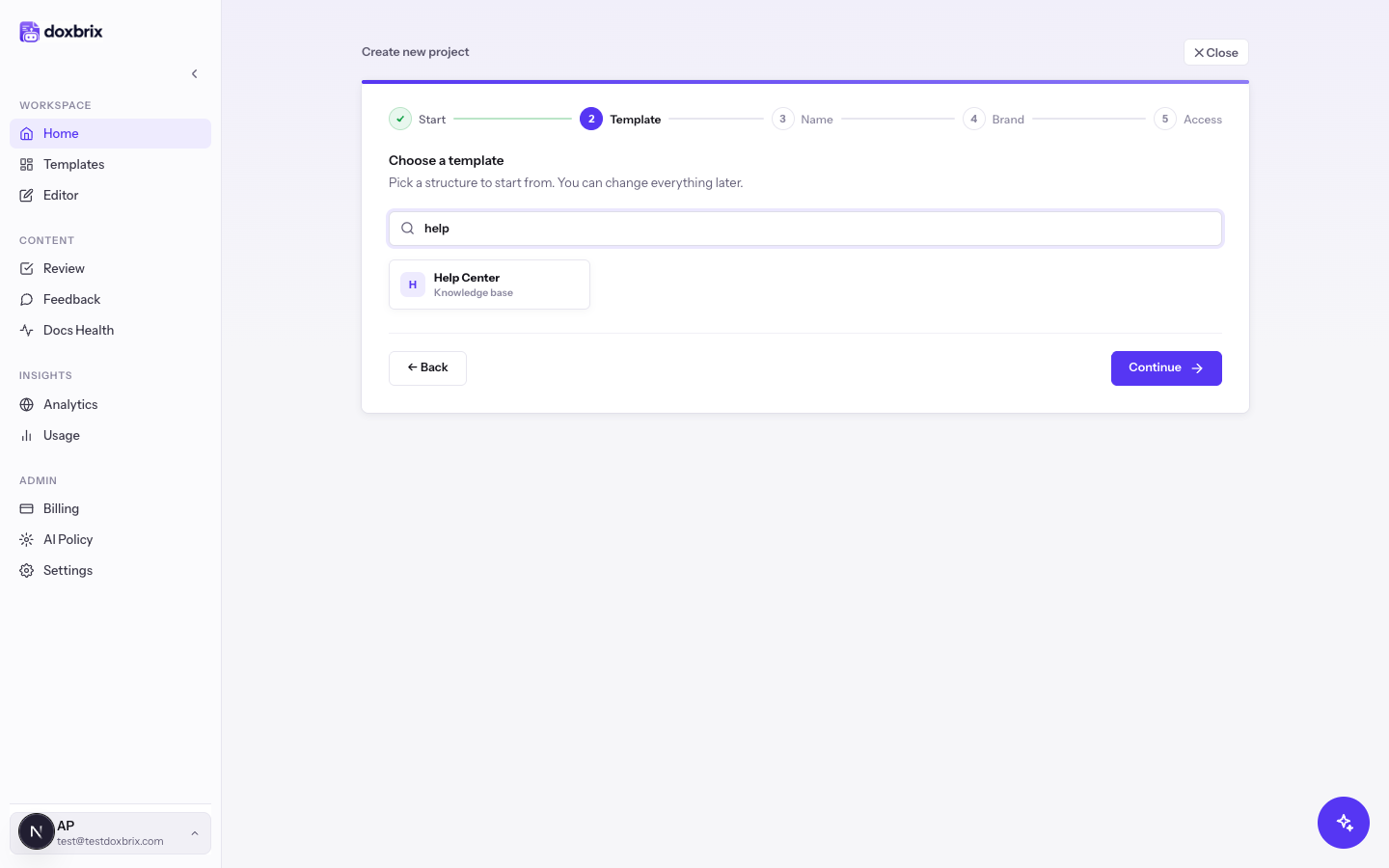
Select the template card, then select Continue. The Name your project step opens, and the stepper marks Start and Template as complete. Enter a Project name, such as Acme Help Center. The Icon and Description fields are optional.
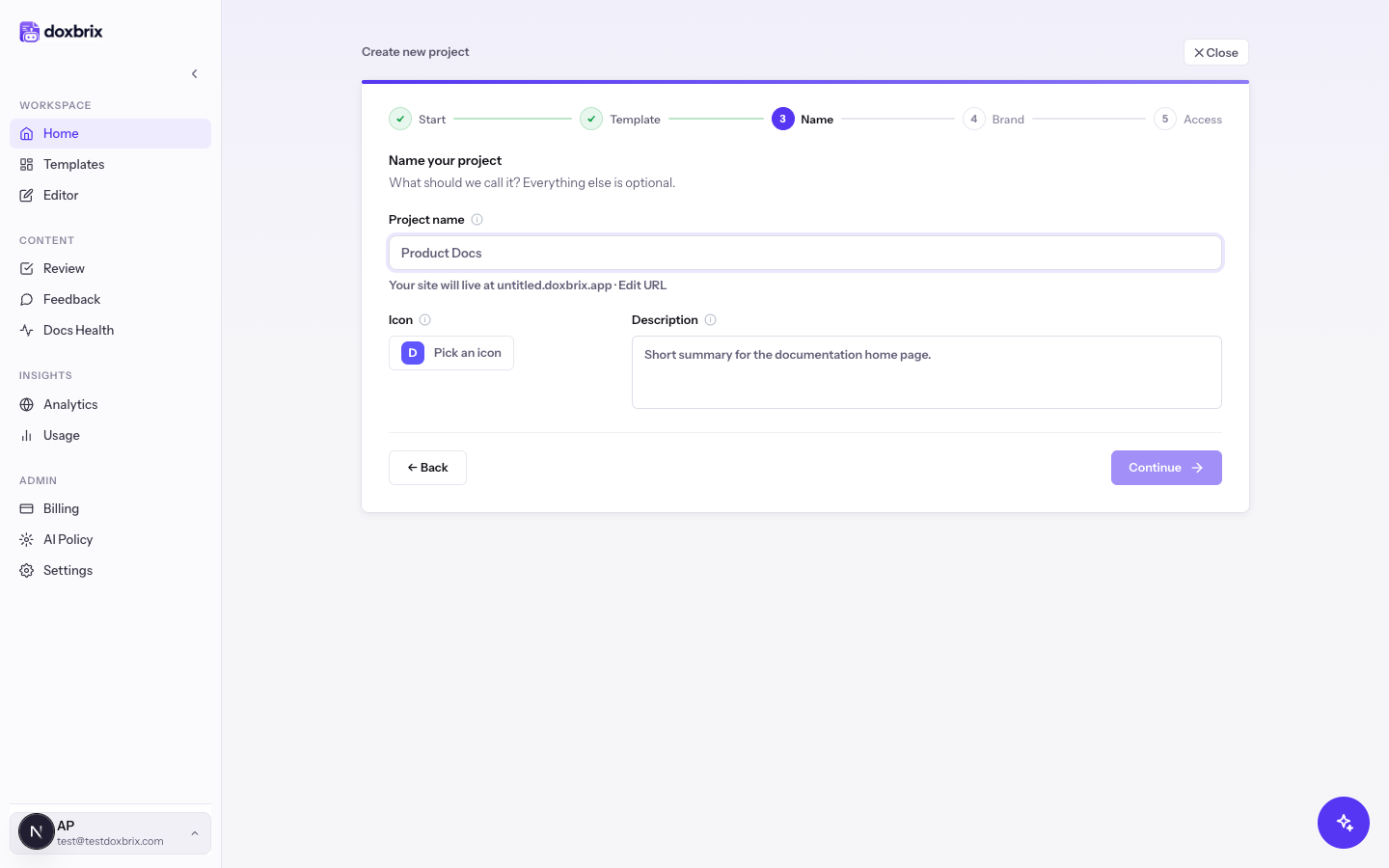
Select Continue to move through the Brand & style and Access & editor steps, then select Create project. For details about the brand, access, and editor choices, see Create a project.
Verify
After you select Create project, the editor opens on your new project. The page tree on the left shows the spaces and sample pages from the template. Open a page and confirm that it contains the template's sample content, ready for you to replace.
Choose a page template
When you add a page to an existing project, Doxbrix asks you to Choose a template for that page. The dialog says: "Pick a starting point for your new page. You can change everything after the page is created."
| Page template | Starting content |
|---|---|
| Blank | An empty page. |
| Guide | A step-by-step walkthrough with prerequisites and next steps. |
| API reference | Endpoint documentation with parameters, responses, and examples. The page is added as an API item in the navigation. |
| FAQ | A question-and-answer accordion for common questions. |
| PDF document | Upload a PDF. It renders as-is and stays searchable. Shown where PDF upload is available. |
To use a page template:
- In the editor's left pane, select New page, group, or space and choose to add a page.
- In Choose a template, select a template card.
- Select Create page, or double-click the card. For PDF document, the button reads Choose PDF and asks you for the file.
Press Enter to confirm the selected card, or Escape to cancel. Blank is always available; a project can limit which of the other page templates appear.