
Import a Word, Markdown or PDF file into a page
Convert .docx, .pdf, .html, .htm, .md, .mdx or .txt files into editable blocks, or upload a PDF as its own page.
You can turn an existing file into Doxbrix content without retyping it. This guide shows the two ways to bring a file into the editor: convert it into editable blocks on a page, or upload a PDF that renders as its own page.
| You want to… | Use | Result |
|---|---|---|
| Edit the content in Doxbrix | Import document | The file becomes editable blocks on the current page |
| Keep a PDF exactly as it looks | Upload PDF | A new PDF page that renders the file as-is, with its text indexed for Ask AI |
To move a whole documentation site or many files at once, see Import existing documentation instead.
Before you begin
- Open a project in the editor with a role that can edit pages. See Roles and permissions.
- Have the file ready on your computer. Import document accepts
.docx,.pdf,.html,.htm,.md,.mdxand.txtfiles up to 20 MB. - For Upload PDF, note that processing a PDF uses AI tokens from your workspace balance. The dialog shows an estimate before processing starts. See Track AI usage.
Convert a file into blocks
Open an existing page, or add a new one from the Content tree. On an empty page, the editor shows Start writing with two choices: Add your first block and Import document.
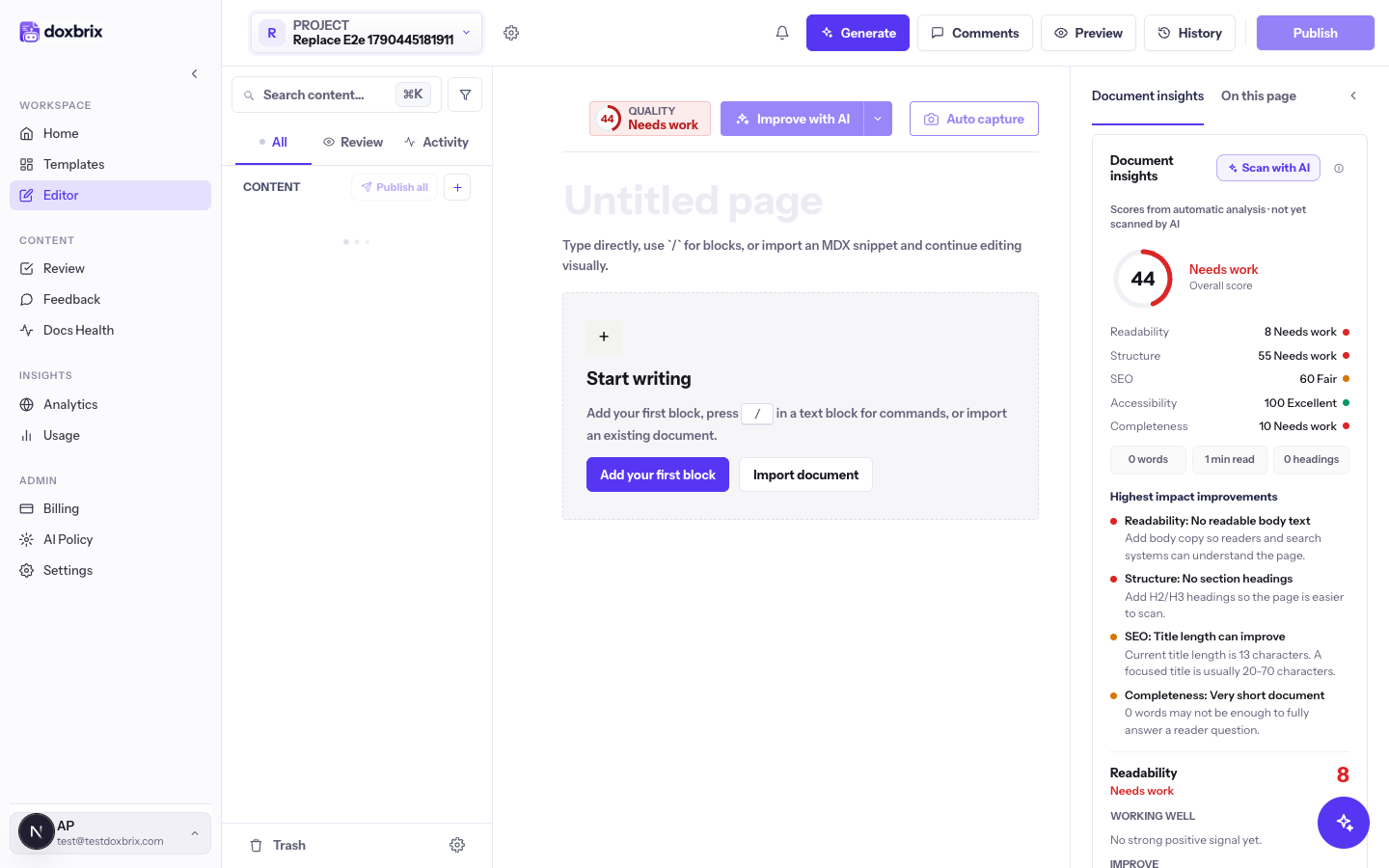
On an empty page, select Import document. On a page that already has content, type /doc in a block and select Import Document from the block palette.
The Import document dialog opens with the text "Upload a file to convert it to documentation blocks." A badge next to it shows where the blocks go: Append to page, Insert at cursor, Insert after current block or Replace current block. The dialog lists the supported formats: Word, PDF, HTML, Markdown, MDX and Plain text.
Select Choose file, or drag the file onto the area labeled Click to browse or drag & drop. The hint below it reads DOCX · PDF · HTML · Markdown · MDX · TXT · Max 20 MB.
The dialog shows Converting followed by your file name while Doxbrix converts the file.
When conversion finishes, the dialog reports the file name and how many blocks it created, for example setup-guide.docx imported as 14 blocks. Select Done.
The new blocks appear on the page. Headings, paragraphs, lists and other structure come from the source file, and you can edit every block like any other content.
Read through the page and fix anything the conversion could not map, such as complex tables or layout from the original file. To check structure and readability, open the page's quality score. See Score and improve a page with AI.
/import in a block and select Import MDX, which parses a Markdown snippet into blocks.Upload a PDF as a page
Use this path when readers need the original PDF layout, such as a datasheet or a signed specification.
In the Content tree, select New page, group, or space next to CONTENT. The menu includes Upload PDF.
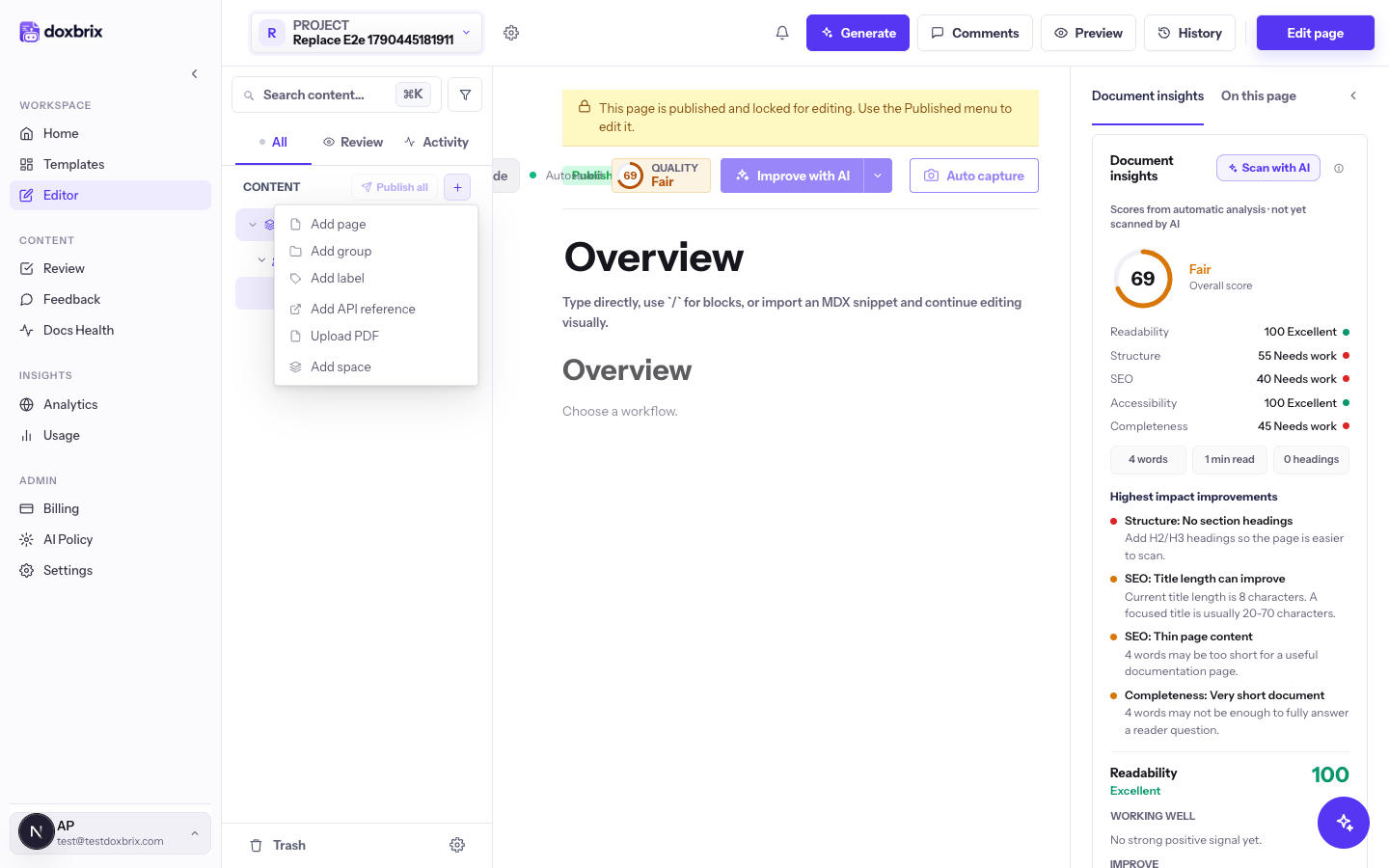
Select Upload PDF. The Upload a PDF dialog explains that the PDF renders as-is on the page and that Doxbrix extracts its text so the Ask AI assistant can answer questions about it. Select Choose File and pick your PDF.
Under What should we process?, Text only is selected by default.
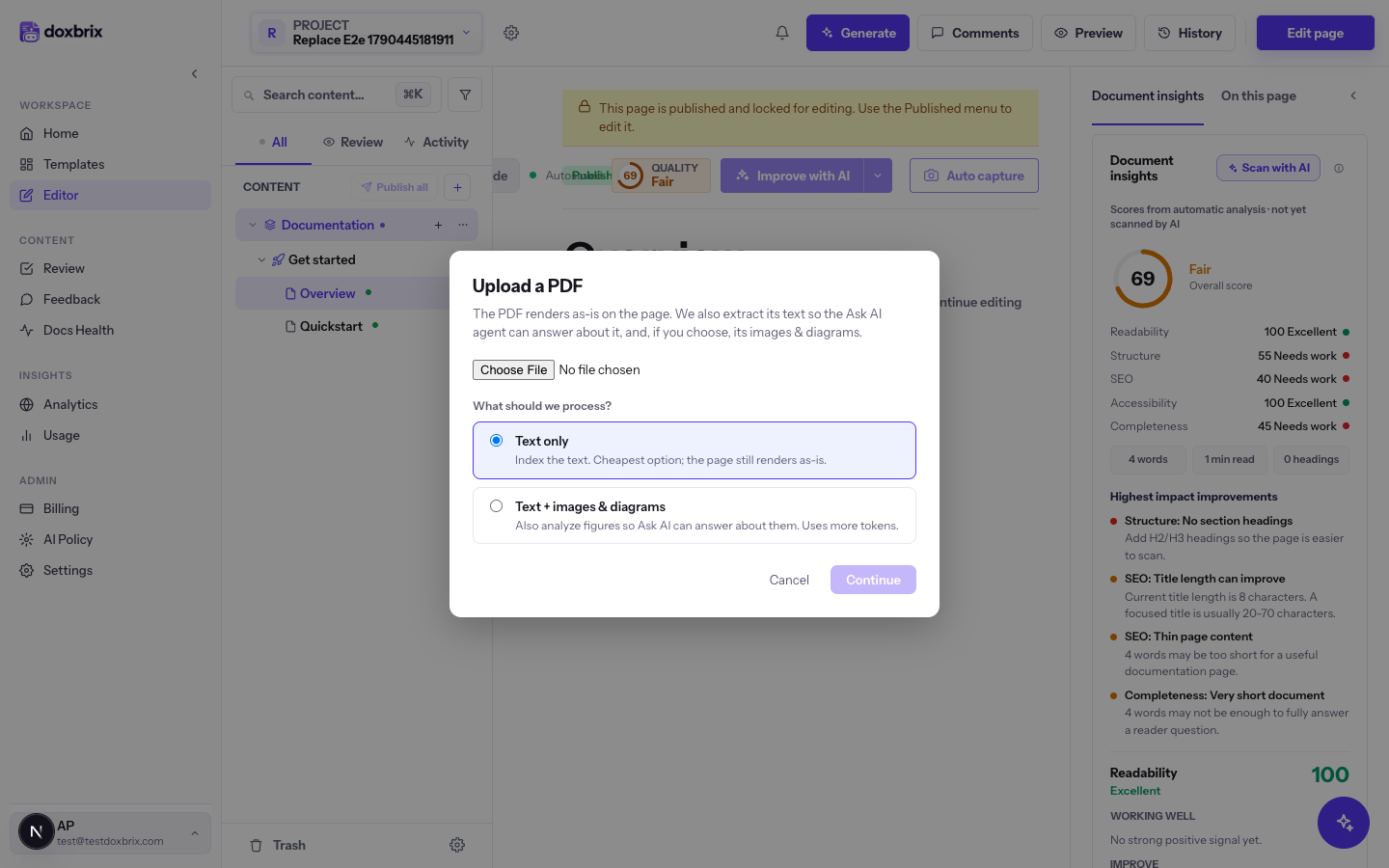
Choose one option:
- Text only indexes the text. It is the cheapest option, and the page still renders as-is.
- Text + images & diagrams also analyzes figures so Ask AI can answer questions about them. It uses more tokens.
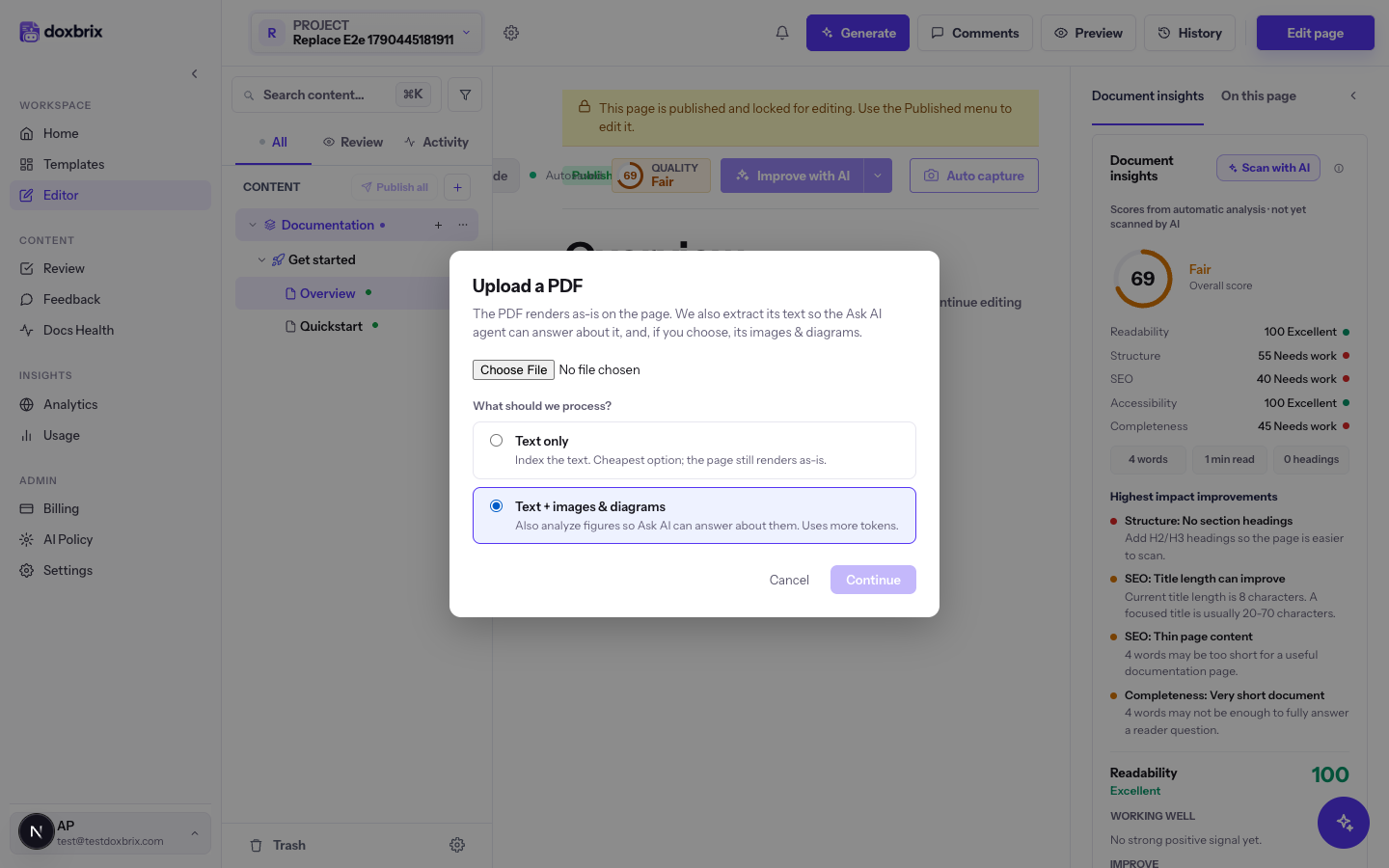
Select Continue. Doxbrix uploads the file, shows Uploading…, and then displays the page count, your chosen option and an Estimated cost in tokens with your current balance. The estimate is not a charge: you pay for the tokens actually used. If you want a different option, select Back.
Select Start processing. A progress bar tracks extraction. You can close the dialog; processing continues in the background, and progress appears on the page and next to it in the navigation.
When processing ends, the dialog shows ✓ Processing complete with the tokens actually consumed compared with the estimate.
Verify
- For a converted file, the page shows the new blocks and the page outline under On this page lists the imported headings.
- For a PDF, the new page appears in the Content tree and renders the PDF. After processing, readers can ask Ask AI about its content once you publish. See Set up the Ask AI assistant.